Account Settings (v1.1)
On the Account Settings page, you can view your account information, subscription plan, and available points. You can also set the default 3D application for AI Studio integration and the default directory for storing AI-generated content.
Login
Click the Account Information area in the bottom-left corner of AI Studio to sign in with your Reallusion account.
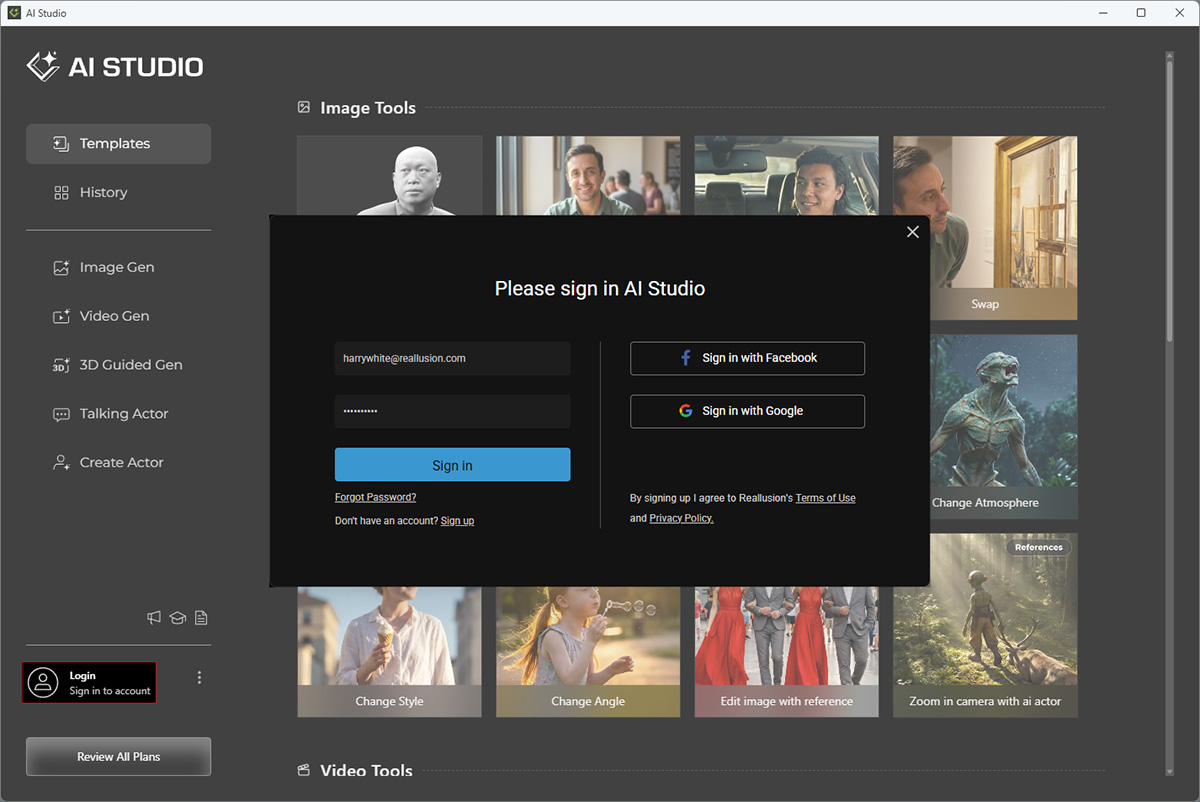
After signing in, click the ⋮ button and select Account Settings to open the Account Settings page.
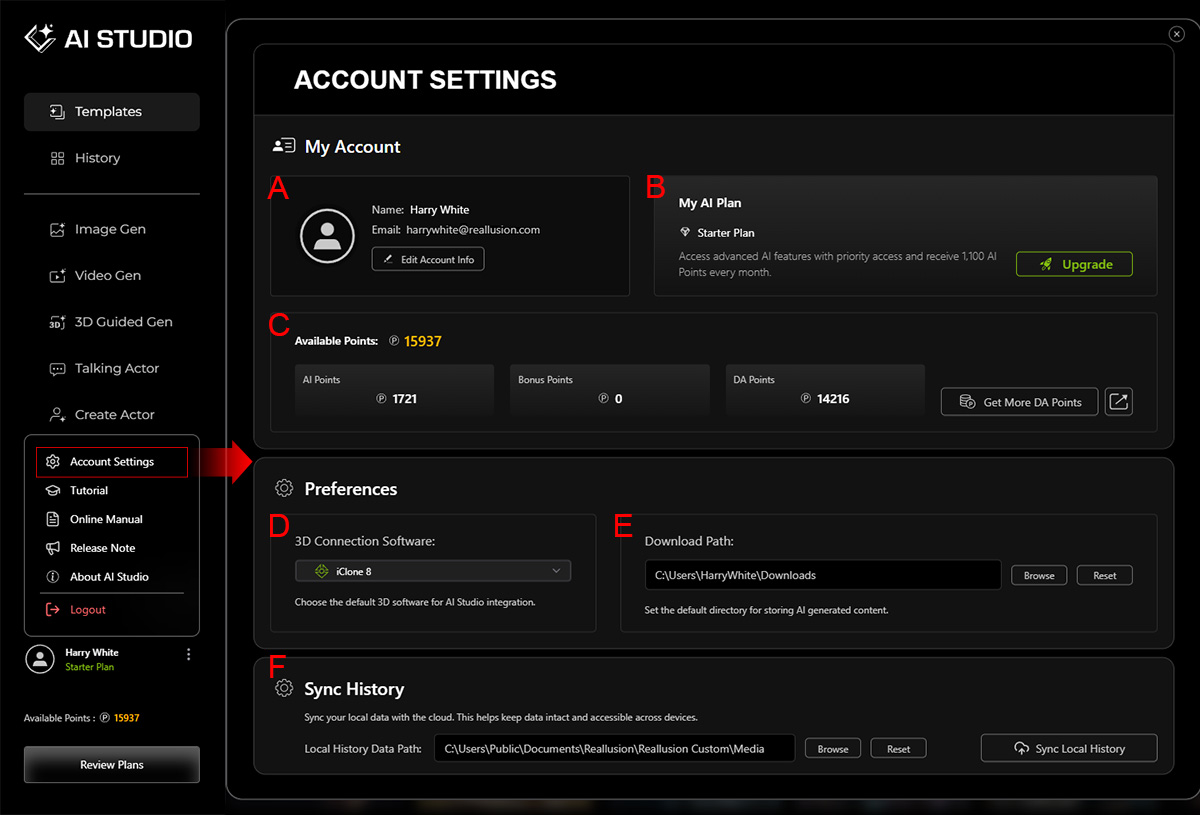
A. My Account
Displays your basic account information, including your account thumbnail, nickname, and registered email address. Click Edit Account Info to update your account details on the Reallusion website.
B. My AI Plan
Displays your current AI plan and its available AI point allowance for content generation. The available AI plans are as follows:
| AI Plan | Description | Allowance |
Free Plan | Get started for free. | 500 AI Points. |
Starter Plan | Access advanced AI features with priority access. | 1,100 AI Points per month. |
Standard Plan | Unlock unrestricted commercial use. | 3,500 AI Points per month. |
Professional Plan | Get the best value for unrestricted commercial use. | 9,500 AI Points per month. |
C. Available Points
Displays a detailed breakdown of the available AI Points, Bonus Points, and DA Points for the current account. Click Points Comparison to learn more about the Reallusion points system.
| AI Points | Bonus Points | DA Points | |
How to Get | Included with an AI Cloud subscription. | Earned through Reallusion promotional events. | Purchased in 1,000, 5,000, or 10,000 DA Point packages. |
Expiration | Subscription AI Points reset monthly.
| Expire after a specified period. | Never expire. |
Use For |
|
|
|
D. Preferences - 3D Connection Software
Select the default 3D application for AI Studio integration from the drop-down list.
Available options are iClone 8, Character Creator 5, and Character Creator 4.
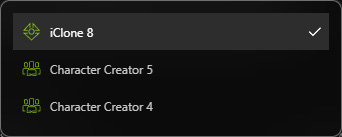
When you use the 3D to Image, 3D to Video, and Create Actor workflows, AI Studio launches the selected application to continue the workflow in the 3D Workspace.
E. Preferences - Download Path
Set the default directory for storing AI-generated content.
By default, AI-generated content is saved to the Windows Downloads folder:
C:\Users\[YourUsername]\Downloads
- Click the path field or Browse to select a different folder or drive for saving AI-generated media and source files downloaded using the Download Media button in the AI Render View or the Download Media and Download Media & Source commands from the ... menu of a History item.
- Click Reset to restore the default download path.
F. Sync History
If you are an existing AI Studio user updating from an older version, the History panel is empty when you first launch AI Studio.
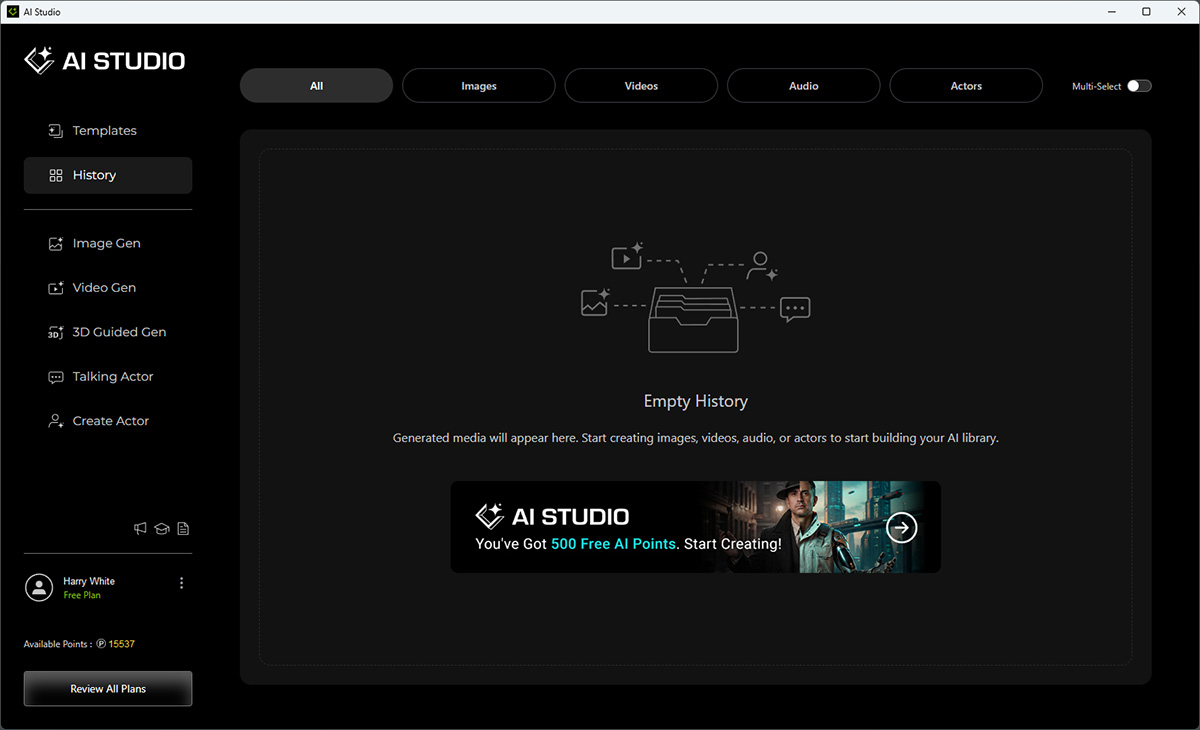
A dialog prompts you to import your local data and back it up to the cloud, allowing you to access your assets across devices.
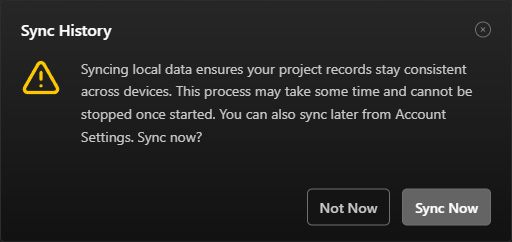
Click Not Now to skip the sync and perform it later from this page.
Syncing helps keep your AI assets backed up, accessible across devices under the same account, and compatible with the Rework feature when creating new AI-generated content with the latest AI services.
- Click the path field or Browse to specify the folder containing your local History files.
- Click Reset to restore the default sync path:
C:\Users\Public\Documents\Reallusion\Reallusion Custom\Media - Click Sync Local History to start the synchronization process. The system searches for local History files associated with the email address of the currently logged-in account and uploads any unsynced files to the cloud.
* This feature syncs only local History files that have not been previously synchronized with the cloud.
