Using Palette Sampler
After filling individual Color ID regions with major textile types (fabric and pattern), you can then choose to adjust color styling and palettes. FashionGen offers two tools for this:
- Changing the base color tint of a single layer in the Texture Editor.
- Using the Palette Sampler to extract colors from an image and instantly sync them across all fabric layers.
Follow the steps below to use the Palette Sampler for automatic color palette extraction for different colorways.
- In the Layer Manager, ensure the clothing is assigned individual Color IDs, then multi-select the layers you want to unify in color.
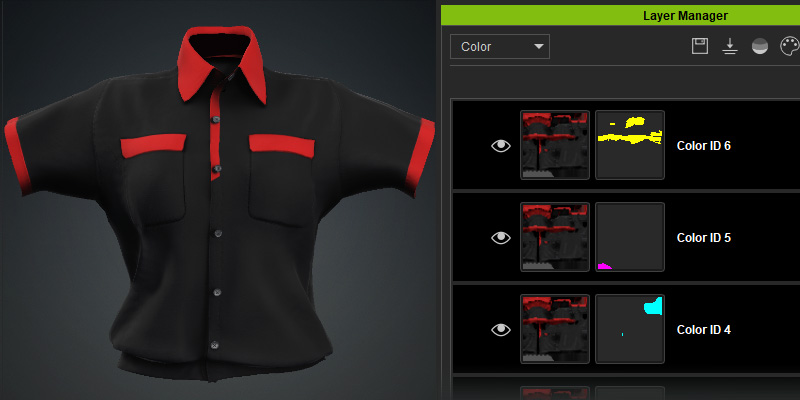
- Click the Palette Sampler button in the Layer Manager toolbar.

- The Palette Sampler panel will open, displaying the selected layers.
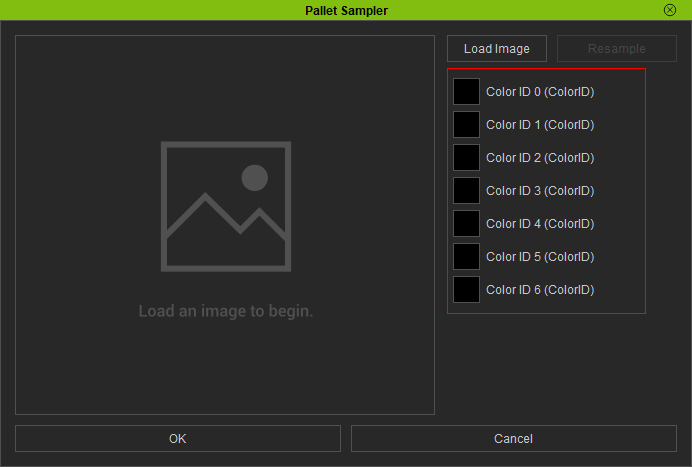
- Click Load Image to browse a reference image (supported formats: *.png, *.jpg, .jpeg, .bmp).
The image will display in the panel with sampler anchors centered.
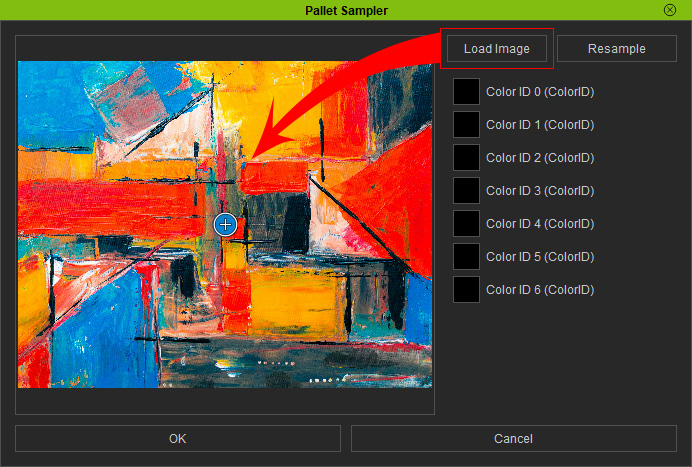
- Click Resample near the upper-right corner to explore different color variations.
The sampler anchors automatically reposition and update the colors of the clothing in the viewport.
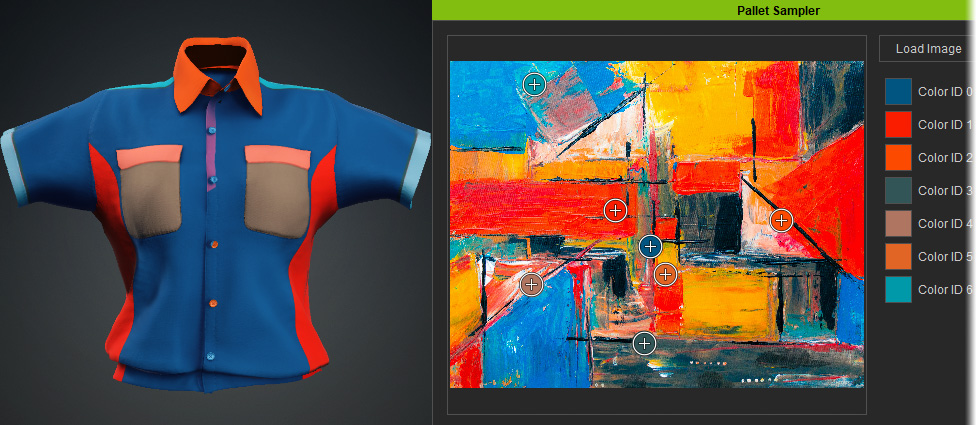
- Keep Resample to iterate through variations and arrive at the color scheme that you desire.
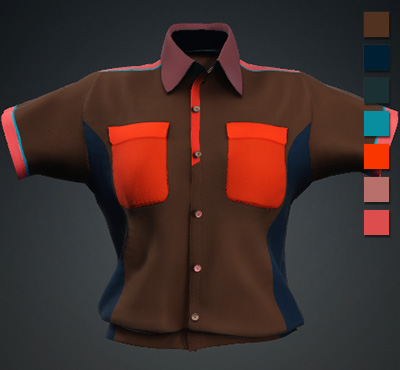
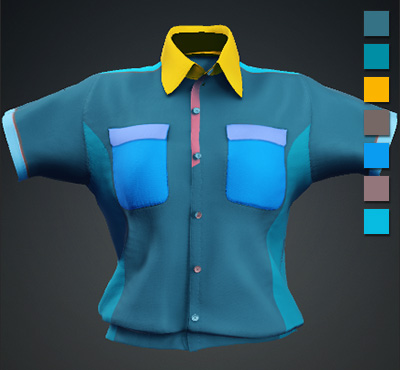
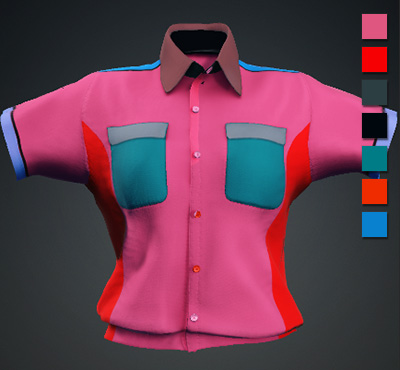
- Use the layer name or Color ID map as a guide, then drag a sampler anchor on the reference image to adjust a specific color.
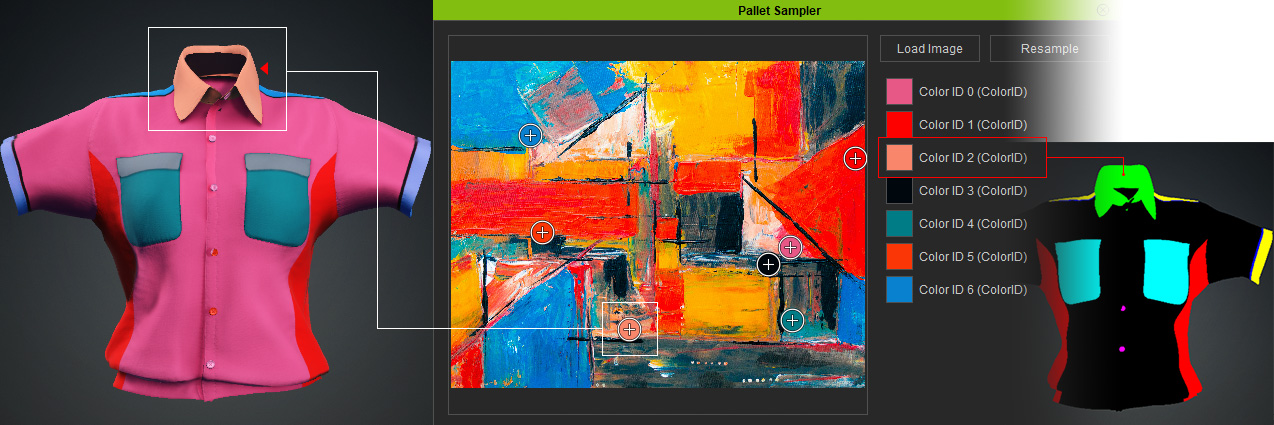
- When satisfied with the colorway, click OK to close the panel.
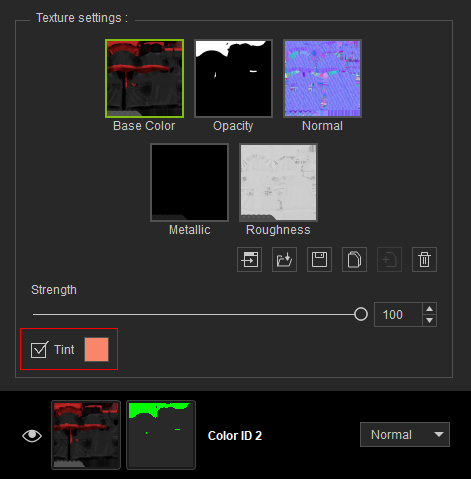
Edits in the Palette Sampler panel will enable the layer Tint function in the Texture Editor.
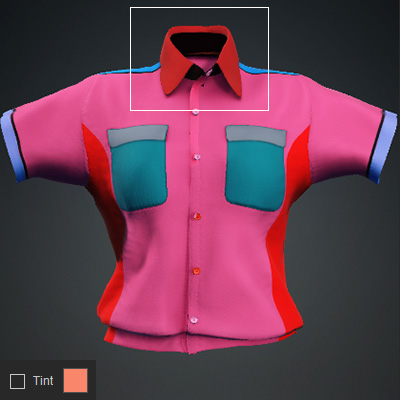
You can disable the Tint option to restore the original base texture.
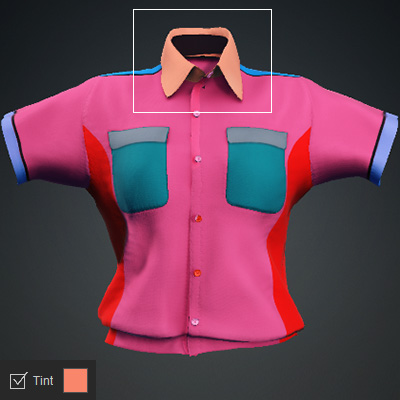
Tint = On
Tint = Off
