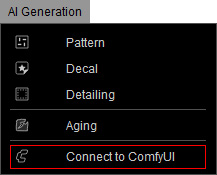
Connecting to ComfyUI
A connection with ComfyUI is required for the AI to receive and process the prompts used for texture generation. Ensure that ComfyUI has been installed via Reallusion Hub before proceeding.
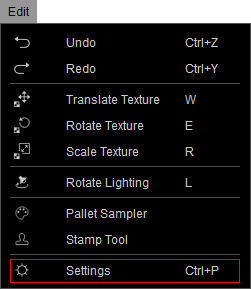
To configure the ComfyUI connection, open the Settings panel from the main menu (Edit > Settings), or click the  Settings button on the toolbar.
Switch to the ComfyUI tab, and select the appropriate method based on the installation location of the ComfyUI program.
You can select either local or on a remote computer within your network.
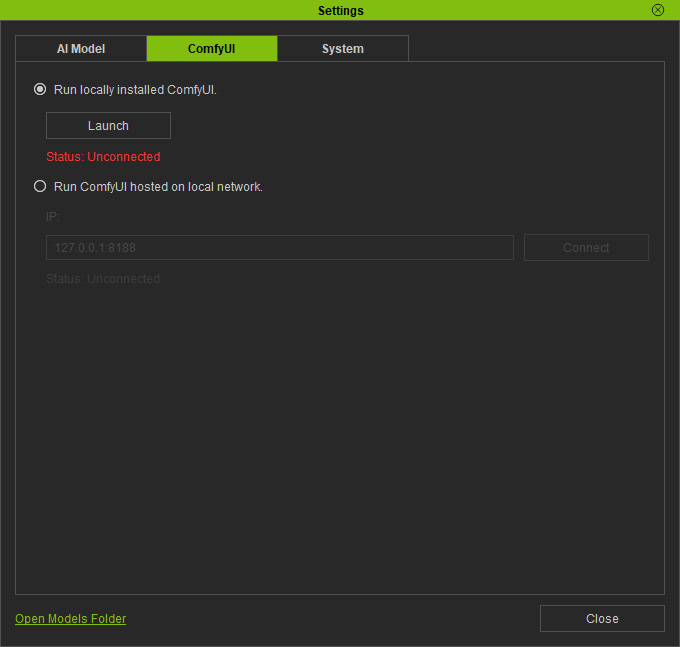
- Run locally installed ComfyUI: If ComfyUI is installed on your local computer, select this connection option.
- Click Launch to start ComfyUI and establish the connection. The initial connection may take longer (approximately 30 seconds), while subsequent connections will be faster. The connection status is displayed below the button.
- Click Stop to end the connection.
- Run ComfyUI hosted on local network: If ComfyUI is installed on a network computer, select this connection option and input the IP address.
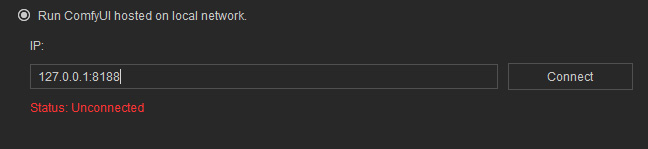
- Click Connect to establish the connection. The initial connection may take longer (approximately 30 seconds), while subsequent connections will be faster. The connection status is displayed below the button.
- Click Disconnect to end the connection.
After completing the connection configuration, you can execute AI Generation > Connect to ComfyUI from the main menu, or click the  Connect to ComfyUI button on the AI Gen toolbar to toggle the connection with ComfyUI.