Turning Spring Effects On/Off
iClone spring effects can be toggled on or off for rigged characters and props. When enabled, a spring effect drives the bones under its control with physics simulation. When disabled, the same bones can be manually keyframed with IK and FK controls.
Turning Spring Effects On/Off
-
Load a character or prop with spring effects applied onto specific bones (in this
case, the character has been given spring effects on the ear and the tail
bones).
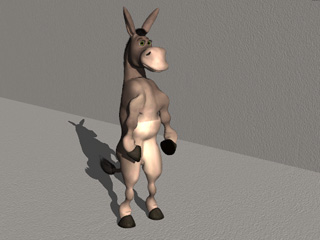
-
Animate the character by applying motions; observe how the spring
effect automatically triggers the bones to bounce.
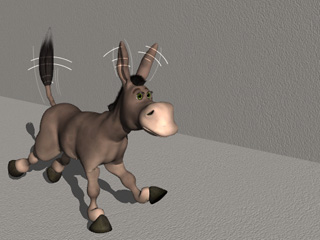
Bones with Auto Spring Effects: The ears and the tail.
- Make sure the character is selected and go to a specific time frame when you want to turn off the spring effect.
-
In the Spring section of the Modify panel (Shortcut: F6), select the bones
for which you want to turn the spring effects off via the Select Spring drop-down list.
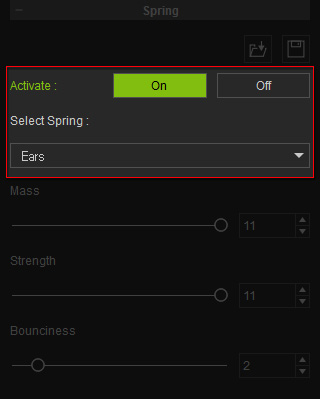
-
Press down the Off button.
- Go to another time frame, click the On button to turn the spring effect on again.
-
Play back to view the result of the different spring effect settings.
 Note:
Note:-
The Spring keys can be found in the
character or prop's Spring track in the
Timeline.

- Please refer to the Spring Track section for more information.
-
The Spring keys can be found in the
character or prop's Spring track in the
Timeline.
Manually Animating Bones with Spring Effects Off
When the spring effect of a bone string is turned off, you are able to manually adjust the bone via IK or FK methods to create key-frame animation for it.
- Select the character or the prop (with spring effects) and go to the time frame when the spring effect is off.
-
Launch the Edit Motion Layer (for Actors) or the Edit Animation Layer (for Props) panels.
- Standard, Humanoid and Non-human characters: Modify panel >> Animation tab >> Edit Motion Layer button.
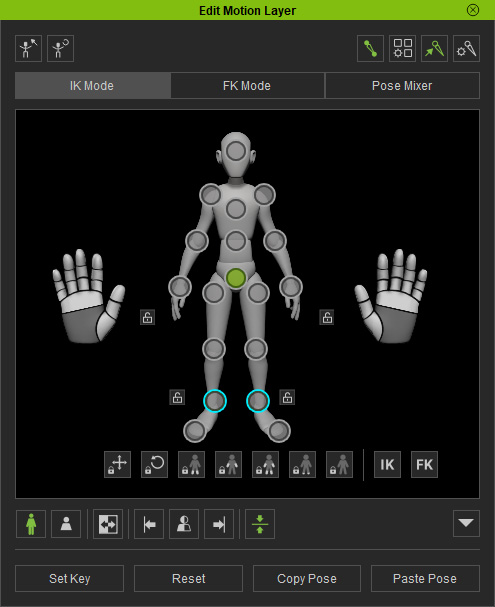
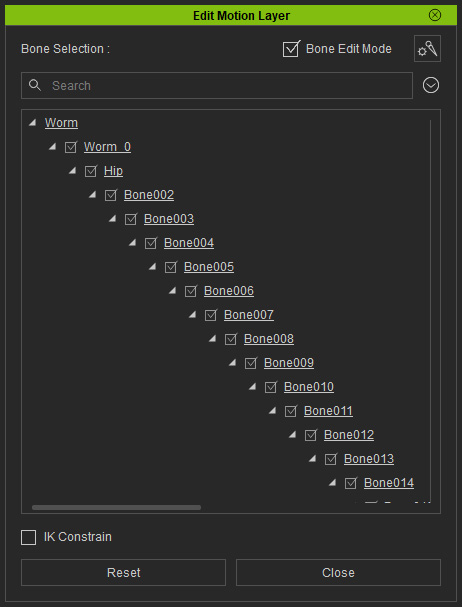
For Standard Character
For Humanoid
- Prop: Modify panel >> Animation tab >> Edit Animation Layer button.
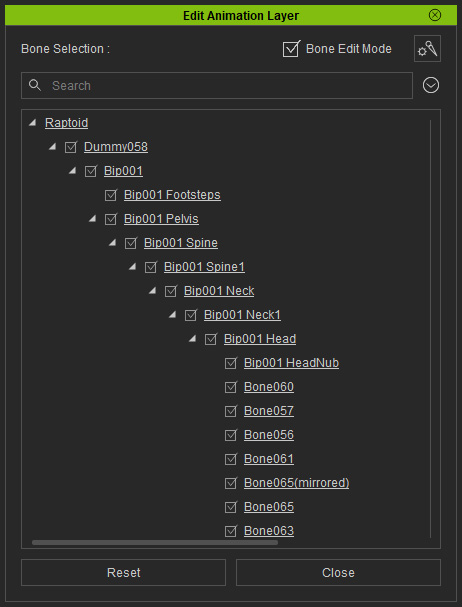
- Standard, Humanoid and Non-human characters: Modify panel >> Animation tab >> Edit Motion Layer button.
-
Manually
modify the bones via the IK or FK methods within the time during which the spring effects are off.
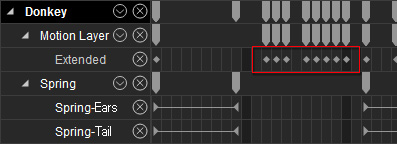
The modification results will be kept in layering keys on the Motion Layer (for Actors) or Animation Layer (for Props) track.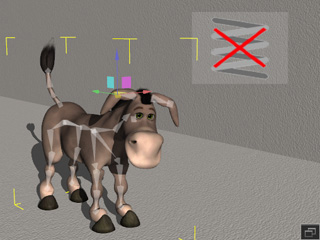
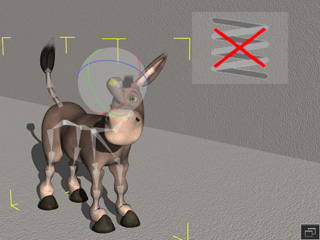
IK method.
FK method.
-
Play back to view the result.
