Facial Expression Tracks
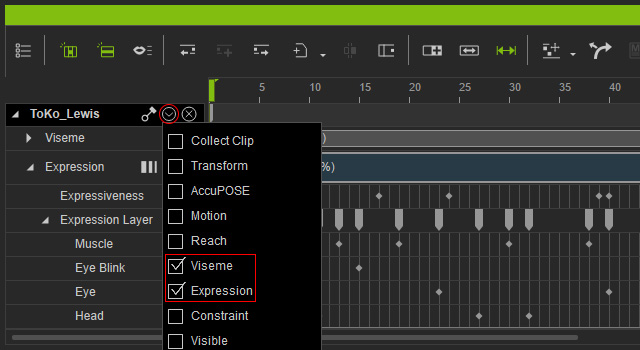
Click the down arrow button of the actor track to open the Viseme (Shortcut: Z), Expression (Shortcut: E), and Facial Layer tracks on the timeline.
Please refer to the Timeline Shortcuts for information about all shortcuts available in the Timeline.
Viseme Track (Shortcut: V)
The Viseme Track stores the lip-sync data of the character that moves the mouth. Go to the Modify panel >> Animation tab and click the Create Script button.
- Click the Record Voice, Wave File and TTS buttons to record your voice, to import a wave file or to utilize TTS to create the lip-sync data for the actor.
- Click the CrazyTalk Script button to import a script or motion clip you created from CrazyTalk. (This fills both Viseme and Expression tracks)
The Data will be converted into clips in the Viseme Track and can then have its position adjusted to have your avatars speak at different times.
Expression Track (Shortcut: Z)
Facial Clips will be produced in the Expression Track when:
- You apply a Facial Animation template from the Content Manager.
- You click the CrazyTalk Script button to import a script or motion clip created from CrazyTalk.
- You have recorded a facial movement in the Face Puppet panel.
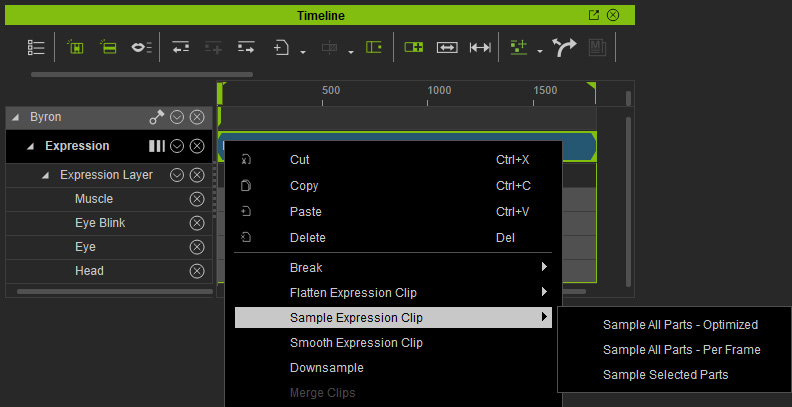
Note: You can sample expression keys from expression clips by using the right-click context menu.