Breaking Clips
In iClone, the motion clip can be cut with or without flattening the remaining animation.
Click the drop-down arrow on the Timeline toolbar to select one of
these two breaking methods.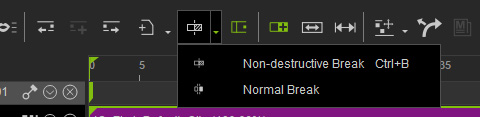
You can also right-click on the desired clip to execute break commands from the context menu.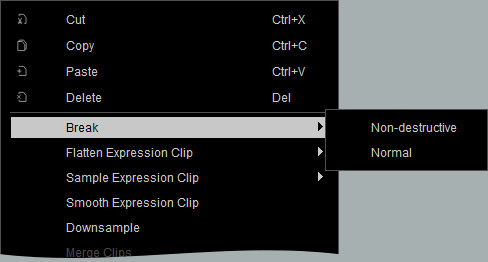
Non-destructive breaking method
- Deploy a character and apply a motion clip.
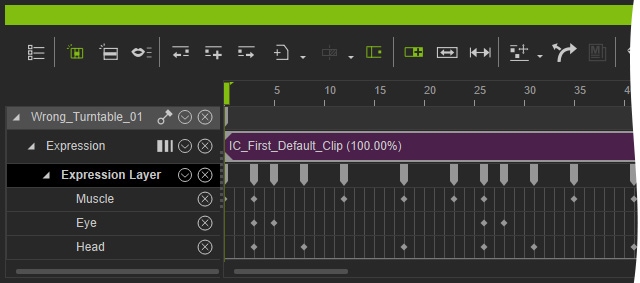
- Make sure the clip is selected and move to the desired timeframe
to place the break.
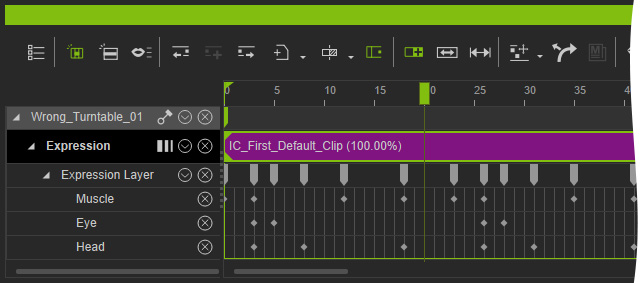
- Execute the Non-destructive Break command (Ctrl + B) from the Timeline toolbar.
The clip will be cut into two pieces.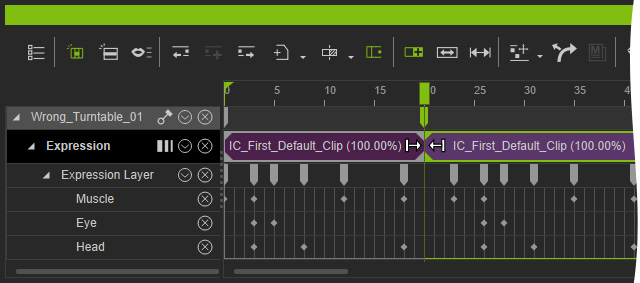
- Delete the unwanted piece.
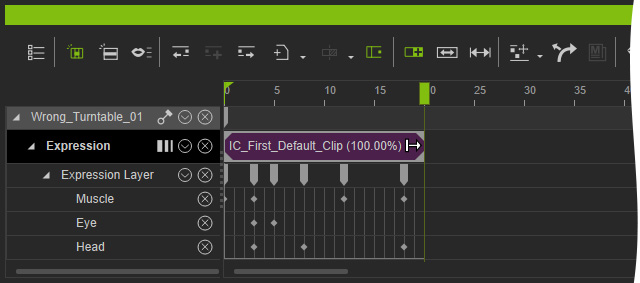
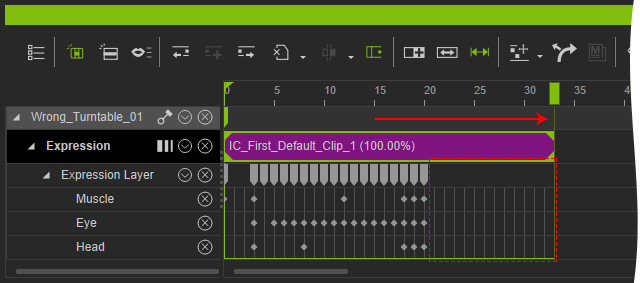
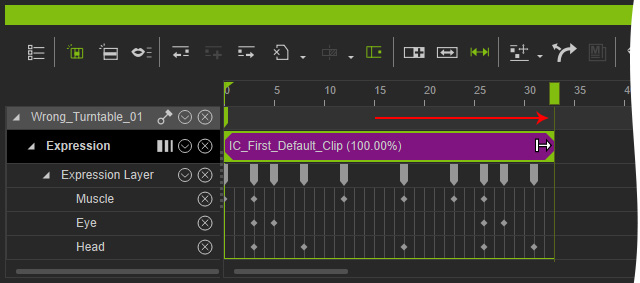
- The remaining clip will show an arrow at the end frame,
indicating that the cropped keys are preserved and deactivated.
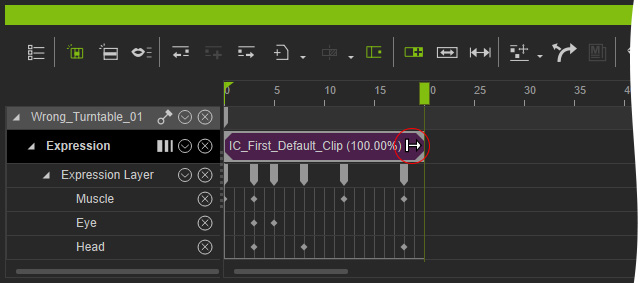
- Toggle the
Resize button and drag the end of the clip to
uncrop the trailing keys.
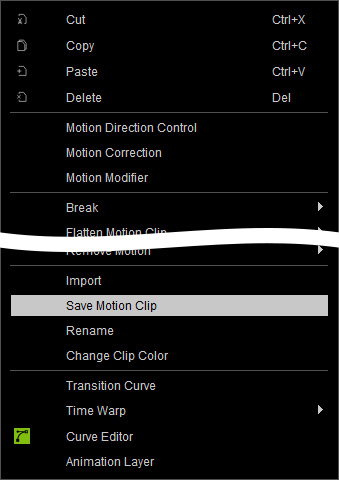
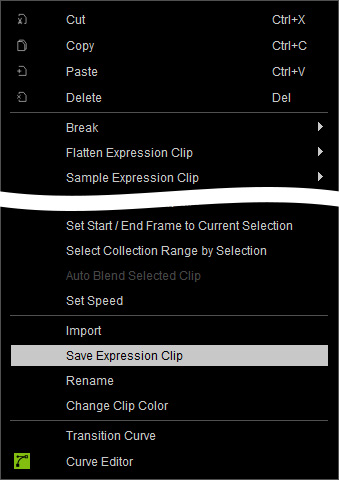
Key preservation with non-destructive break can only be stored via the right-click context menu. Other methods for saving, such as collecting the clip or using the Save button in the Content Manager will remove cropped data.
- Option 1: Save Motion Clip.
- Option 2: Save Expression Clip
Normal Break (Destructive break)
- Deploy a character and apply a motion clip.
- Make sure the clip is selected and move to the desired timeframe
to place the break.
- Execute the Normal Break command from the Timeline toolbar.
- The animation data of the clip will be flatten and sampled.
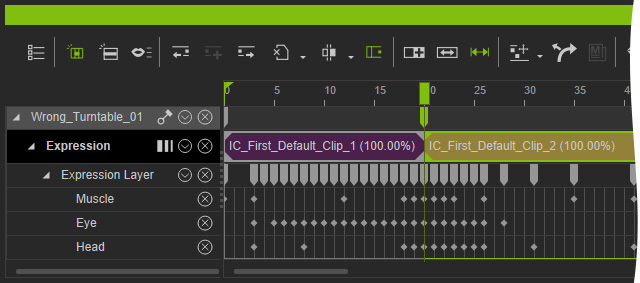
- Delete the unwanted clip.
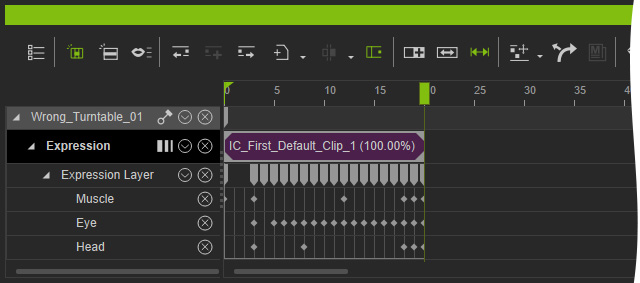
- Toggle the
Resize button and extend the tail of the clip
to reveal a lack of animation data.