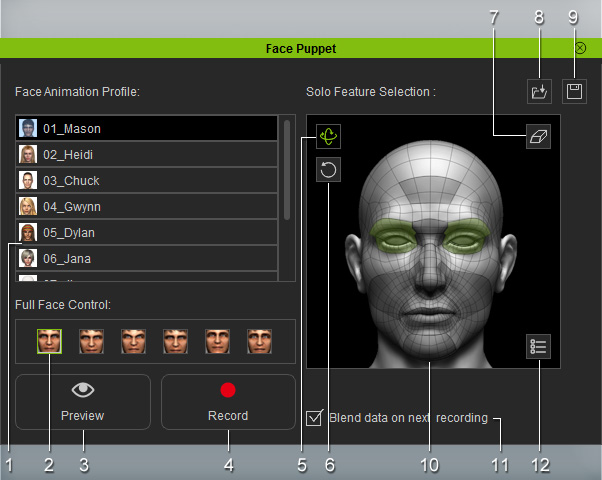
1. Face Animation Profile
Select one of the built-in profiles with a different personality from the list. Each profile contains various expressions.
2. Full Face Control
Select one of the expressions with pre-defined weight settings for various facial features.
3. Preview
Click this button and then press the Space bar to preview the expressions triggered by your input device (Mouse by default).
4. Record
Click this button and then press Space bar to start recording a motion clip. The recording will be added into the Avatar/Expression Track in Timeline.
5. Head Orientation
Select this to change the rotation of the head.
6. Head Tilting
Select this to change the tilting of the head.
7. Clear Selection
Deselect any highlighted features.
8. Open Profile
Click this button to load profiles.
9. Save Profile
Click this button to save profiles

Select to highlight any desired features to change. The changes will be converted into Avatar/Expression Track in Timeline.
11. Blend data on next recording
Activate this checkbox so that the new motions of the selected features are blended into the existing clip after recording.
Adjust the weight of a feature in detail when your input device moves (Mouse by default).