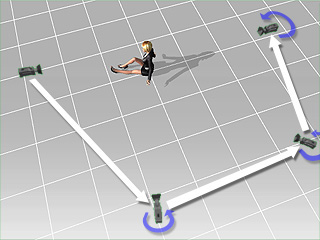
Since iClone interpolates between two keys (especially for the
Transform keys) in a
LINEAR algorithm so a camera's path may not be smooth enough.
Using the Smooth Camera Movement feature will have iClone insert transform keys to make the
camera move on a curve-like path.
Move Only
If you intend to pan the camera along a smooth trail
without rotating its angle,
it is highly recommended to utilize the
Path feature.
Access the Create >> Create Path command on the menu bar to create a path.
Jump to the start frame for panning the camera. Click the Pick Path button in the Path section of the Modify panel.
Jump to another time frame and pick another location of the path by setting Position keys in the Timeline.
Note:
Please refer to the Path section for more information.
Move and Rotate
If you assign the selected camera with
Move and
Rotate keys, the
viewing result can
be abrupt and sudden for the intermediate keys. iClone provides a
Smooth Camera Movement feature to have the camera pan smoothly.
Set
Transform and
Rotate keys in different time frames for the
selected camera.
Check the Edit >> Camera >> Smooth Movement command from the menu bar.
iClone will calculate
a proper path for the camera based on the position and the angle of the camera.
Note:
Perform steps 2 before step 1 will also have the same results.