Managing Body Animation
After importing body animation assets in the .rlMotion tab, you can control animation tag, speed, masking, and blend settings for two subsets: Asset and Preview.
Asset Management
-
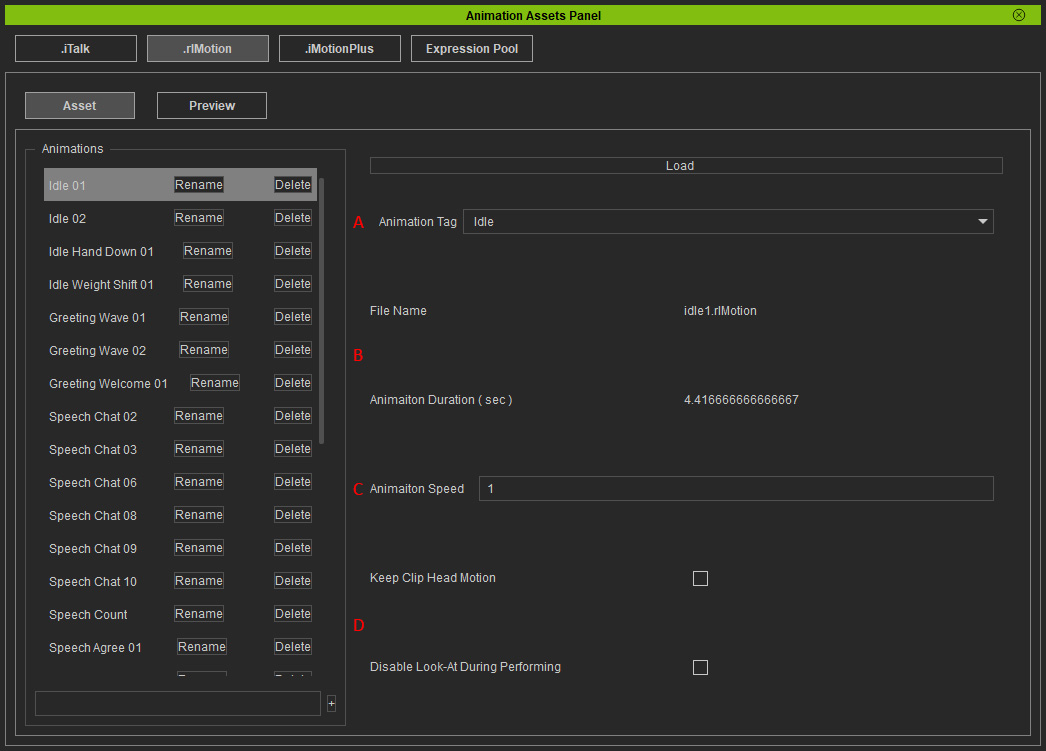
 Animation Tag
For assigning a tag to each animation in order to determine the playback behavior of the animation.
Animation Tag
For assigning a tag to each animation in order to determine the playback behavior of the animation.- Idle: Looping animation that plays continuously until another animation is triggered.
- Perform: One-time animation that plays fully once and then returns to the last executed idle animation.
-
File Info
- File Name: Displays the original filename of the imported animation.
- Animation Duration: Displays the total animation length in seconds.
-
Animation Speed
Controls the playback speed of the animation with a float value of up to two decimal place accuracy. The value is 1 by default for normal speed. If the value is set to 2.0, the animation plays at 2x speed. If the value is set to 0.5, the animation slows down by half.
-
Animation Mask
There are two types of masking behaviors for body animation.
- Keep Head Clip Motion
- Enabled: Uses the animation's own head movements.
- Disable: Applies the head behavior from the last executed Auto Profile.
- Disable Look-At During Performing
- Enabled: The eyes follow the animation's own behavior during playback. If the animation lacks eye movement data, it will apply the last executed Auto Profile settings.
- Disabled: The eyes remain locked onto the last targeted camera during playback.
- Keep Head Clip Motion
Preview
-
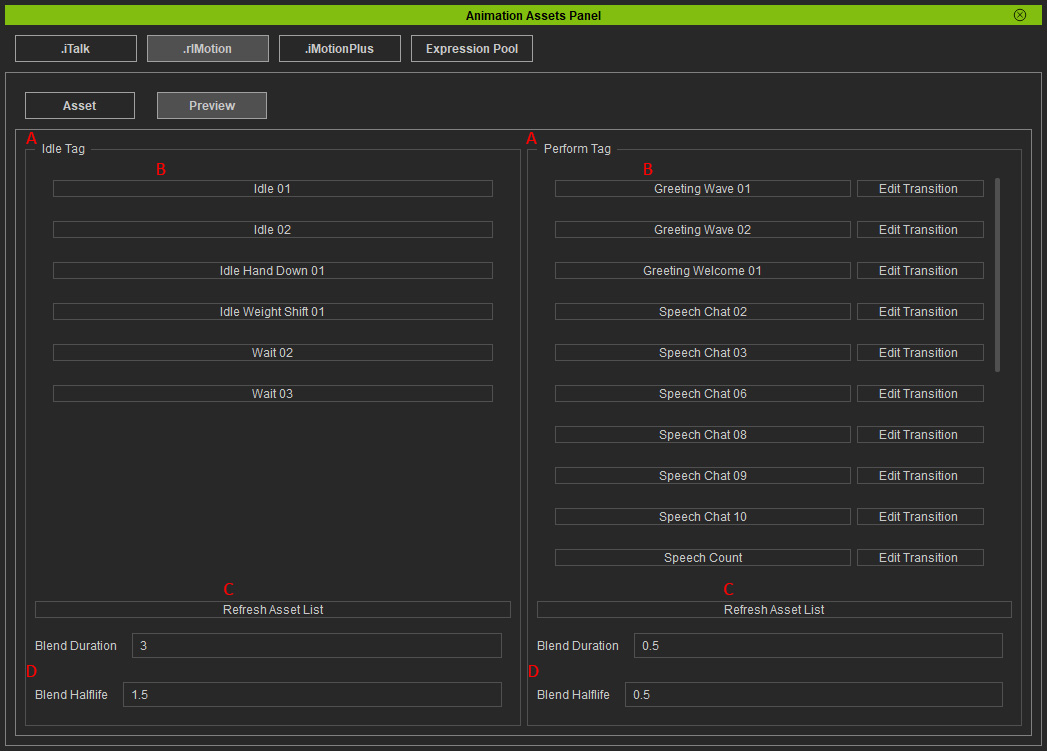
Categorized Animations by Tag
Organizes animations based on assigned tags. The left list shows animations categorized to the Idle Tag; the right list shows animations categorized to the Perform Tag.
-
Animation Preview
Click on an animation in the tag list to preview it under the Preview mode (from the main panel).
-
Refresh Asset List
Click on this button to update the list of animation assets.
-
Dead Blending
Dead Blending is a real-time animation transition tool that automatically calculates smooth blending. You can adjust its results with the following settings.
- Blend Duration: Sets the total duration (in seconds) for blending in and out of the animation.
- Blend Halflife: Higher values result in a transition curve that starts out gradually, then steepens. Lower values result in a transition curve that starts out steep, then smooth out.
