Importing Animations
Import animations to the corresponding Tabs for further management.
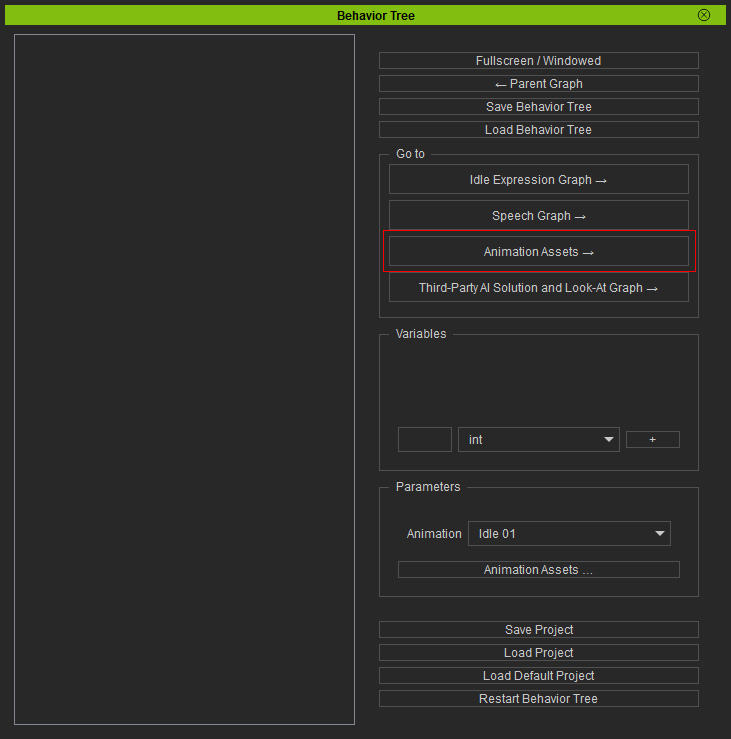
- Navigate to the Go to section near the top-right corner, and click the Animation Assets → button in the Behavior Tree to open the Animation Assets Panel.
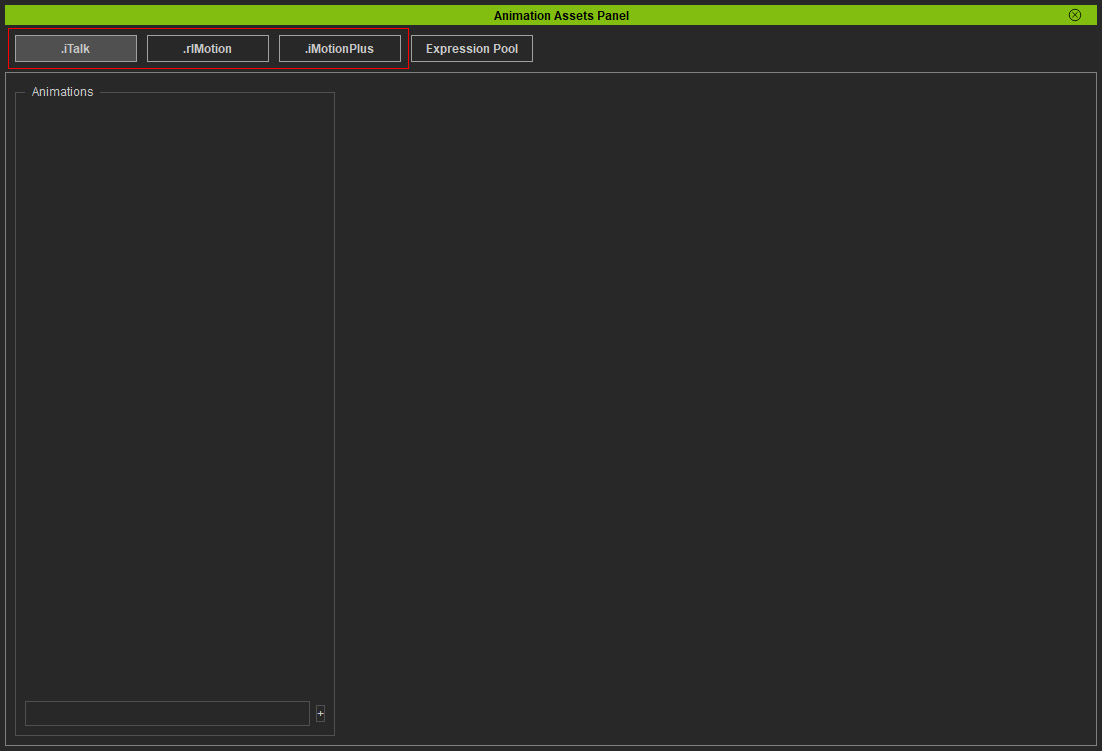
- Click on an animation format button, .iTalk for example, on the top-left corner to enter the .iTalk asset management page.
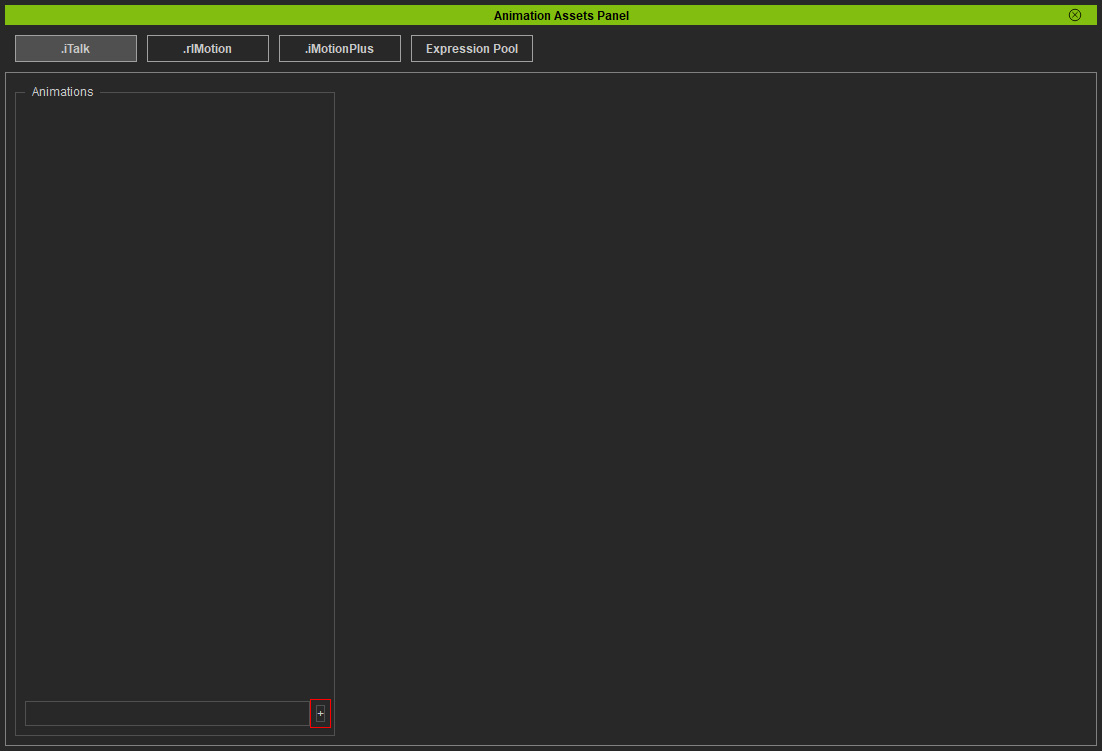
- Click the + icon near the bottom-left corner of the window to add a new asset with a blank name into the asset list.
- Click the Rename button on the newly created asset to give it a meaningful name.
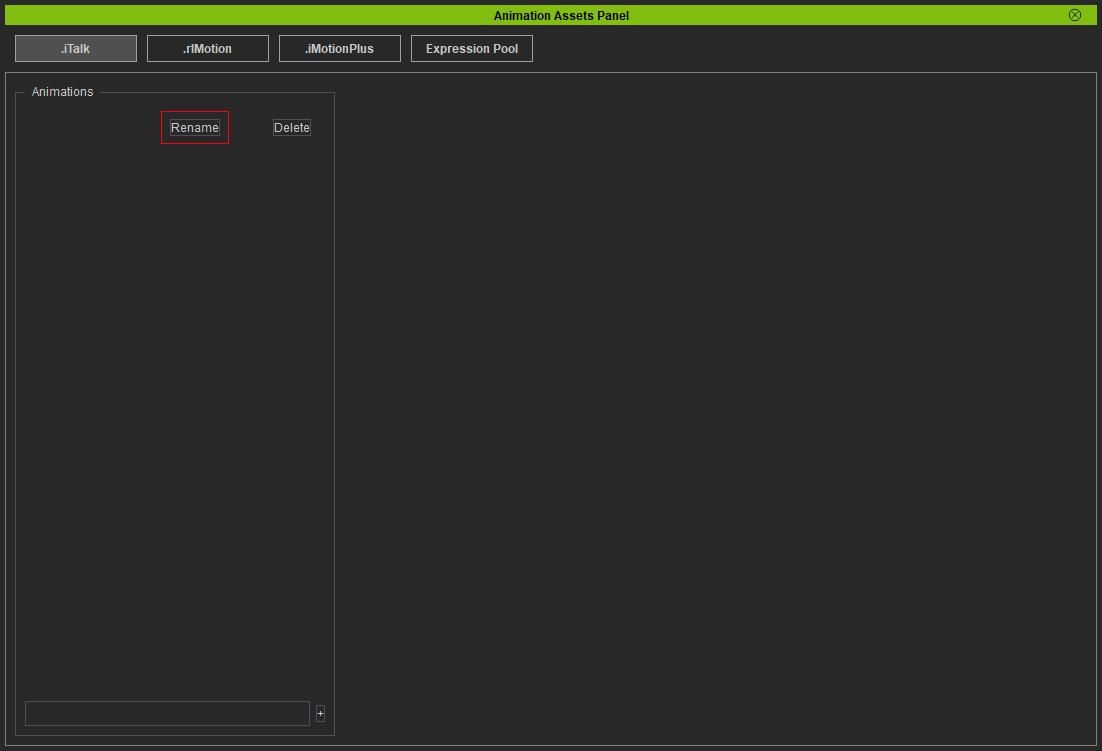
* Alternatively, enter a name first and then click the + icon to add the named asset to the list. - Click the asset to show the available animation controls on the right.
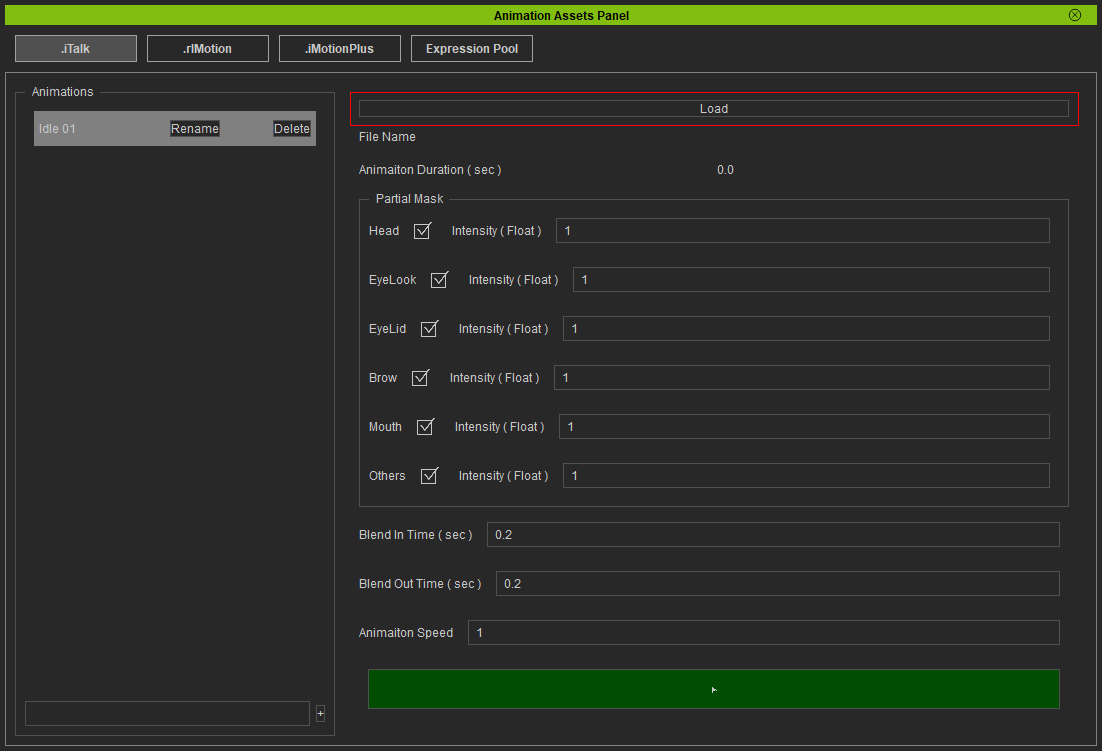
Click the Load button to browse and import an expression or motion file, iTalk in this case.
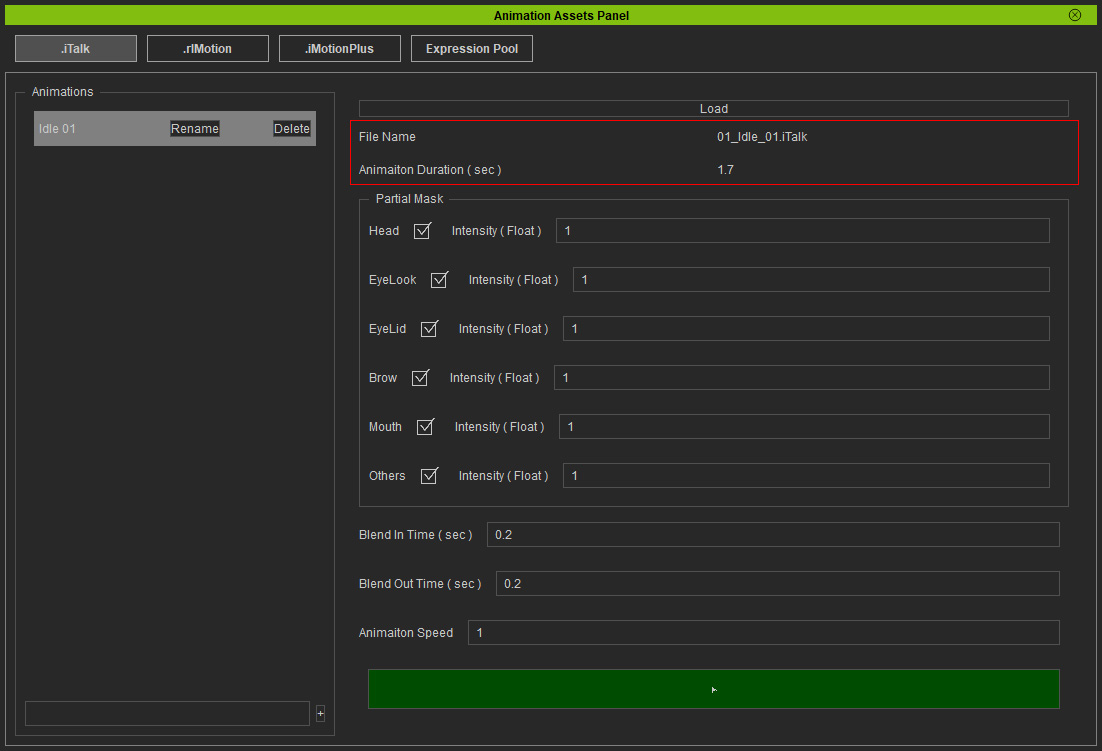
- If the import is successful, the file name of the animation and animation duration will be displayed below the Load button.
- Refer to the following sections for details on the animation controls for different animation asset formats.
