Managing Facial Animation
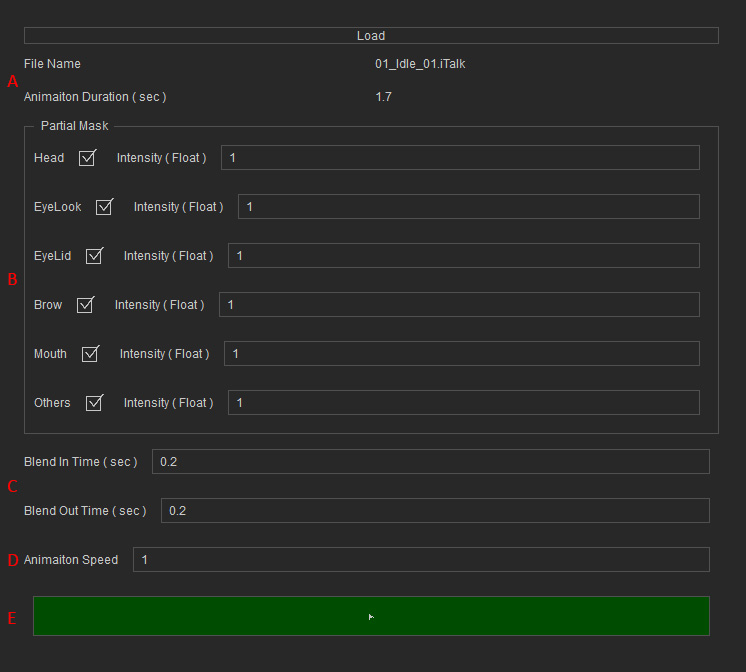
After importing facial animation assets in the .iTalk tab, you can control the animation with the partial mask, blend in/out, and animation speed settings.
-
 File Info
- File Name: Displays the original filename of the imported animation.
- Animation Duration: Displays the total animation length in seconds.
-
Partial Mask
Partial masking allows certain animation tracks to be hidden during playback, depending on the context. These options are enabled by default to enable facial expressions for all facial parts.
- Non-speaking State
- Head: Follows the procedural Head animation (Idle Profile) from the Idle Expression Graph.
- EyeLook: Follows the procedural Saccade animation (Idle Profile) from the Idle Expression Graph.
- EyeLid: Follows the procedural Brow animation (Idle Profile) from the Idle Expression Graph.
- Brow: Follows the procedural Brow animation (Idle Profile) from the Idle Expression Graph.
- Mouth: Follows the procedural Mouth animation (Idle Profile) from the Idle Expression Graph.
- Others: Enables the morphs other than the above facial parts in the facial animation (Cheek for example).
- Speaking State
- Head: Follows the driven Head animation (Speech Profile) from the Speech Graph.
- EyeLook: Follows the driven Saccade animation (Speech Profile) from the Speech Graph.
- EyeLid: Follows the driven Brow animation (Speech Profile) from the Speech Graph.
- Brow: Follows the driven Brow animation (Speech Profile) from the Speech Graph.
- Mouth: All mouth animations are automatically enabled and replaced by NVidia ACE A2F Lip Sync, which translates speech into ARKit facial animations.
- Others: Enables the morphs other than the above facial parts in the facial animation (Cheek for example).
- Intensity: Controls the intensity percentage of each facial part with a float value of up to two decimal place precision.
- Non-speaking State
-
Blending
Controls how the animation blends in from the previous action and blends out when it ends. These values need to be calibrated based on animation length and desired visual smoothness. You can set a numeric value (in seconds) with up to two decimal places for blending.
- Blend In Time: Defines the time taken to transition from the previous animation to the first frame of the new animation.
- Blend Out Time: Defines the time taken to transition from the last frame of the animation back to the original state.
-
Animation Speed
Controls the playback speed of the animation in a float value with up to two decimal places. The value is 1 by default for normal speed. If the value is set to 2.0, the animation plays at 2× speed. If the value is set to 0.5, the animation slows down to 0.5× speed.
-
Animation Preview
Plays the animation while applying all the above settings and smoothly blending in/out with the character's current animations. You can keep the button pressed under the Preview mode (from the main panel) for a quick preview of your adjustments.
