Launching Idle Expression Graph
Open the Auto Facial Animation Graph by clicking the Idle Expression Graph → button in the Behavior Tree panel. Alternatively, click the AFA Animation Graph... button while editing the Set Facial Profile and Set Facial Profile Parameter nodes in the Parameters section.
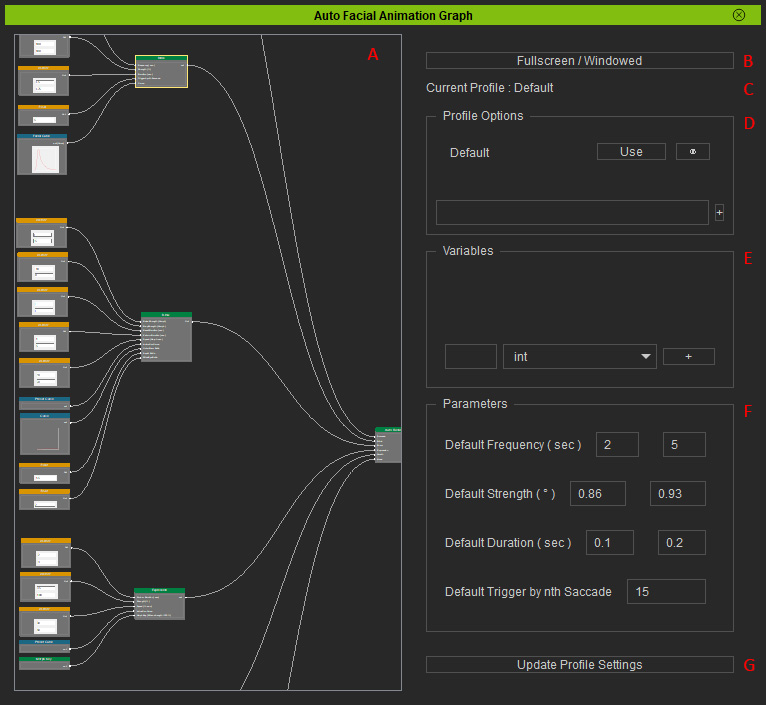
-
 Node Canvas
Opens the editing canvas used to design and organize logic nodes for auto facial animation profiles.
Node Canvas
Opens the editing canvas used to design and organize logic nodes for auto facial animation profiles. -
Fullscreen / Windowed
Toggles full-screen mode.
-
Current Profile
Displays the graph currently being edited.
-
Profile Options
Manages the facial animation profiles.
- Creates profiles.
- Switches to a specific profile.
- Renames, duplicates, and deletes profiles.
- Imports or exports profiles (*.afa).
-
Variables
Manages editable parameters. When designing a facial animation with linear interpolation, create the required control parameters in this section.
- Creates variables in the specified parameter properties. * Only a float is used to control the weight of linear interpolation.
- Deletes variables.
- Sets an initial value for a specific parameter.
-
Parameters
Displays controllable options for a selected node in this section to configure its parameters.
-
Update Profile Settings
Applies changes made to the current profile instantly.
