Introduction of Auto Facial Animation Graph
The nodes in Auto Facial Animation Graph compute and execute specific facial animation results.
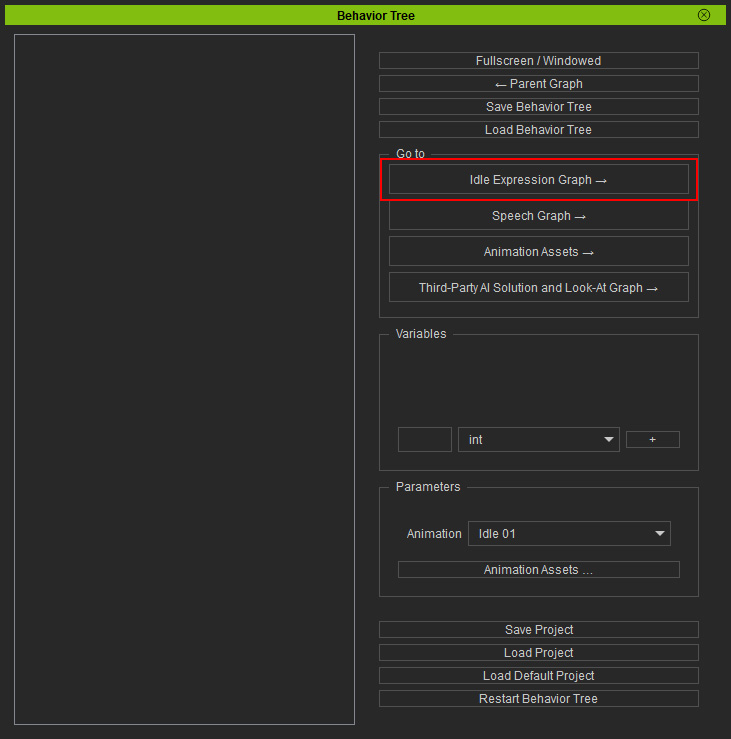
Click the Idle Expression Graph → button in the Behavior Tree panel to open the Auto Facial Animation Graph.
Nodes in Auto Facial Animation Graph
There are six individual blocks to define facial animation with different features.
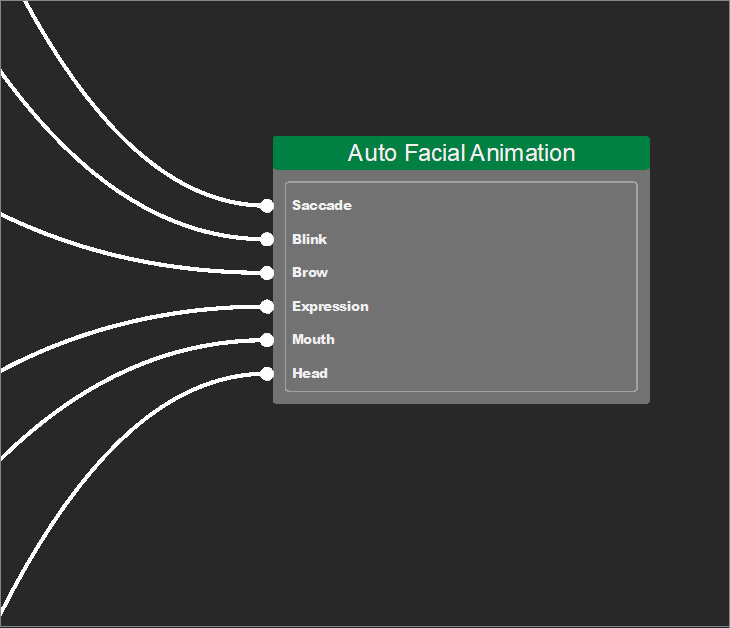
- Saccade: Eye-look micro-movements (rapid gaze shifts).
- Blink: Eyelid blinking animation.
- Brow: Brow movements.
- Mouth: Lip and mouth movements.
- Head: Head animations.
- Expression: Facial expressions and emotional changes.
The additional Morph Key provides initial morph targets for designing facial shape deformations in specific nodes.
- Morph Key in the Mouth node designs the shape of the mouth at maximum intensity.
- Morph Key in the Expression node designs the shape of the expression at maximum intensity.
Auto Facial Animation Graph Manipulation
-
 Fullscreen
Click the Fullscreen / Windowed button on the top-right corner to toggle full screen to expand the panel to cover the whole screen.
Fullscreen
Click the Fullscreen / Windowed button on the top-right corner to toggle full screen to expand the panel to cover the whole screen.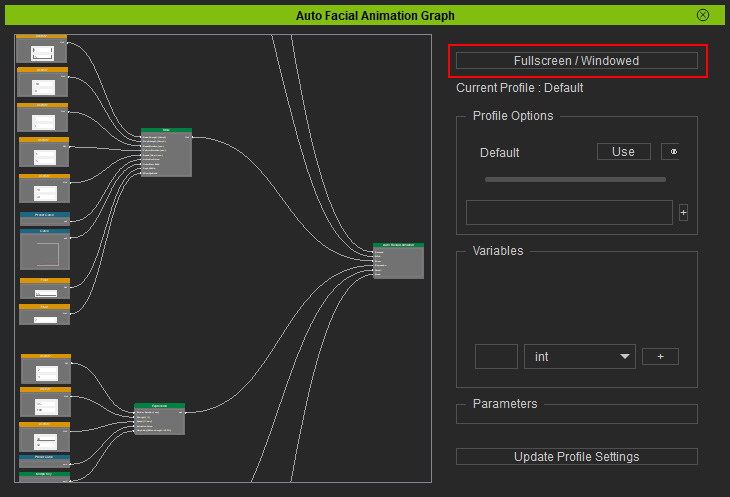
-
Navigation
You can use the hotkey combination or mouse wheel to move or zoom the graph.
- Zoom: While holding the Alt key, roll the mouse wheel to zoom in/off around the cursor.
- Pan: Press the mouse wheel or middle button to pan anywhere. Roll the mouse wheel to pan vertically.
-
Creating a Node
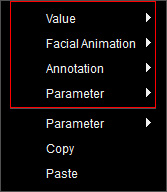
Right-click on the empty area of the graph to select a required node from the context menu.
-
Connecting Nodes
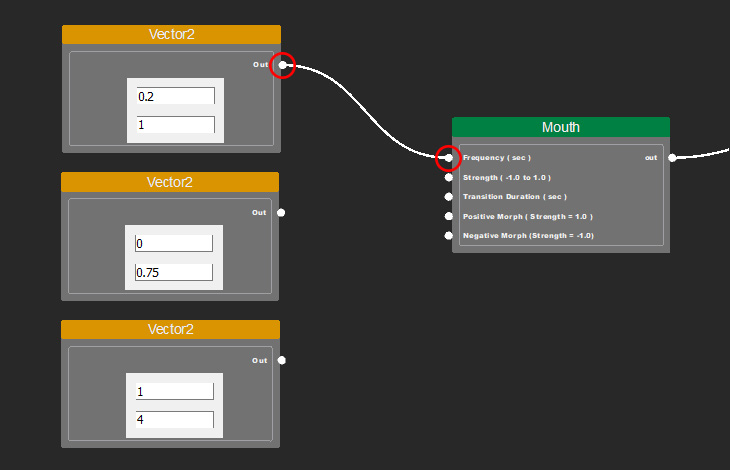
Click on the white connecting point on the right side of the lower-level node and left side of the higher-level node sequentially to build a hierarchy between the nodes.
-
Removing a Connection
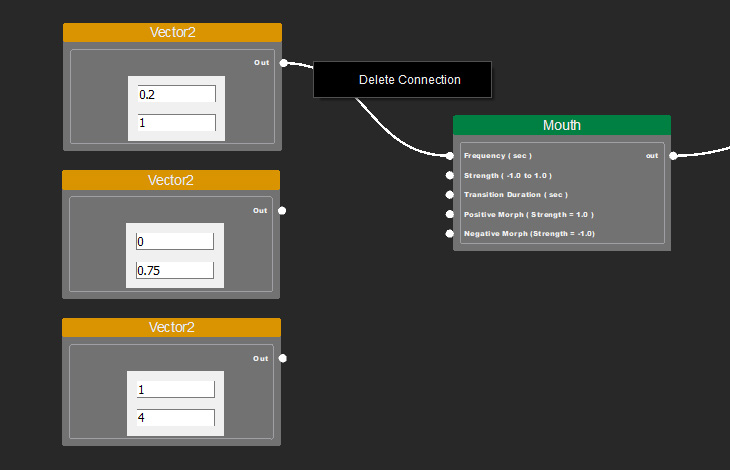
Right-click on the connecting line between the nodes, and click on Delete Connection.
-
Moving a Node
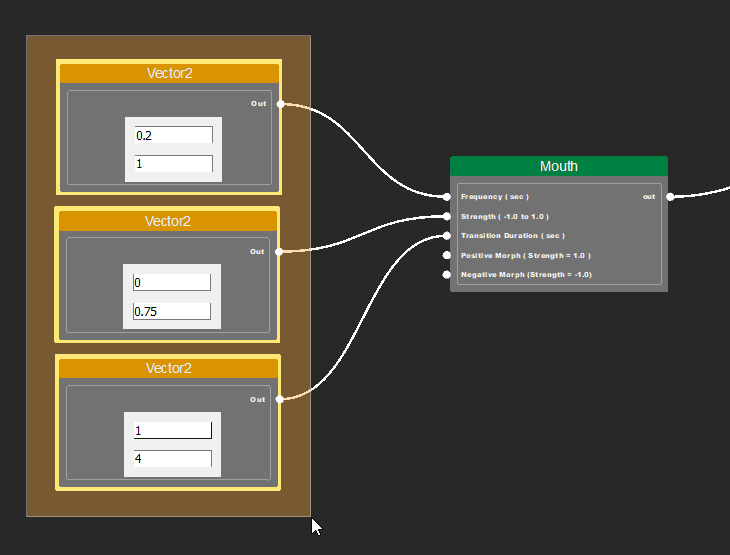
Move a node elsewhere by dragging. You can also select multiple nodes by dragging the cursor to a range, and then reposition them at once.
-
Deleting, Copying and Pasting a Node
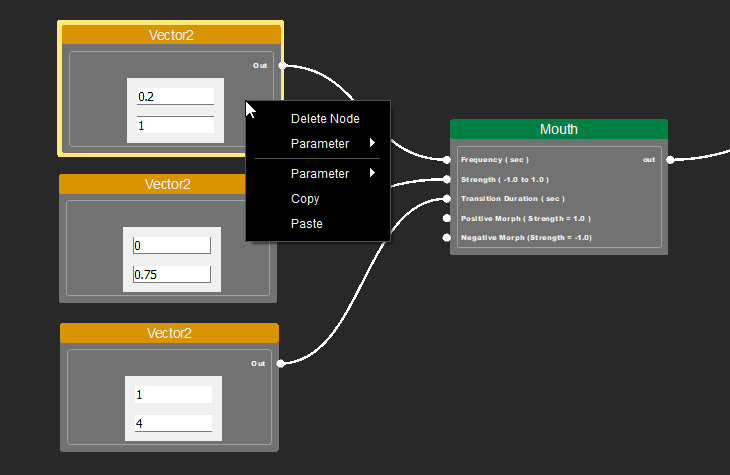
Right-click on the selected node and find the option from the context menu. You can drag a selection box to multi-select nodes and remove or copy them at once.
-
Creating a Parameter
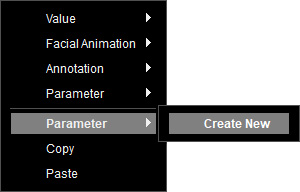
- Right-click on the empty area of the graph and select Parameter > Create New.
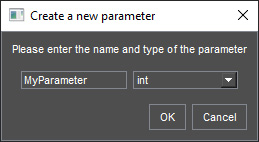
- Name the parameter in the text field, and specify a data type from the drop-down list.
Click OK.
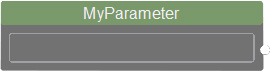
- The created parameter appears as a node.
The new parameter is also created in the context menu for quick access.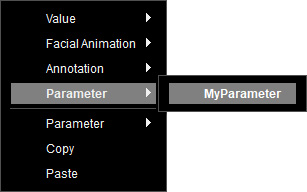
- To delete a custom parameter, go to the Parameters section on the right, and click the button on the side of the parameter to remove it from the list.
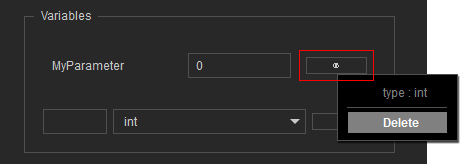
You can also create parameters in this section by specifying the name and data type, and clicking the + button.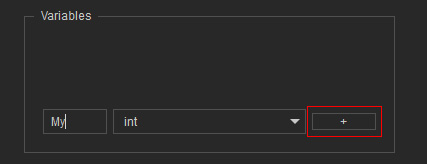
- Right-click on the empty area of the graph and select Parameter > Create New.
