Creating Look-At Asset
The Look-At Asset provides head and eye animation data for nodes in the Behavior Tree. When a node executes the action of "looking at a specific location" or "locking onto a camera", the head and eye movement must follow the animation behavior defined by the assigned asset.
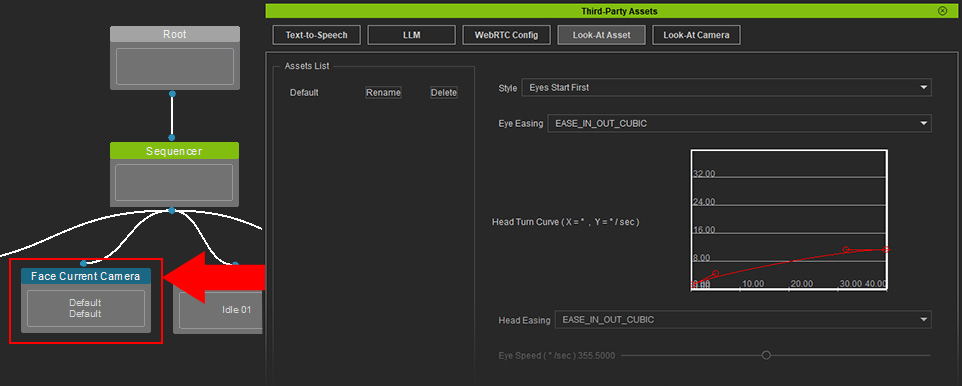
For the Leaf > Look-At nodes to work properly, load the default project to import the default asset, or follow the instruction below to create a new one.
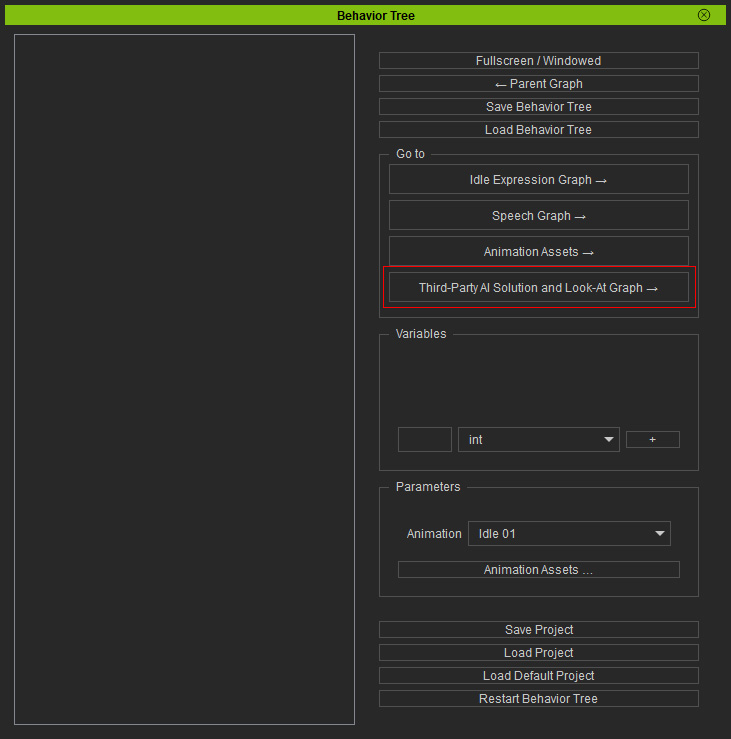
- Click the Third-Party AI Solution and Look-At Graph → button in the Behavior Tree panel to launch the Third-Party Assets panel.
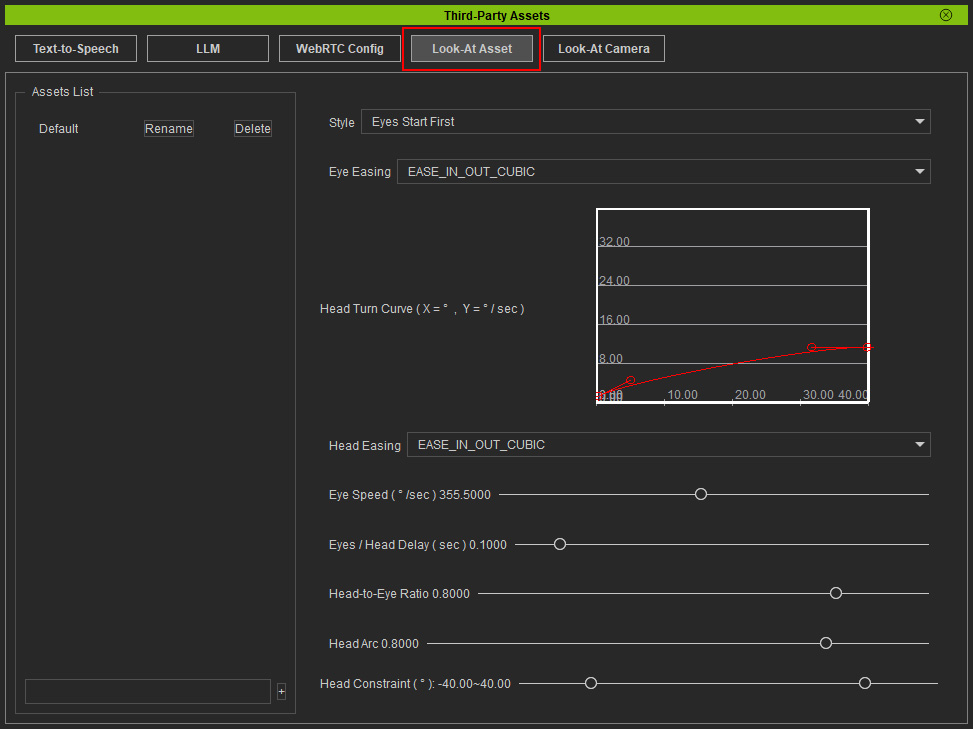
- Switch to the Look-At Asset by clicking the namesake button on the top.
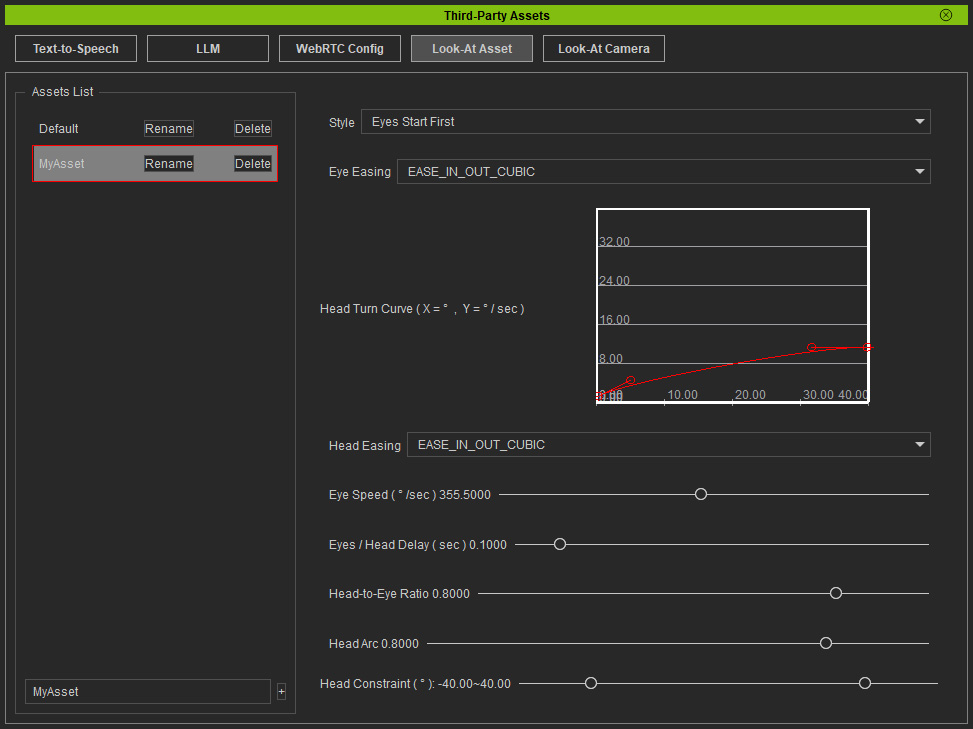
- Input a name in the text field near the bottom-left corner.
Click the + button by the side to create a new Look-At asset.
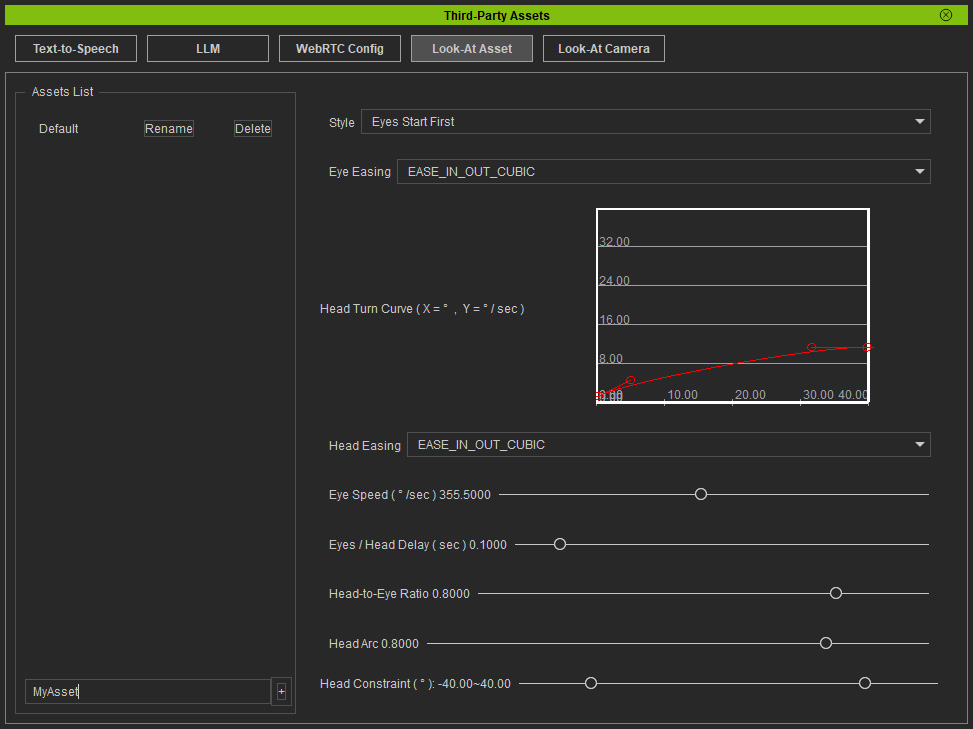 * Alternatively, you can create an empty asset first and rename it later.
 - The created asset will show in the list above.
You can rename or delete an asset by clicking buttons in the entry.
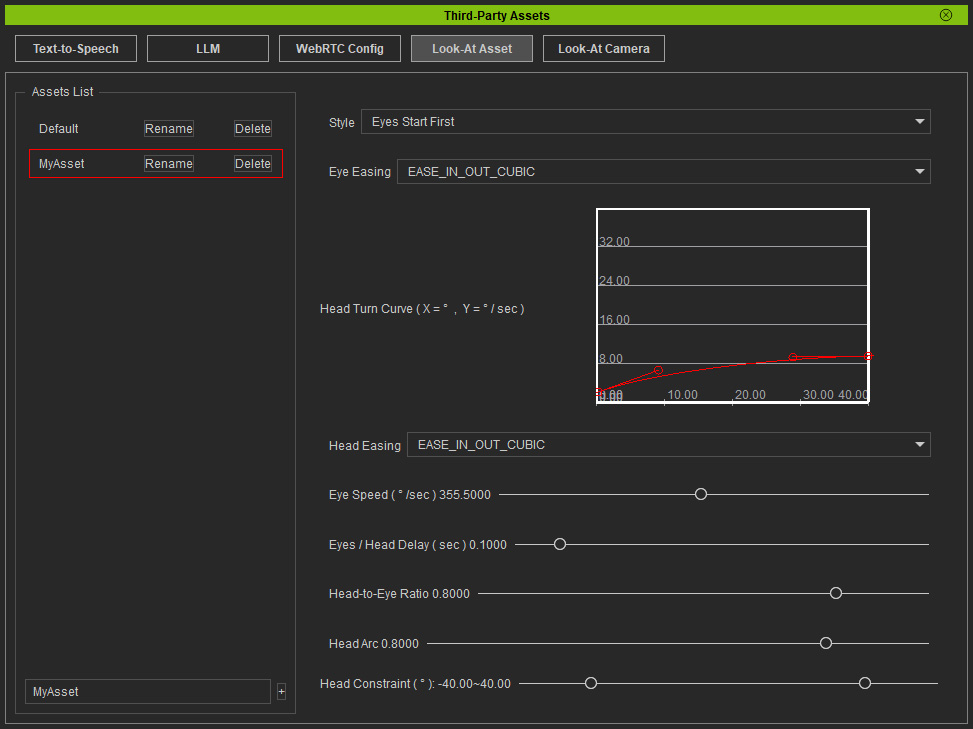
- Click on your asset. The configuration settings and options for the asset will display on the right.