Optimizing ARKit Signal
The AI output generated by Audio2Face utilizes a point cloud (a set of 3D spatial data points) to create a continuous facial animation based on audio input signals. Audio2Face converts this point cloud into a set of raw ARKit signals, and pass them to the AI Assistant system. Once the AI Assistant received the ARKit signals, it maps them onto the character’s facial morph, converting the AI-generated point cloud into expressive facial animations.
Follow the steps below to optimize the mapped ARKit signals on the character’s facial morphs.
- Right-click on the empty area of the Speech graph, and select ACE-A2F > A2F Control > ARKit Tuner from the context menu.
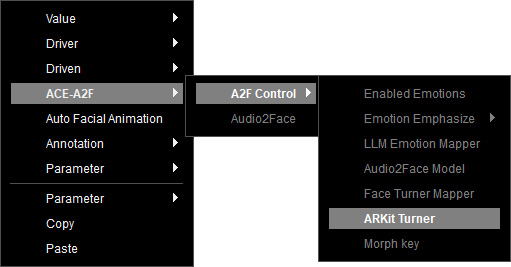
- The ARKit Tuner node is created.

- Select the node, and choose the morph you wish to modify from the Channel drop-down list of the Parameters section.
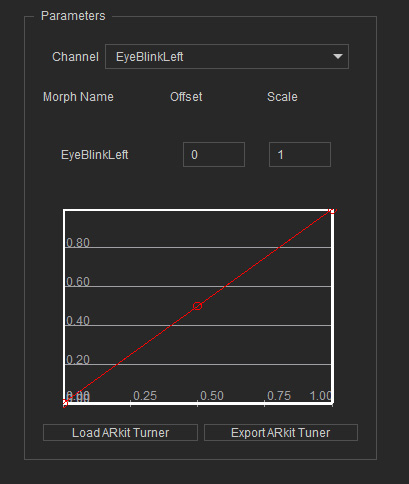
- Fine-tune the signal-to-morph mapping using the following parameters:
- Offset: Adds or subtracts a fixed value during the signal-to-morph mapping process.
- Scale: Defines the multiplier applied when mapping ARKit signals to the corresponding morphs.
- Non-linear Curve Mapping: Adjusts the signal by drag the Bezier curve for more natural transitions, such as easing in/out.
You can right-click on the curve editor to add more handles.
- The x-axis represents the original signal strength.
- The y-axis represents the expected signal output.
- Click on Export ARKit Tuner to save the tuning configurations as a preset in json format. You can then import the saved preset by clicking the Load ARKit Tuner button anytime.
- Connect the node to the ARKit Tuner input of the Audio2Face node.
- Next, adjust the morph strength to further modify the ARKit tuning results.
