Creating Reference Video
When applying a generated motion to a character, you can simultaneously project the reference video on an object in the scene for motion comparison during playback.
Make sure the Apply reference video to checkbox near the bottom of the Video Mocap panel is enabled.
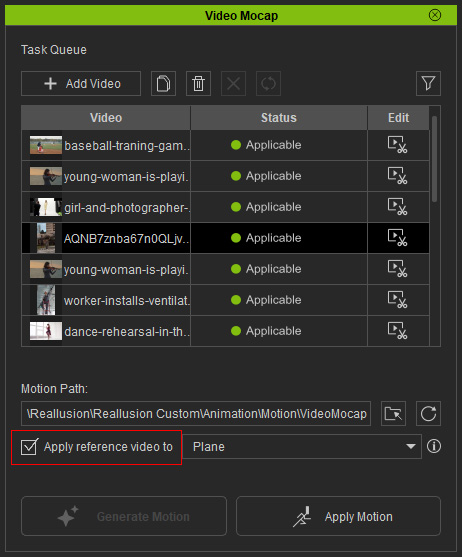
And then decide how to present the reference video from the pull-down menu to the right.
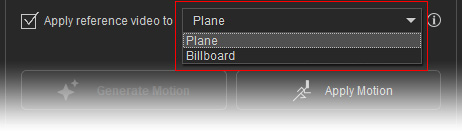
Plane
A moveable backdrop object that remains in a fixed position in 3D space with fixed orientation (default).
Projecting the reference video on a Plane. | Rotate the camera to observe character motion from the other side and the reference video moves along with the character. |
Billboard
A moveable backdrop object that automatically rotates to face the camera, ensuring the video is always visible.
Projecting the reference video on a Billboard. | Rotate the camera to observe character motion from the other side and the reference video will keep facing us. |
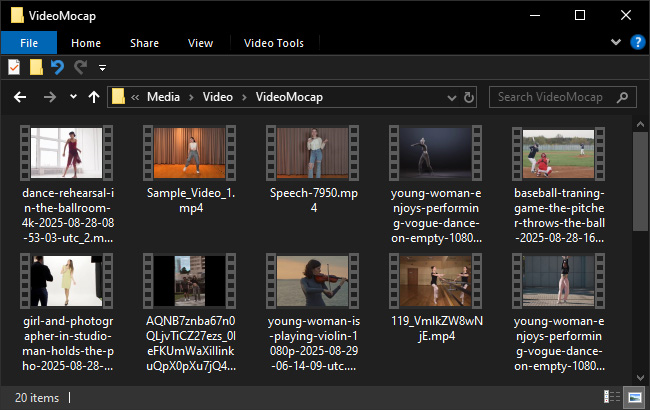
When applying motion, the source of reference video (trimmed video) is automatically saved to a custom folder of the Content Manager:
Media > Video > VideoMocap
You can locate the video files by right-clicking on the finished task (Status appears Applicable), and selecting Find Video File from the context menu.
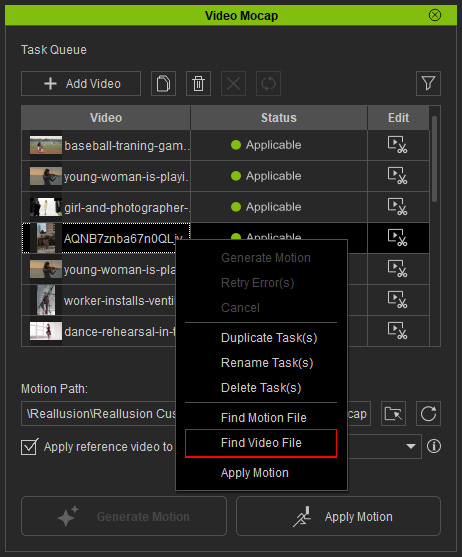
This operation will save the edited video and open the default storage folder with Content Manager.
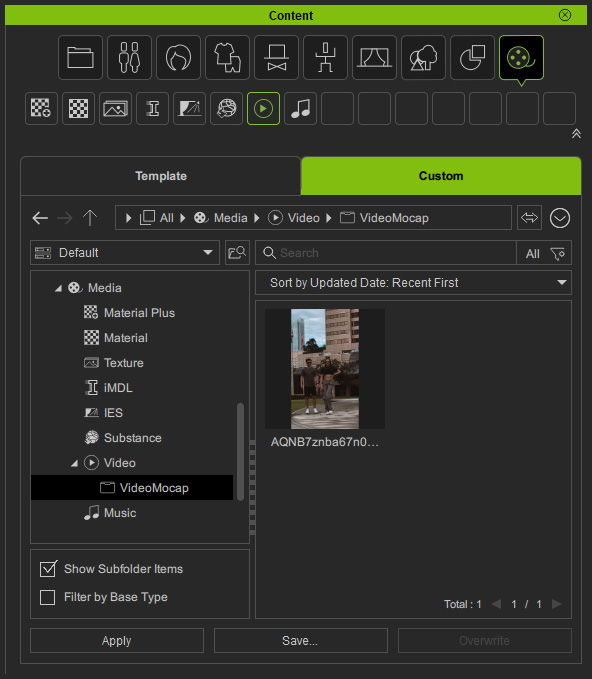
Right-click on the saved content to find the video file with your file explorer:
C:\Users\Public\Documents\Reallusion\Reallusion Custom\Media\Video\VideoMocap