Adding Facial Expression
With AccuFACE for iClone Motion LIVE, you can layer on facial expressions onto the generated body motion to create a talking animation.
- Apply the generated motion and reference video from Video Mocap.
Unlike the reference video, notice how the 3D character has no facial expressions.
- Load the speech video, focusing on the actor's head, while in AccuFACE VIDEO mode.
It is highly recommended to record separate videos for the body and face.
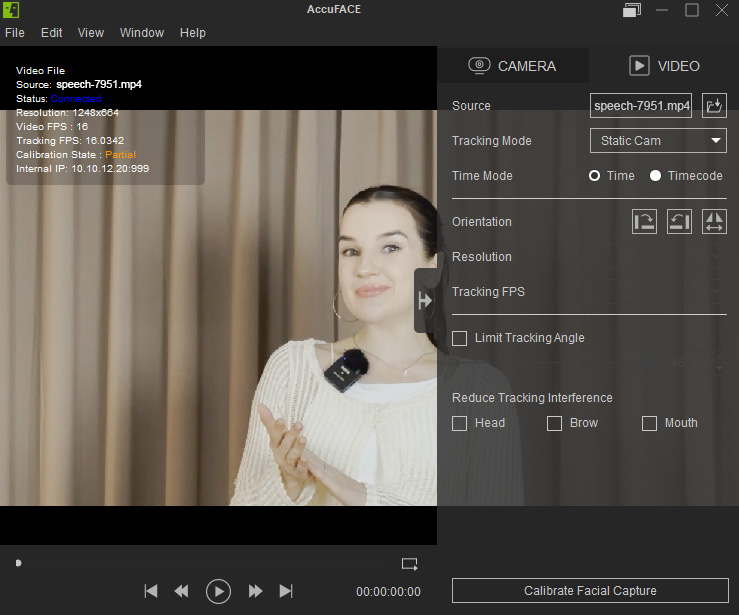
- Connect AccuFACE to Motion LIVE.
Enable the Audio for Viseme Track option to generate the voice clip for the character during motion capture.
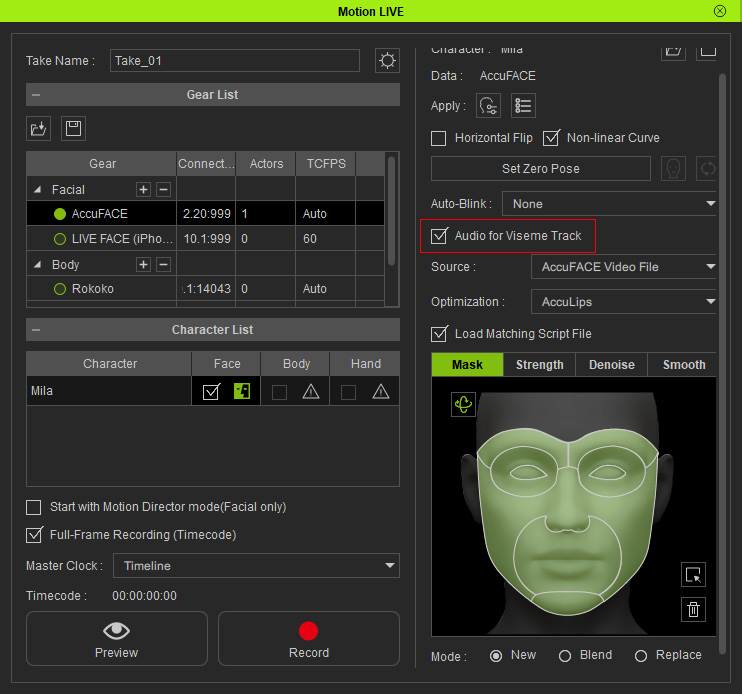
- Preview and record the actor's facial animation data into facial clips with the Motion LIVE.
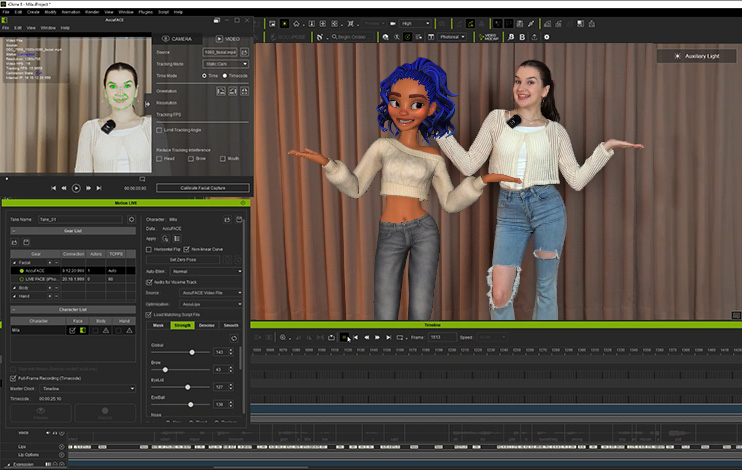
- Open the timeline.
Align the viseme and expression clips with the motion clip using the reference video.
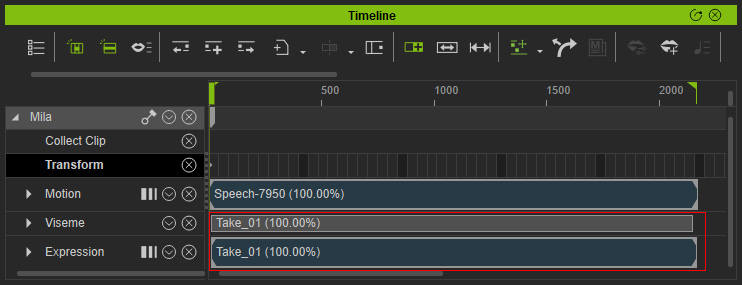
- Playback to check whether the character's facial animation performs in unison with the body motion.
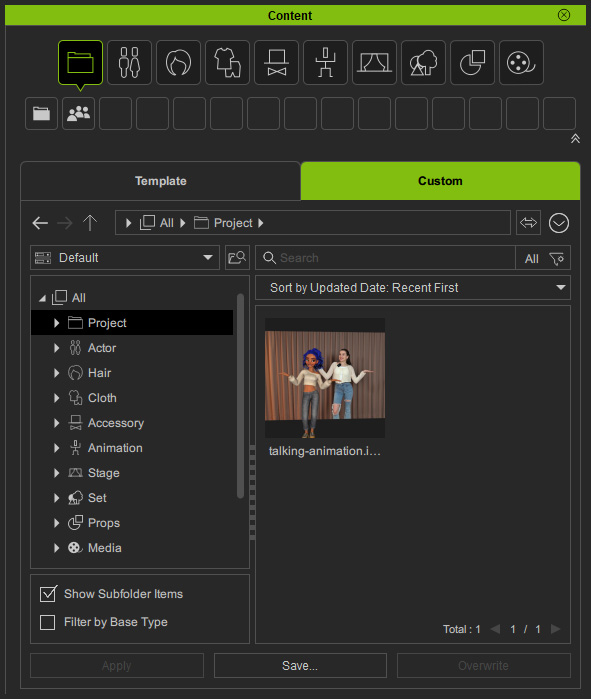
- Save the talking animation project in the custom library of the Content Manager.