Live Smoothing for Facial Mocap 
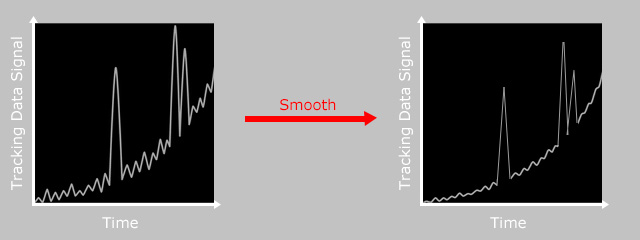
Due to the sensitivity of the facial mocap devices, the captured facial expressions can be plagued by jittering, which can be fixed by using the Smooth feature provided by the Motion LIVE 2D plugin. Smoothing works by averaging the motion strength on a frame interval.
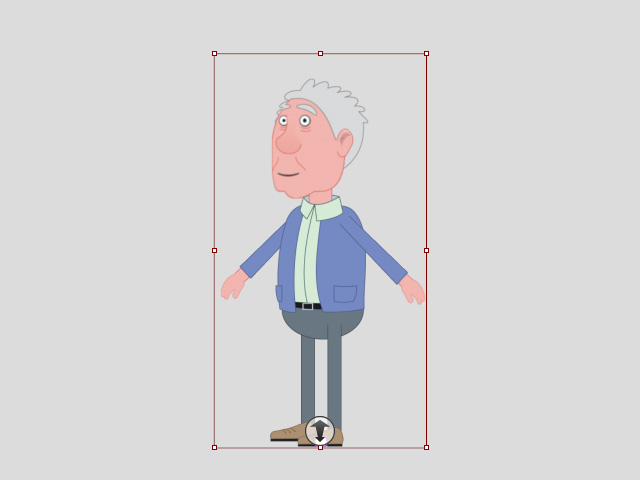
- Make sure the character is selected.
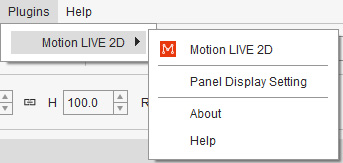
- Click the Motion LIVE 2D
 button on the Add-on Toolbar.
Alternatively, go to Plugins > Motion LIVE 2D > Motion LIVE 2D.
button on the Add-on Toolbar.
Alternatively, go to Plugins > Motion LIVE 2D > Motion LIVE 2D.
- When the Motion LIVE 2D panel displays, start connecting the facial mocap device.
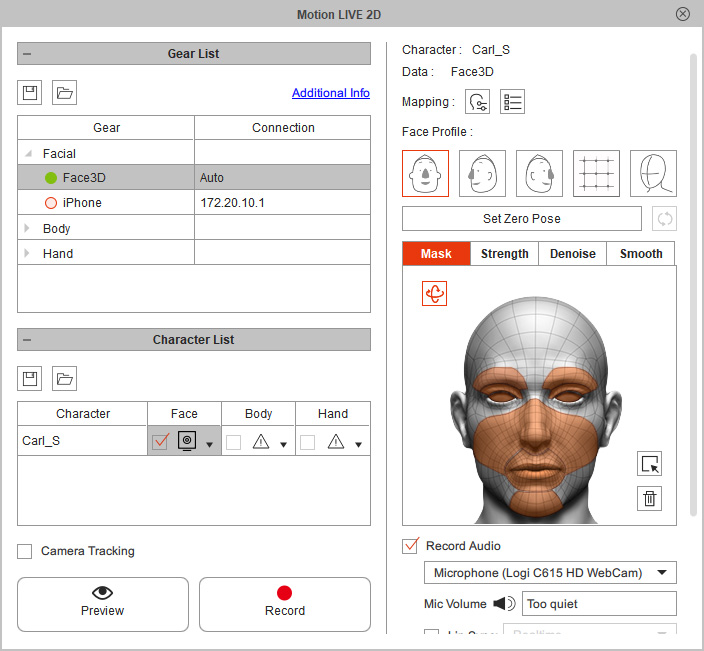
- Enter Preview mode.
In this example, the head jitters are quite obvious.
- To make the captured facial expressions smoother, go to the Face setting page; switch to the Smooth tab.
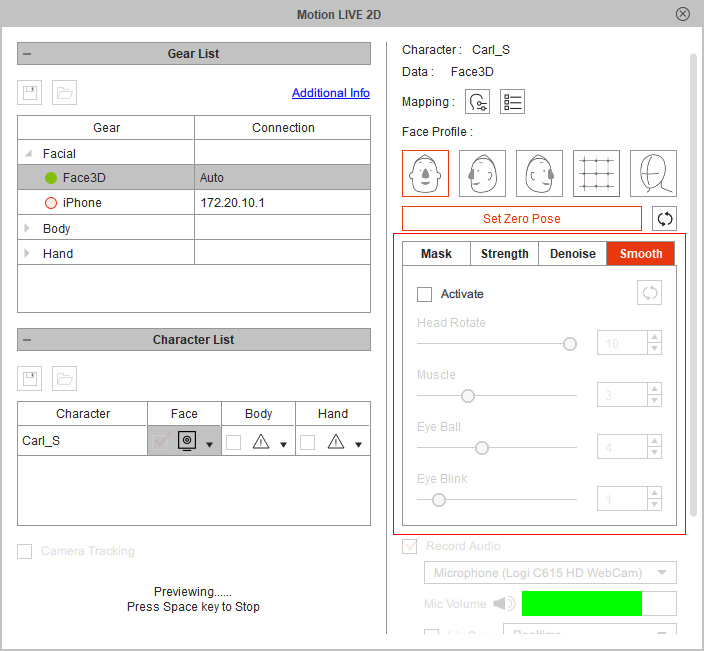
- Enable the Activate checkbox.
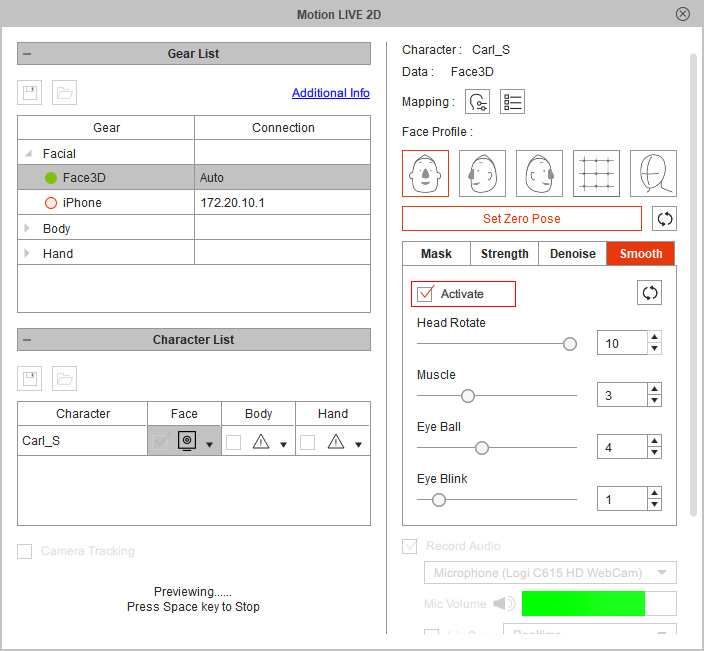
- Drag the sliders in accordance with the parts that jitter most.
Adjust the value in order to preserve the frames you wish to accentuate, as the Smooth feature may sacrifice certain details to get a smoother result.
- Compare the facial mocap result before and after being smoothed.
