User Interface
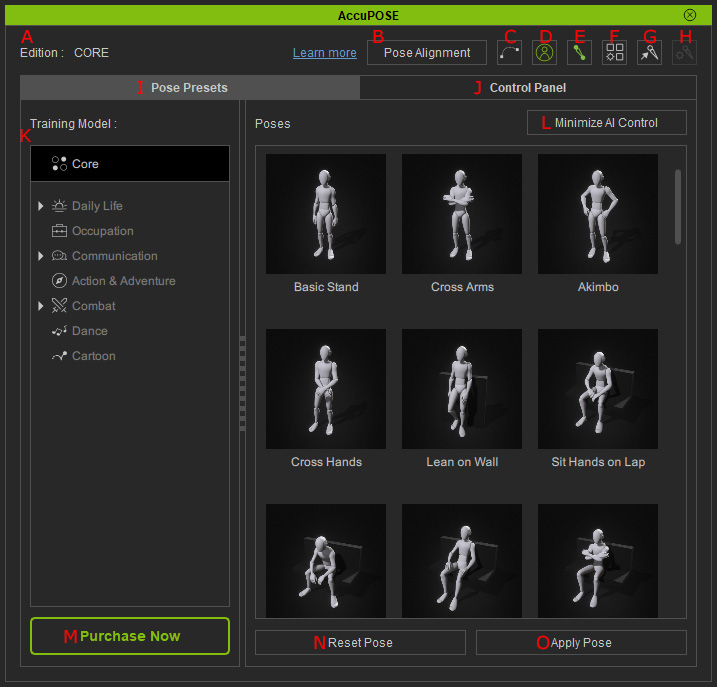
|
A |
Member Status |
Displays the current status of your account, Premium users with AccuPOSE INFINITY members will have the full collection of posing styles, while free users will still have a limited amount of posing styles available. |
||||
|
B |
Allows you to align two different poses together in the timeline as a motion seamlessly, using the selected body part as the root of the transition. |
|||||
|
C |
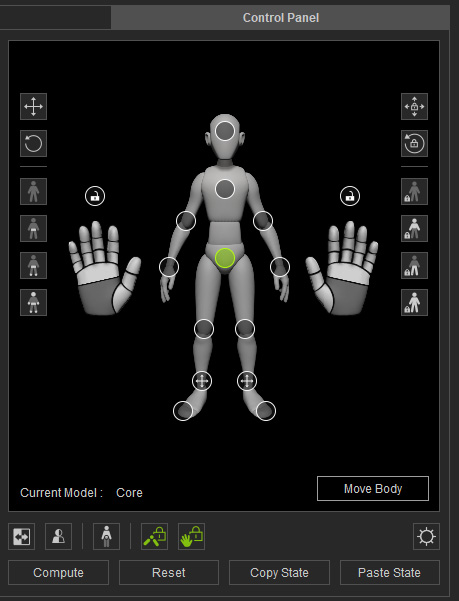
Displays the selected bones' trajectory in the viewport, allowing you to see each of your body parts movement and position in the motion. |
|||||
|
D |
Show Body Gizmo |
Toggles the translation gizmo that lets you move the entire character to a different location in the 3d environment. |
||||
|
E |
Viewport Controller |
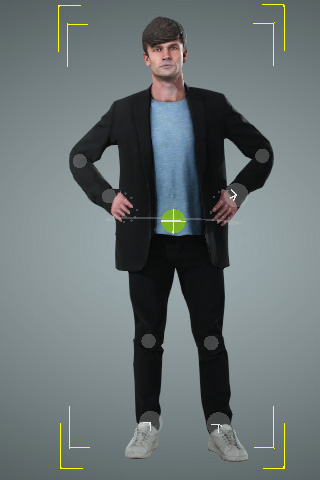
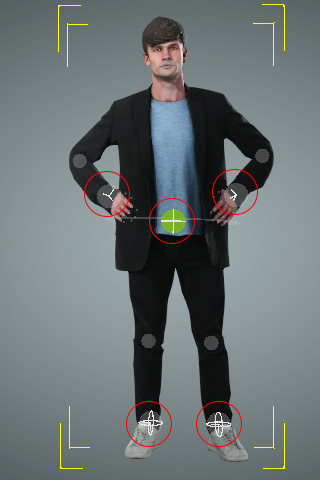
Shows or hides the control point controller icons on the selected character in the viewport. |
||||
|
F |
Controller Settings |
Opening the panel allows you to adjust the display settings of the control point controller icons in the viewport. |
||||
|
G |
Bone Display |
Toggles the display of the character bone in the viewport. |
||||
|
H |
In this panel, you can adjust your character's bone size, bone color, and opacity. In the viewport. |
|||||
|
I |
Presets Library |
This section contains all the available posing styles you can choose and select the pose presets you want to apply to your character. Applying the pose presets will add control points and the pose to your character. |
||||
|
J |
This section allows you to manually pose your
characters. |
|||||
|
K |
Training Model |
The training models are organized into different scenario-based categories. The AccuPOSE CORE library is free of charge, while purchasing the AccuPOSE INFINITY Expansion grants you access to all available categories. |
||||
|
L |
Minimize AI Control |
Toggles the AI control of the pelvis, ankle and wrist control points (Hip TR, Feet TR, Hands T).
|
||||
|
M |
Purchase |
The following button will be available if you do not have the AccuPOSE INFINITY expansion. |
||||
|
N |
Reset Pose |
Reverts the character model back to its default pose, and moves it to the center of the world axis (X=0, Y=0, Z=0). |
||||
|
O |
Apply Pose |
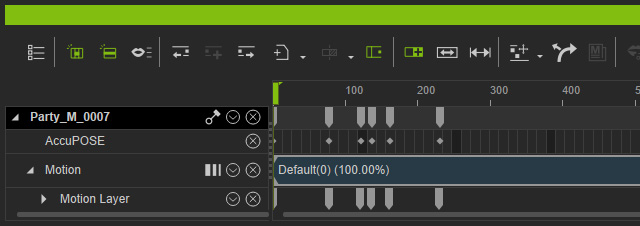
Applies the currently selected preset to the character model. The pose will also exist in the timeline in the form
of a motion track. The status settings of all the
control points will reside in the AccuPOSE track. |