Control Panel
|
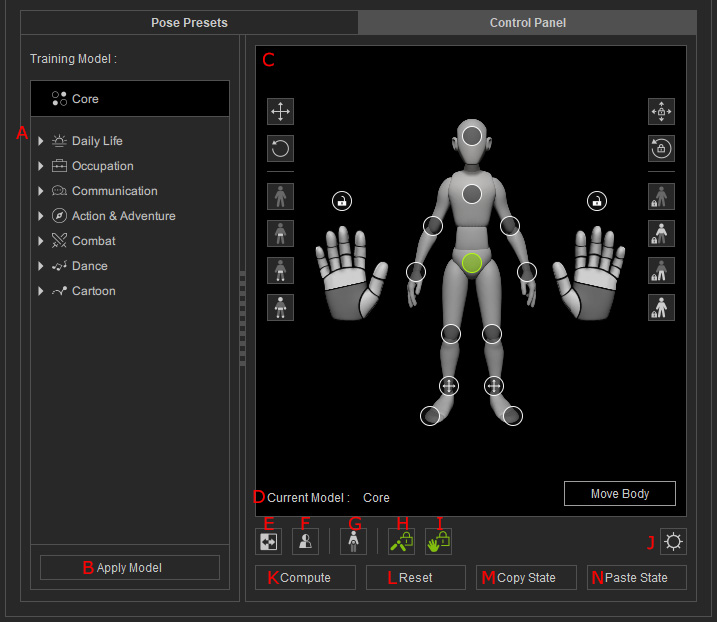
A |
Model Category |
This scene tree will display all the available AI-Training Models, and the accessibility depends on the subscription status of the Reallusion account. |
|
B |
Apply Model |
Applies the currently selected model to the character to affect the pose with AI mechanism. |
|
C |
This UI displays a character dummy with circular icons for you to select and set the control point settings for each body part. On both sides there are different settings for you to quickly select control point settings and presets. |
|
|
D |
Current Model |
Displays the name of the current AI-training Model that is being used. |
|
E |
Mirror Control |
Mirrors the body parts that you are editing, synchronizing the body parts' position.
|
|
F |
Mirrors your character pose horizontally on the x-axis's direction, thereby flipping the pose to the opposite side. |
|
|
G |
Allows the plugin to automatically unlock the elbows and knees when posing your character's feet or hands. |
|
|
H |
Automatically locks the elbow and knees of your character when you are editing the fingers. |
|
|
I |
Automatically locks the fingers of your character when you are editing the fingers. |
|
|
J |
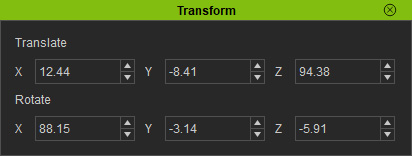
Transform Settings (Ai Posing) |
This control panel allows for the precise adjustment
of the character's pose with Translate
and Rotate parameters. |
|
K |
Compute |
Lets the AI adjust the selected character pose according to the current pose style. |
|
L |
Reset |
Reverts your character back to its default pose settings and positions the model at world origin (Z=0, Y=0, X=0). |
|
M |
Copy State |
Copies the current pose and control point states. |
|
N |
Paste State |
Pastes the latest copied pose and control point states to another time frame. |