Mirroring Pose
- Create a character.
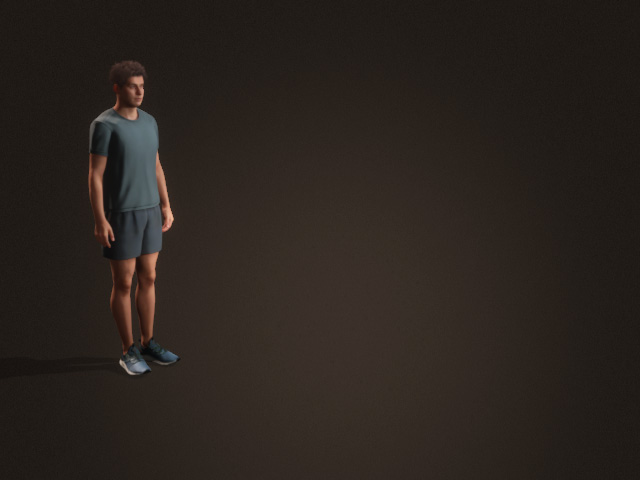
- Select the character and open the AccuPOSE panel.
- Apply a desired pose preset from the library or pose the character with Control Panel.
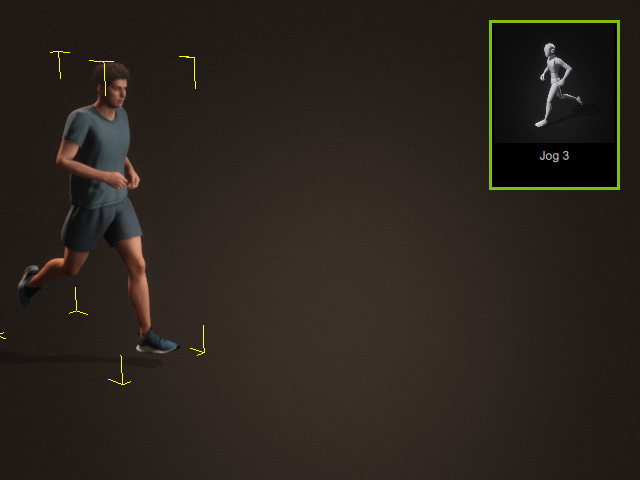
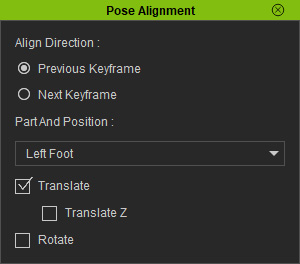
- Adjust the settings for Pose Alignment panel.
- Go to another time frame and apply a new pose.
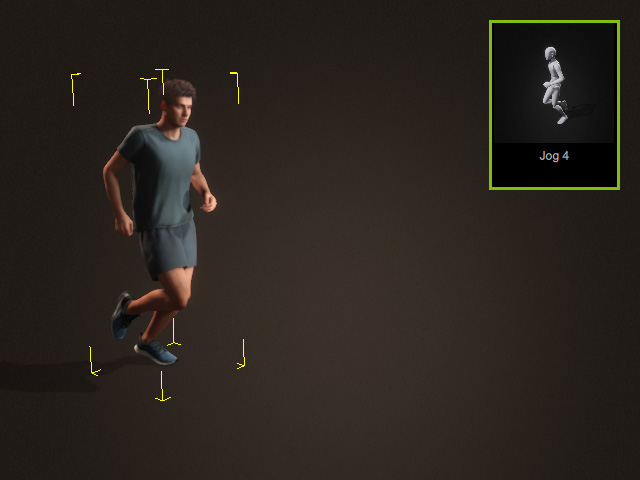
Open the timeline and playback to observe the animation.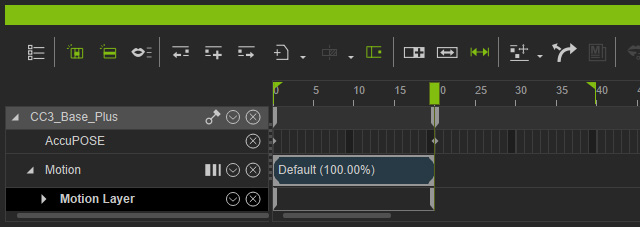
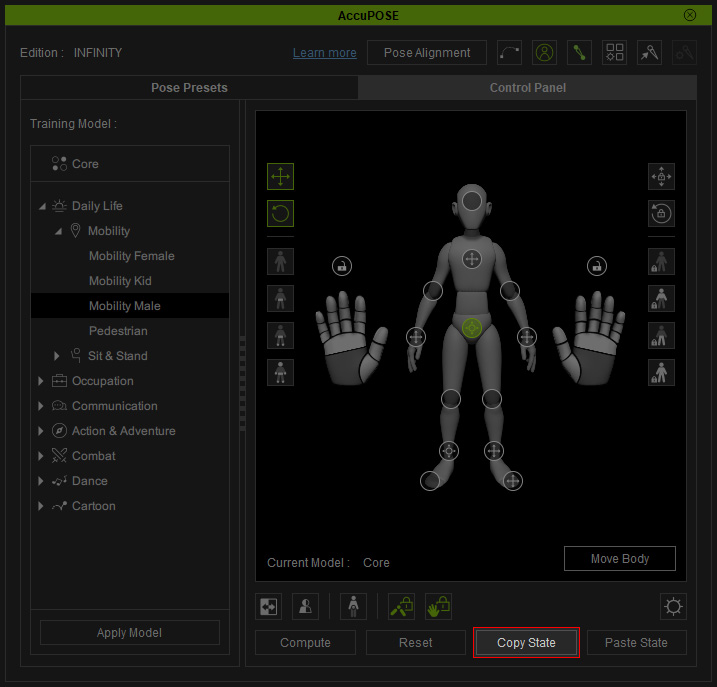
- In the AccuPOSE panel, switch to the Control Panel tab, select the Motion Layer Key created in Step 3 and click the
Copy State button.
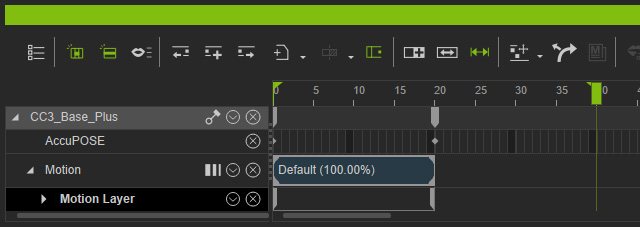
- Go to another time frame.
- Click the Paste State button on the
AccuPOSE panel.
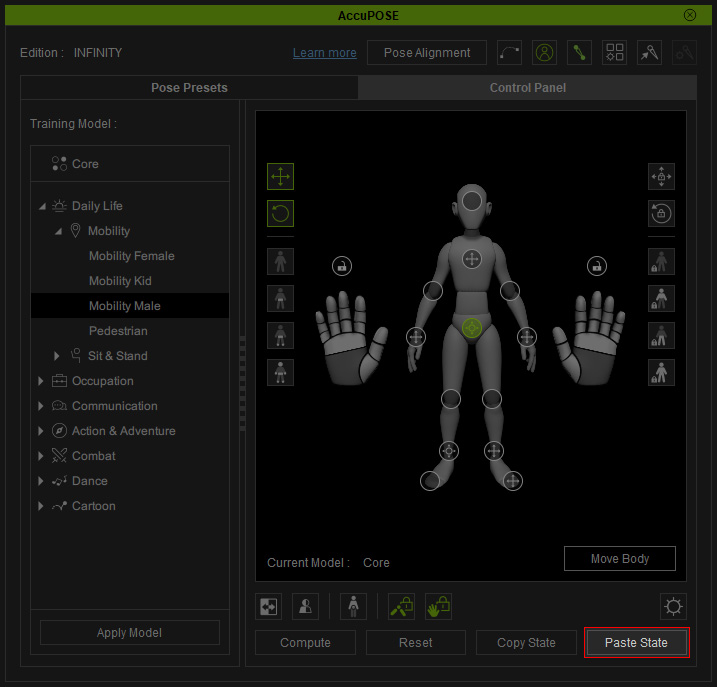
The same pose key along with the control point state key will be pasted to the new time frame.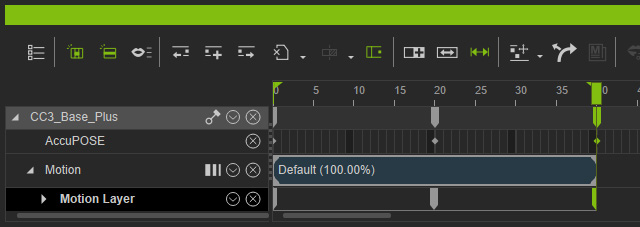
Playback to view the changes to the animation. - Select the pasted motion layer key. Click the Pose Mirror button.
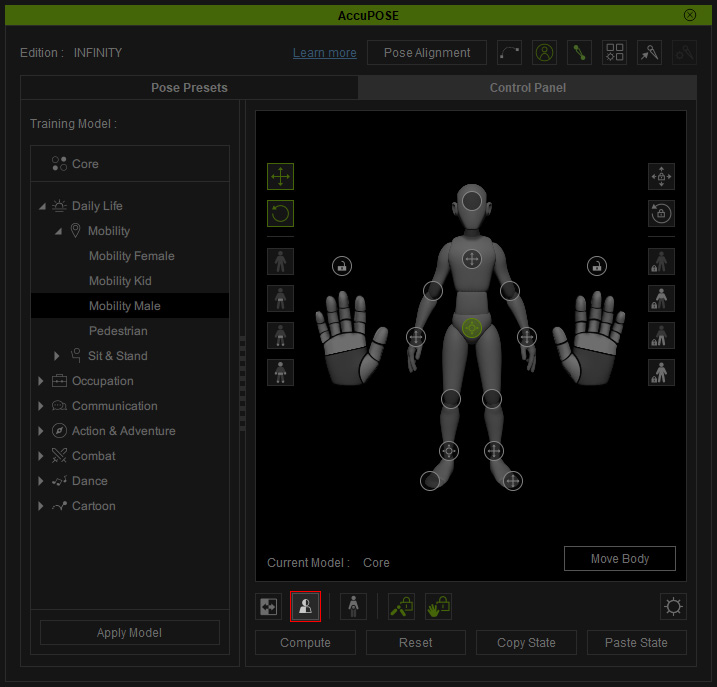
The character's pose mirrors bilaterally.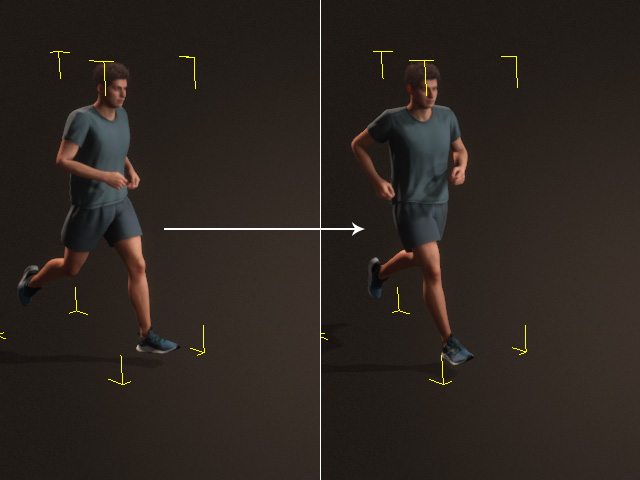
Playback to view the result. The pose is ideal but the alignment is incorrect. - Click the Paste State button again to copy the mirrored pose and the control point states.
- Delete the new pose key.
- Click the Paste State to past the mirrored pose and the control point states to the time frame.
As you can see the pose alignment works after this step.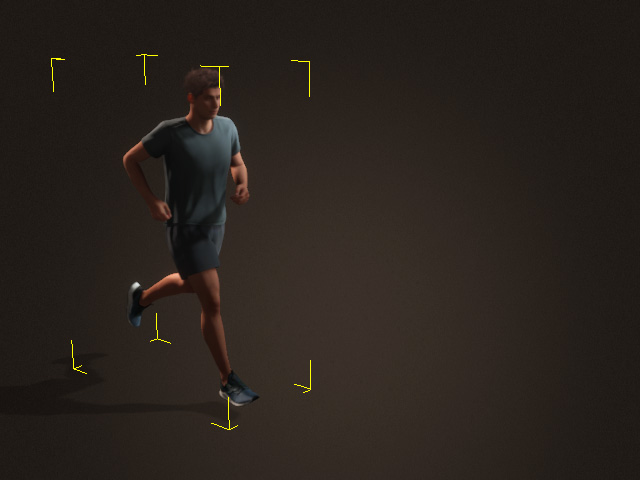
- Playback to view the result.
