Managing Your Actors
You can quickly manage your uploaded actors by using the Edit feature. This includes the ability to modify their information, such as adding or removing details. You will also be able to change the shared status of your actors and decide whether or not they are downloadable.
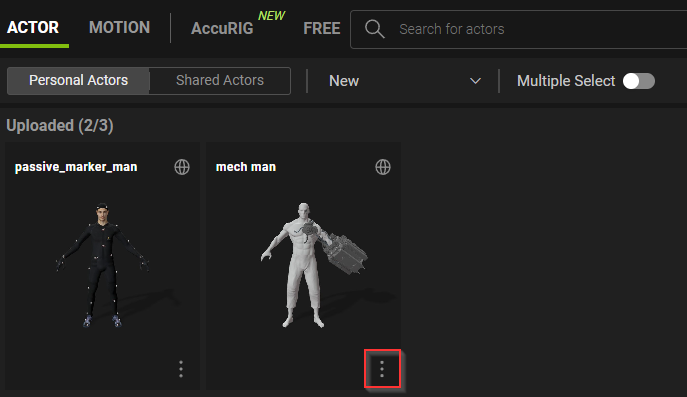
- To quickly edit your actor, click on the kebab menu at the bottom-right corner of the actor thumbnail.
- A drop-down menu will appear with four options.
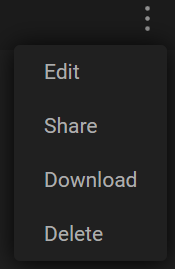
- The Edit option allows you to customize your character's Info, Motion List, and Viewer.
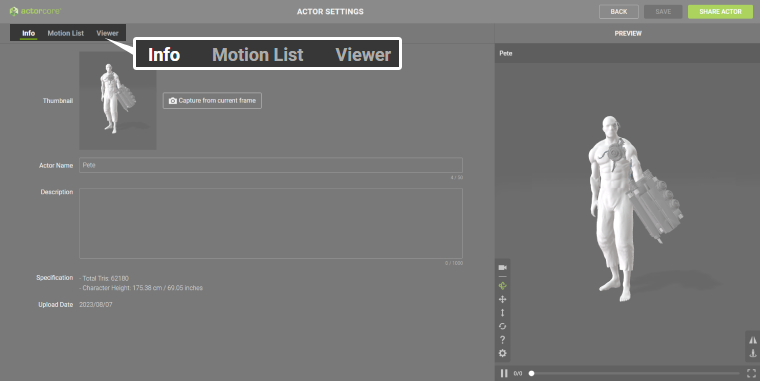
- Actor Name: You can enter the actor’s name here (50-character limit).
- Description: You can enter the actor's information here (1000-character limit).
You can include links in your description section to improve the user experience. Consider adding links to your Facebook profile, personal website, email, and any other pages that are relevant to you and the actor model.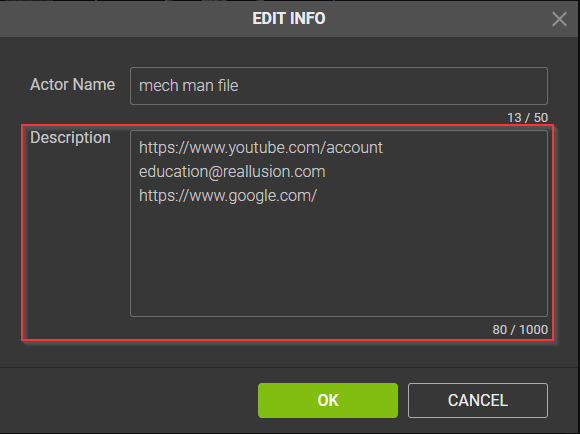
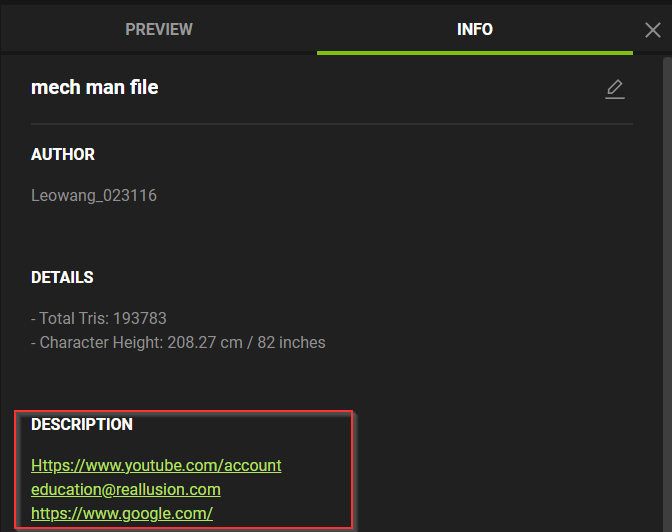
The added links in Description.
Turn into hyperlinks under the INFO section.
- The Share option is a useful feature that lets you customize your actor’s share settings and provide quick access to other relevant links.
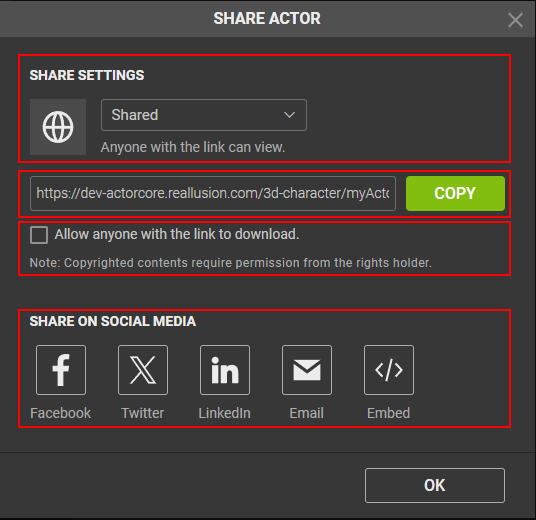
- SHARE SETTINGS: Lets you switch the share settings between public and private.
- Actor link: A unique URL link for your actor.
- Allow anyone with the link to download: Enable this option if you wish to make your shared actor downloadable.
- SHARE ON SOCIAL MEDIA: This section contains buttons to various social media platforms where you can share your actor model, as well as an option to embed your actor to other websites.
- The Download option provides a convenient way to download your actor in a variety of formats with adjustable quality settings.
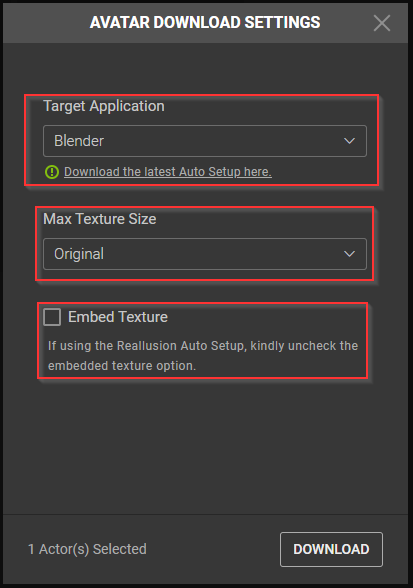
- Target Application: Select a target software in this list to make your actor model compatible with it.
- Max Texture Size: Pick among various texture resolutions to set the maximum size for your textures.
- Embed Texture: If you plan on not using Reallusion Auto Setup, then you can enable this option to have the textures embedded into your actor model.
- The Delete option provides a straightforward way to remove your actor from your account.
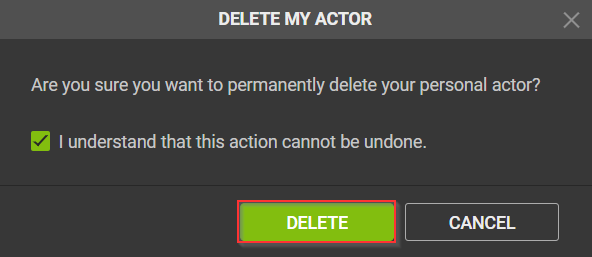
In order to delete your actor, you must first confirm that you understand the implications.
- The Edit option allows you to customize your character's Info, Motion List, and Viewer.
