Uploading Actors
You can upload the animated character to the ActorCore web site and then share it on social media like Facebook and Twitter.
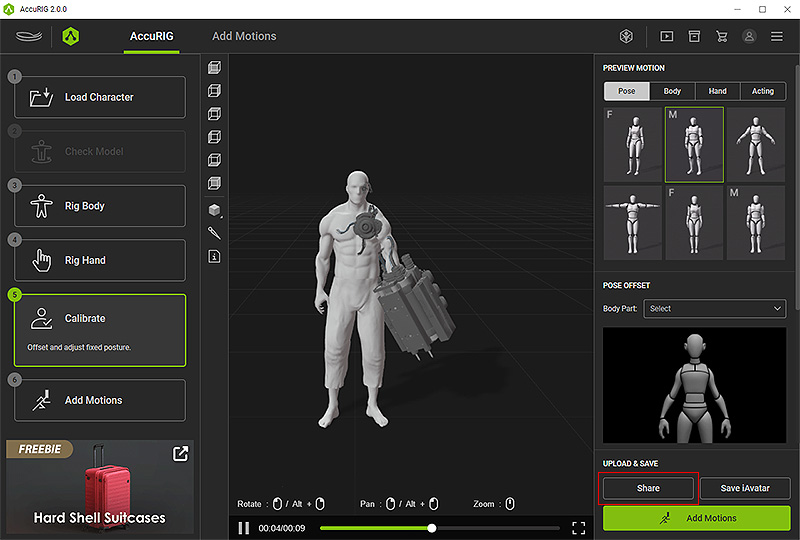
- After completing your rigging for the actor in AccuRIG, click on the Calibrate > Share button near the bottom-right corner.
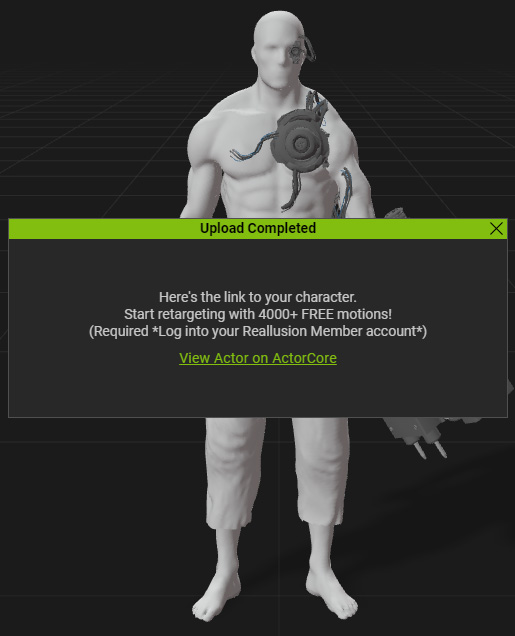
- If there are still available slots for extra actors on your ActorCore account, the program will automatically upload your actor and provide a link to it once the upload is finished.
 Note:
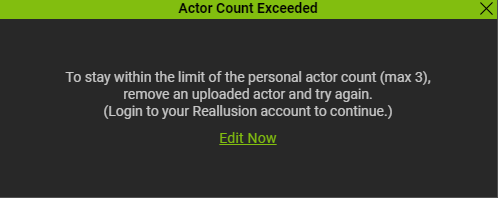
Note:If you have finished rigging your actor in AccuRIG and would like to upload it to ActorCore, but the available slots are maxed out on your account, a warning message will appear. This message will include instructions on accessing your ActorCore account and freeing up occupied slots by deleting one or more of your personal actors.
- Click the link and you will be directed to your ActorCore account.
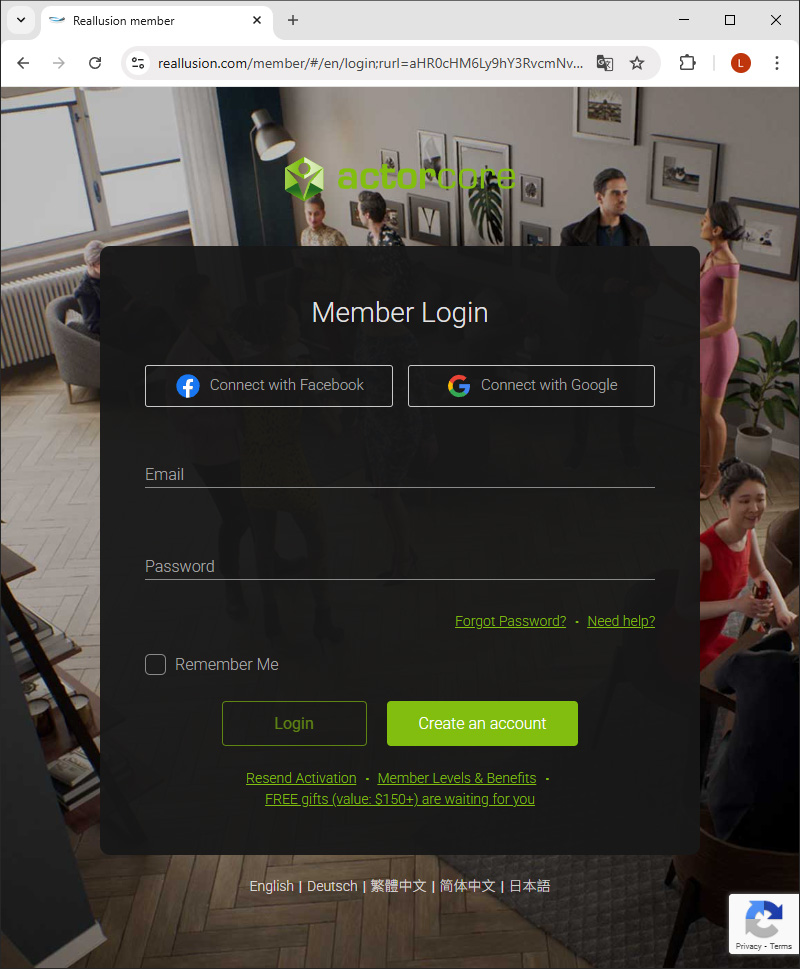
Log in the ActorCore online store with the same sign-in account.
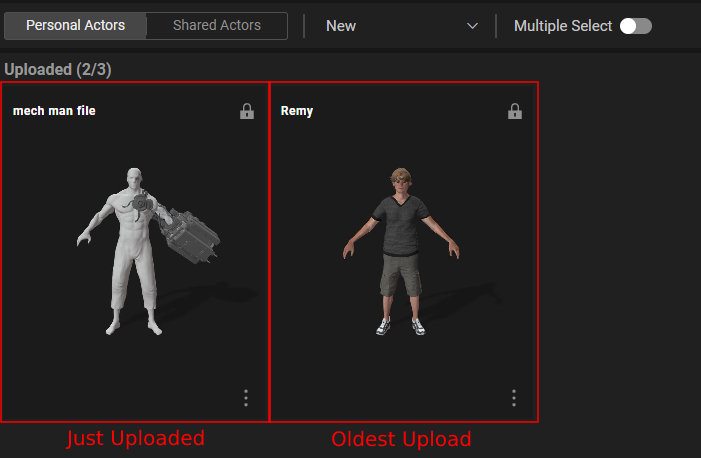
- The actor lineup under the Personal Actors will be ordered by the upload date, with the newest models at the front and the oldest models at the back.
- Once the actor is uploaded, you can start editing its info and apply motions that are available in the store to test out the rig and skin-weights.
.png)
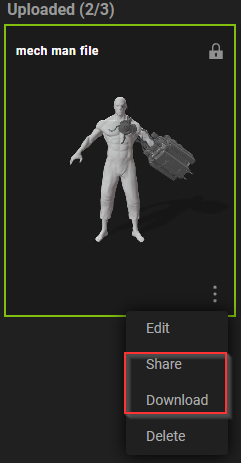
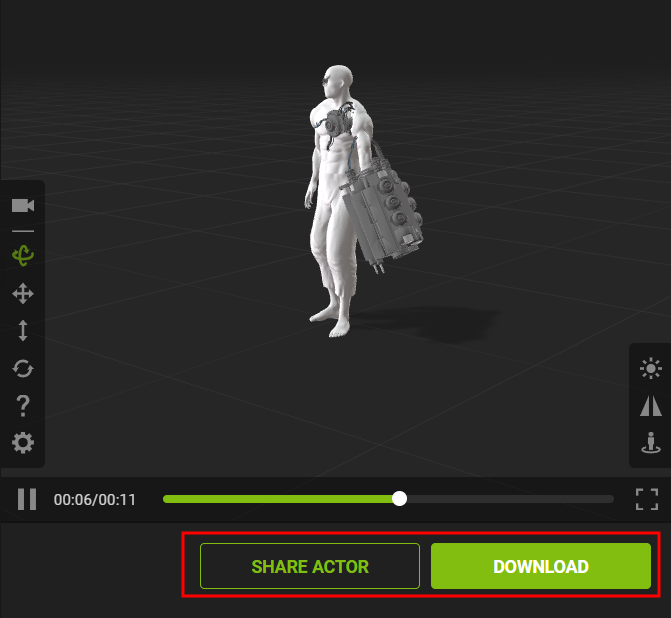
- Finally, you can decide to share the model or download it.
- Note that an extra slot indicator will appear once you've uploaded the maximum number of actors.
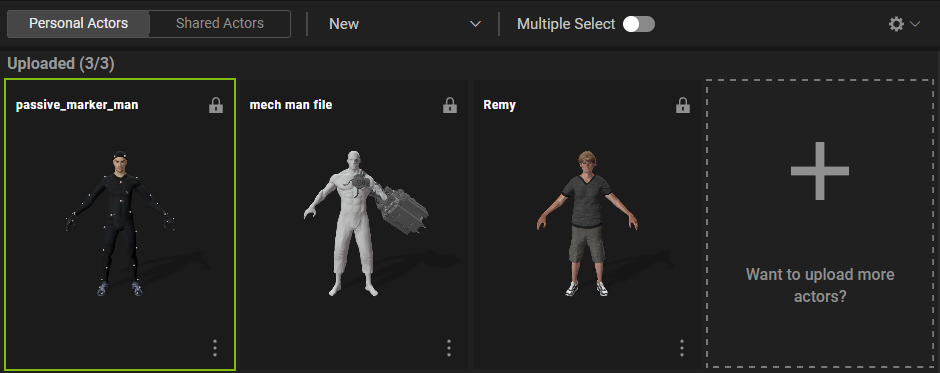
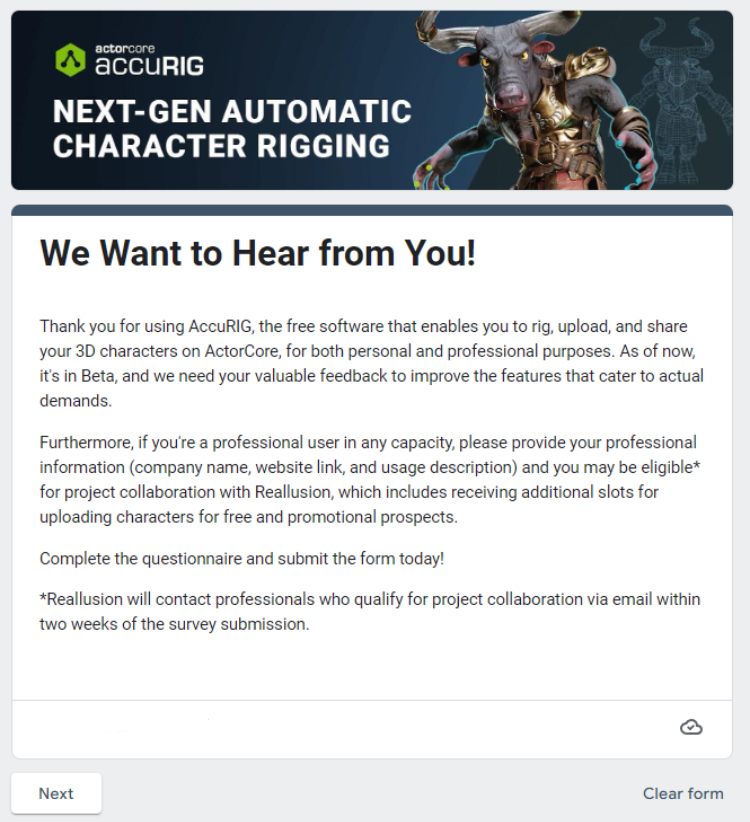
- When you click on the additional slot thumbnail, it will take you to a survey page where you will be able to provide feedback and suggestions concerning the AccuRIG features.