Applying Unreal Groom Hair to CC Characters
In this page, you will see how to apply Unreal metahuman groom hair to CC characters with control rig and live link blueprint.
Pre-settings to Unreal Engine
- Open the Epic Game Launcher and switch to the Library page.

- Click the Down arrow of the engine of desired version (5.5 to 5.8) and choose Option command.

- Activate the MetaHuman Creator Core Data item in the Unreal Engine 5.x.0 Installation Options page and then click Apply button.

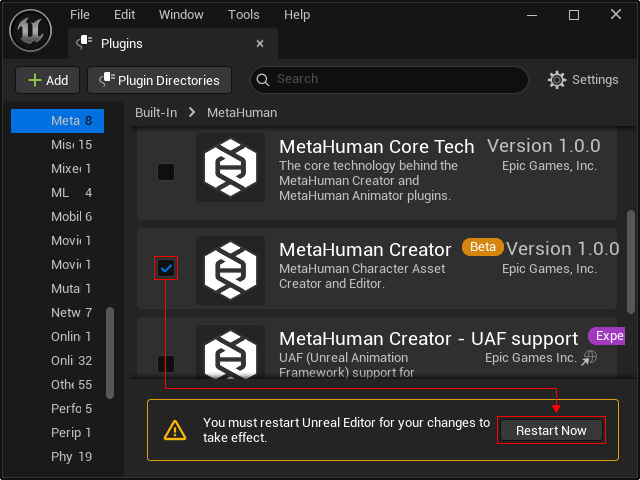
- Open desired UE project, launch the Plugins panel and activate the MetaHuman Creator plugin. Then click the Restart Now button.
Creating Characters in UE Project from CC (FBX) or iClone (Live Link)
 FBX File from Character Creator
- Prepare a character with motion in Character Creator.
- Export the character in FBX format.
- Import the character into Unreal project.
- Rebuild the animation in a new Sequencer.
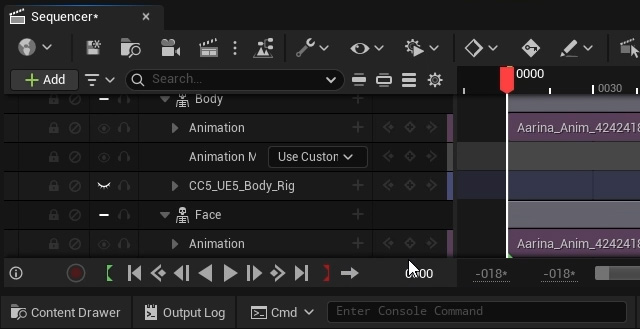
Playback to preview the animation.
Transferred via iClone Live Link
- Prepare a character with motion in iClone.
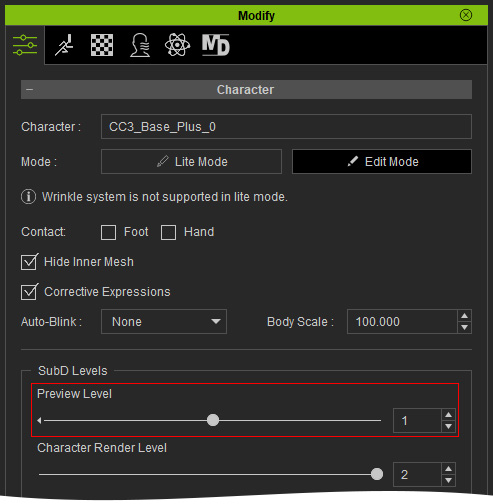
- Make sure the character is in subdivision level 0 or 1.
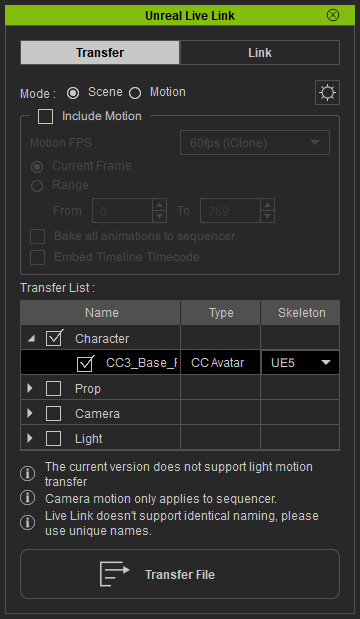
- Open the Unreal Live Link panel, activate the Character on the Transfer List and click the Transfer File button.
- In Unreal project, click the Add Source > iClone Live Link in the Live Link panel.

Click the OK button to start the listening mode.
- In iClone, switch to the Link tab page of the iClone Live Link panel, enable the character only and click the Activate Link button to connect iClone and Unreal Engine.
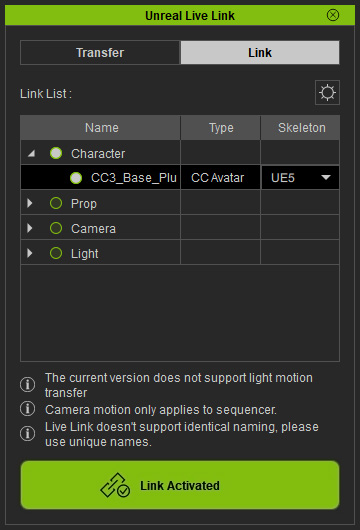
- Play the animation in iClone to check the synchronization result in iClone and Unreal Project.
Processing the Desired Groom Hair Style
- Click the Gear button of the UE Content Browser, activate the Engine Content and Plugin Content checkboxes in the context menu.
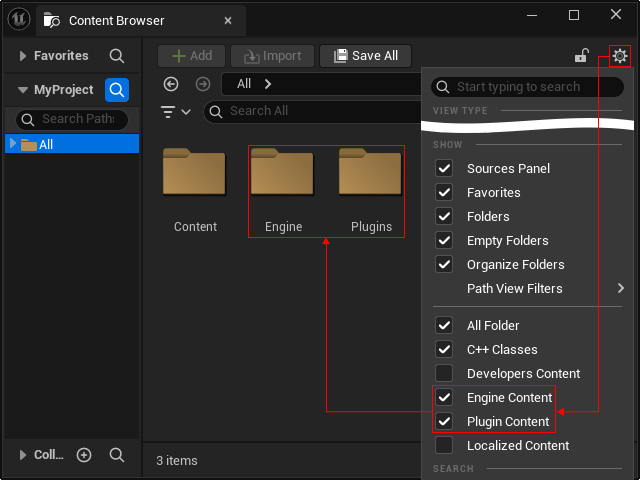
- In UE Content Browser, open the Engine > Plugins > MetaHuman Creator Content > Optional > Grooms > GroomAssets, you will find groom hair presets categorized by body parts.
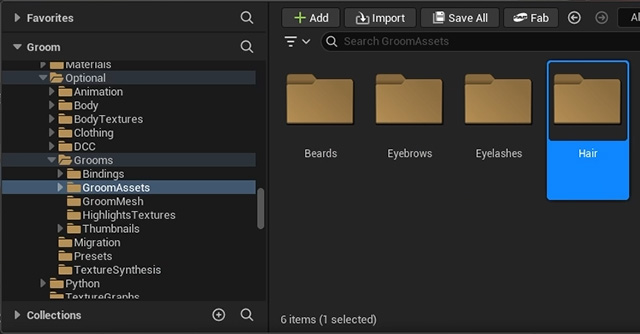
- Open the Hair folder and you will see different hairs styles available in different folders.
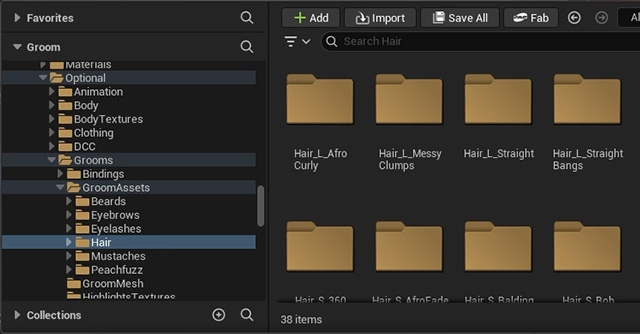
Open either of the folder and optionally double-click on the Groom Asset to preview the hair style.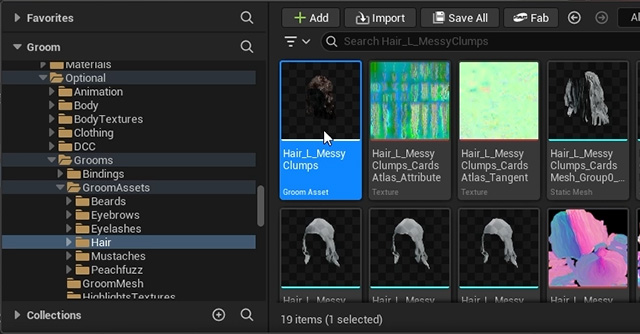
- Go to the Engine > Plugins > MetaHuman Creator Content > Optional > Grooms > Bindings > Hair folder.
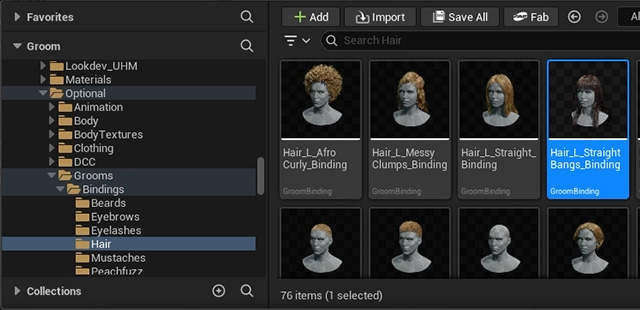
Double-click to open the GroomBinding that corresponds to the desired hair style. Take note of the current item name in the Skeletal Mesh Source dropdown list.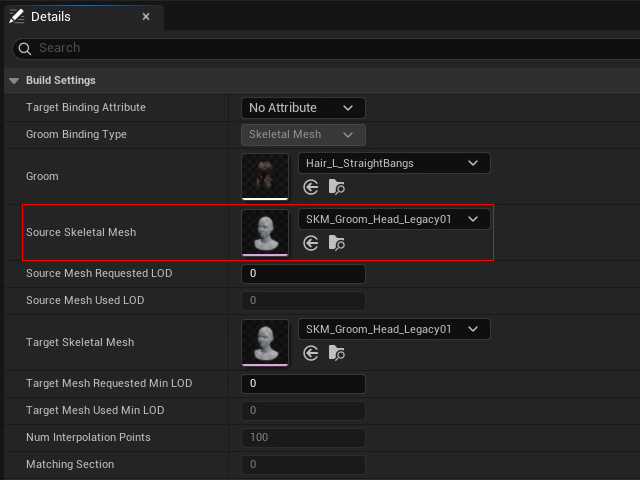
- Locate the original groom assets, right-click on it and choose Create CC Groom Binding command.
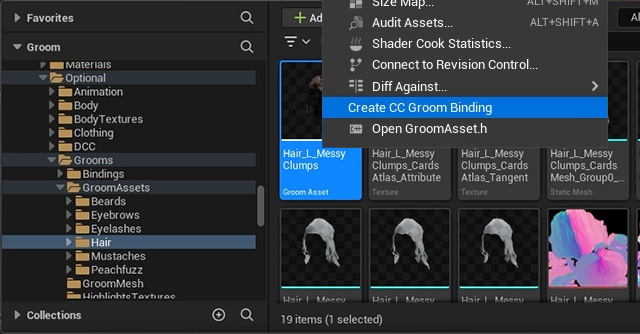
The Create CC Groom Binding panel will display.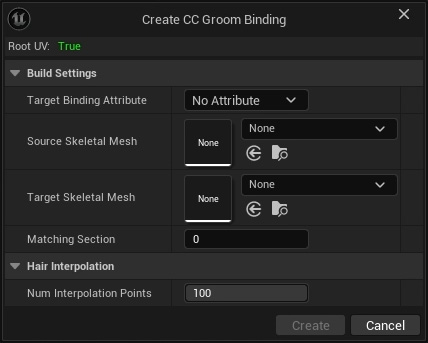
- Set the Source Skeletal Mesh to the skeletal mesh you have taken note in step 3, and set the Target Skeletal Mesh to the CC character. Click the Create button.
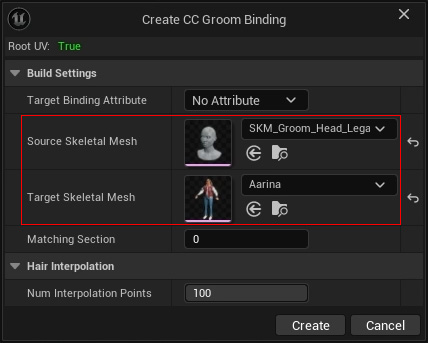
Applying the Groom Hair Style to CC Character
- Go to the character's folder, and you will find a newly created Groom folder.
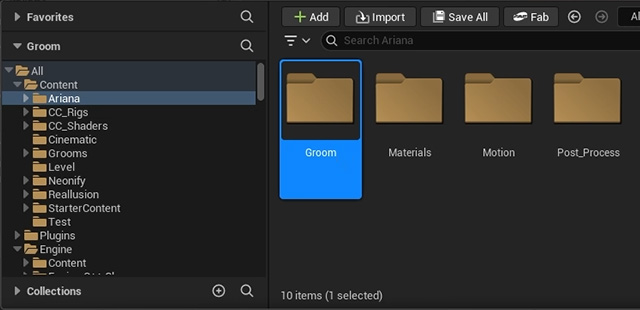
- Inside, you will find Groom Asset and GroomBinding items.
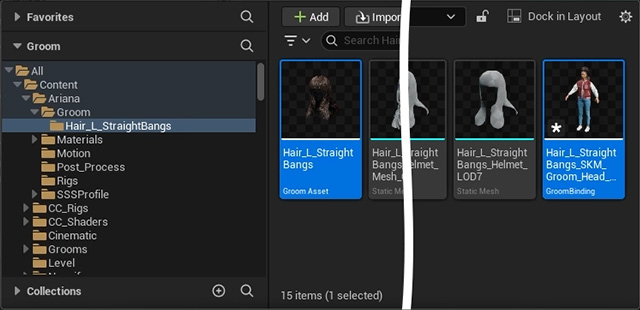
- Apply Groom components:
- FBX workflow: Open the character's CC Control Rig Blueprint, in the Components panel, pick the Face node and click the Add button.
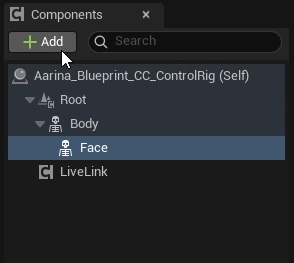
Choose Groom to add a groom component under the Face node and make sure it is selected.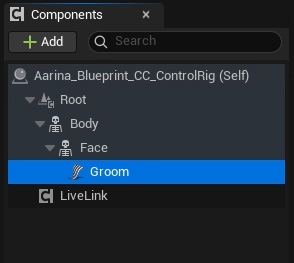
- iClone Live Link workflow: Open the character's Live Link Blueprint, in the Components panel, pick the Face node and click the Add button.
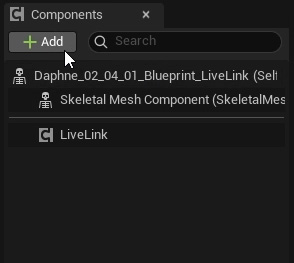
Choose Groom to add a groom component under the Skeletal Mesh Component and make sure the groom component is selected.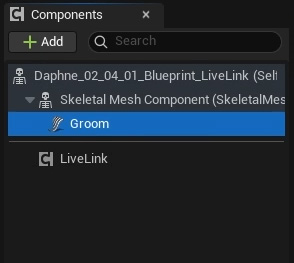
- FBX workflow: Open the character's CC Control Rig Blueprint, in the Components panel, pick the Face node and click the Add button.
- Drag both items (Step 2) to the groom component's Groom Asset and Binding Asset in the Detail panel.
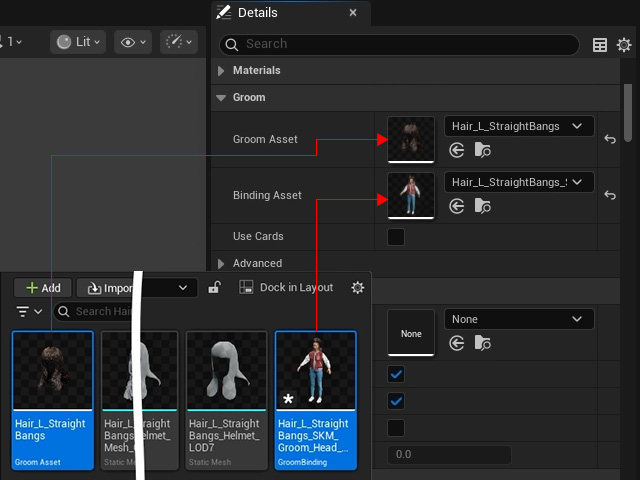
The Unreal Groom Hair will be properly applied to the CC character.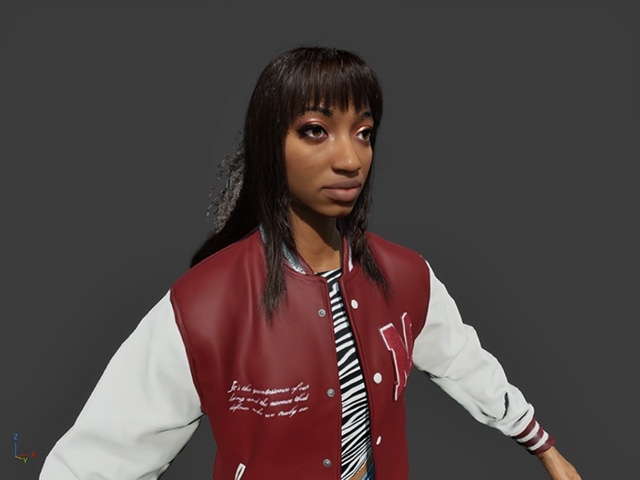
- Open the character's original hair material and set the opacity to 0.0 to hide the original hair.
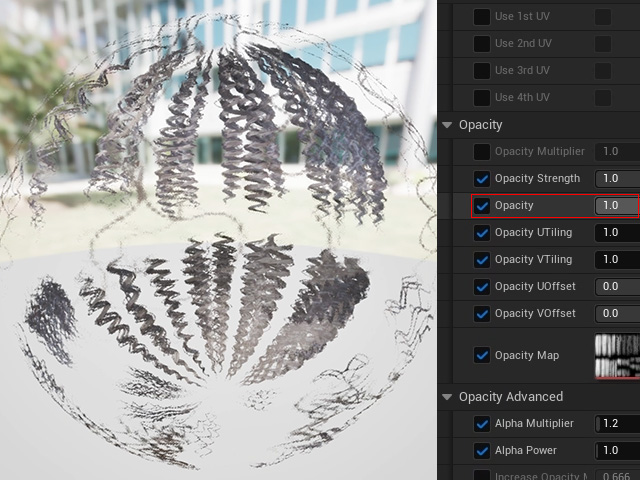
If you export a hairless character from Character Creator or iClone, then you can skip this step. - Click the Compile button on the toolbar to update the adjustments.
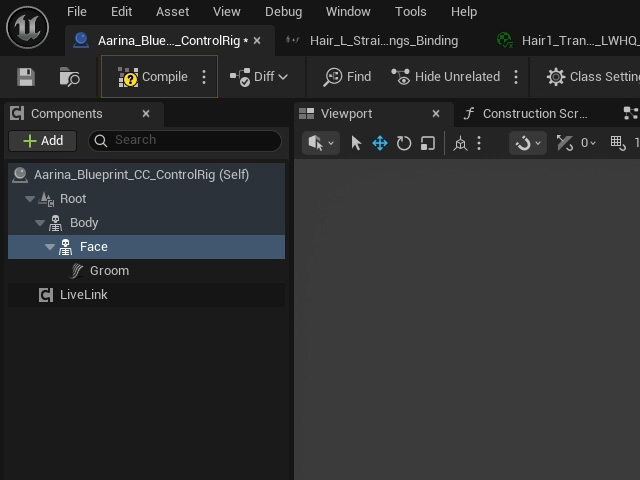
- Playback the animation in the Sequencer to check the result.
