Full Conversion for Daz Genesis 3 Character
To automatically convert a talking, moving DAZ Genesis 3 character to iClone, you need to get a hold of the DAZ Genesis Extension.
DAZ Genesis Extension allows you to easily convert and animate all DAZ Genesis 3 characters inside iClone. You can even define and customize your character's unique expression styles via the enclosed DUF files or create body morph effects right in iClone.
 Note
Note
Extract the files from iClone Daz Genesis Extension v3.zip and go to the Daz Genesis to iClone folder to view the following:
- Readme.txt: This file describes the items in this zip file.
- Daz Genesis to iClone folder: In this folder, you can get the optimized facial expression data time-coded into different frames
for Genesis v1 to v3.
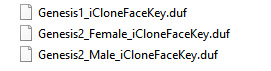
- Genesis1_iCloneFaceKey.duf ~ Genesis3_Male_iCloneFaceKey.duf: These files can be used to full converting the face key for
different characters of the Genesis series.
- Daz Genesis Avatar Face Key Sequence.xls: This file contains two sheets; the Workflow sheet shows the diagram for converting a DAZ Genesis 3 character, and the Face Key Sequence sheets lists the facial expression data time-coded into different frames.
- Genesis1_iCloneFaceKey.duf ~ Genesis3_Male_iCloneFaceKey.duf: These files can be used to full converting the face key for
different characters of the Genesis series.
- Muscle Mapping & Puppeteering Relation.xls: This excel file describes the facial muscle names and the relation between the muscles and the face part in the puppeteering panel.
Software and Contents Requirements
- Character Creator: Version 4.0 or above is required for sharing textures.
- Genesis character Version 3: Please visit the website to find out more.
Using the DUF File for Full Conversion
-
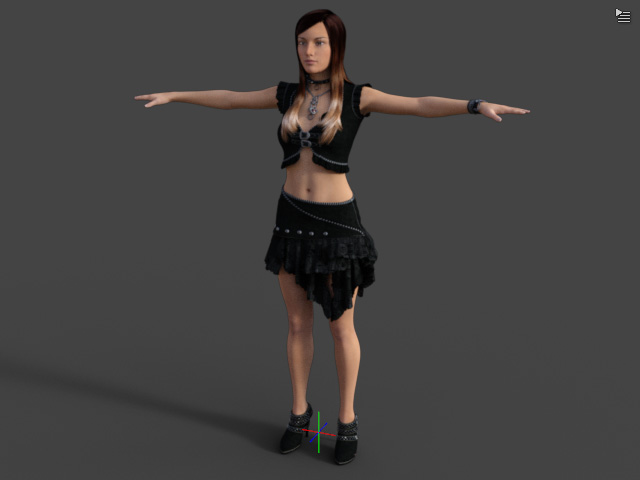
Create a custom character based on the Genesis rig inside Daz 3D.
-
Drag and drop the
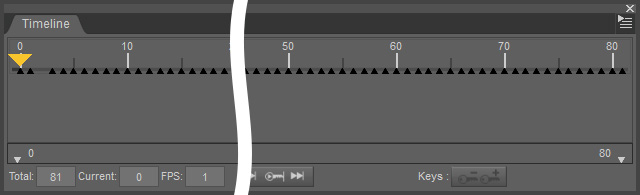
Genesis3_Female_iCloneFaceKey.duf or Genesis3_Male_iCloneFaceKey.duf files onto the character accordingly. You can now view the facial expression keys from frame 0
to 81 in the timeline.
 Note
Note- For quicker editing, preview, and export, set the FPS to 1.
-
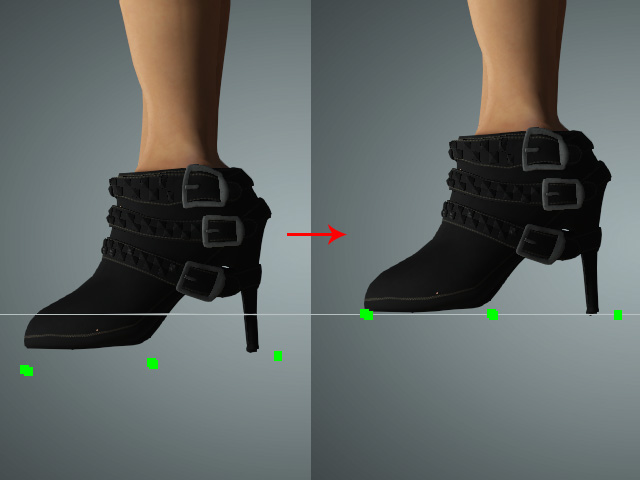
If the character is wearing high-heels, then you may notice the shoes conforming to
the current positions of the feet:
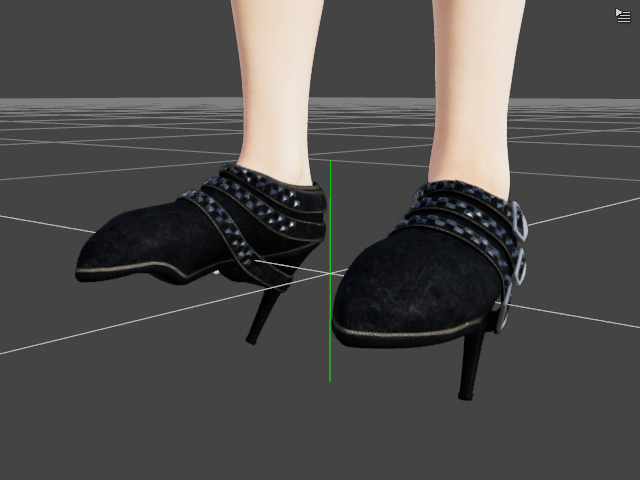
You can fix this problem by applying the feet poses suitable for high-heels.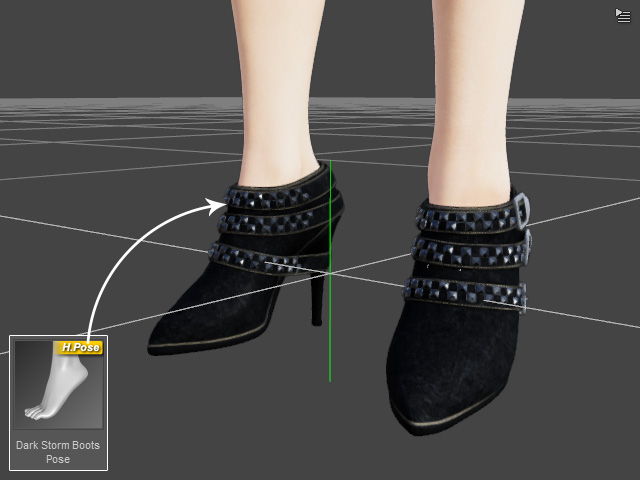
-
Export the entire character in FBX format.
-
In the FBX export Options panel, activate the boxes as shown in the
illustration below and click the Edit Morph Export Rules... button.
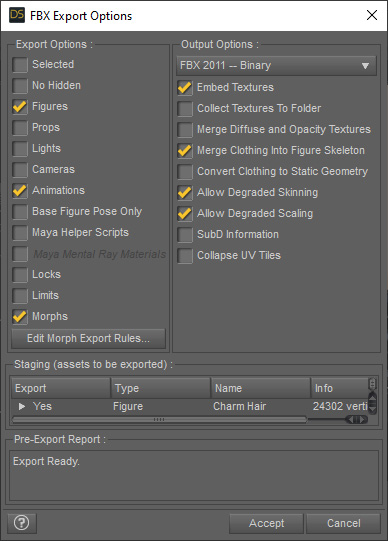
-
Manually add one line as shown then click the Accept button.
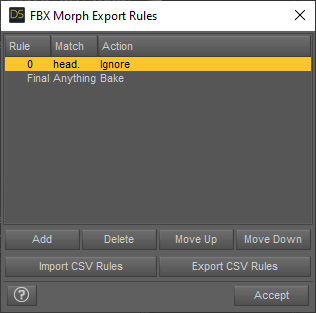 Note
NoteThe above steps prevents DAZ 3D from exporting two sets of identical morph targets, which will interfere with the procedures below.
-
In the FBX export Options panel, activate the boxes as shown in the
illustration below and click the Edit Morph Export Rules... button.
- Load the exported FBX into Character Creator to create a Humanoid character.
-
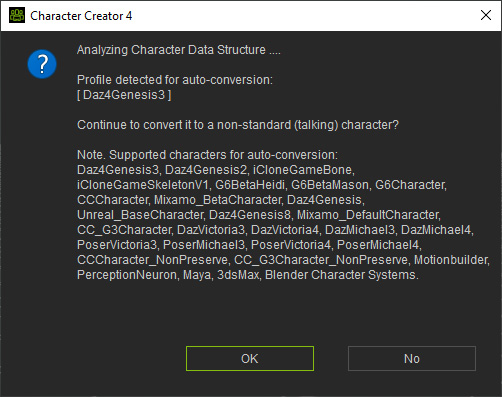
You will be asked if you want to auto-convert the model into a Humanoid character.
Click the OK button.
-
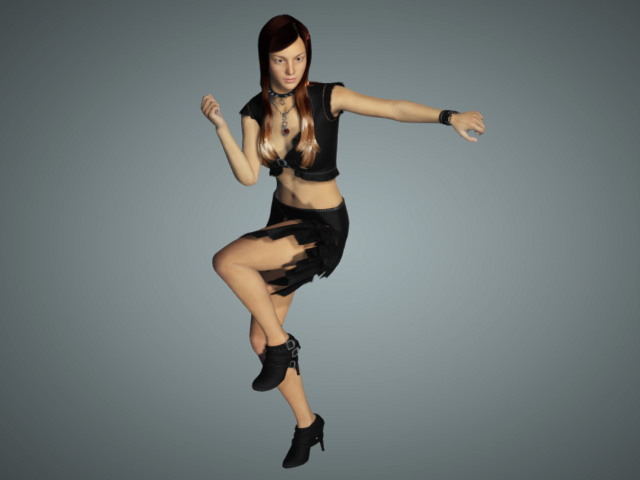
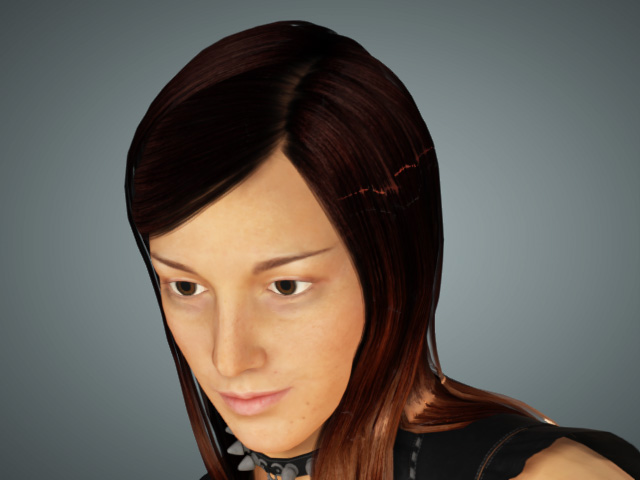
The character is now animation-ready
for body motions and facial expressions.
 Note
NoteYou can check the links below to find ways to enhance, exaggerate, and strengthen facial expressions.
Possible Issues
The following problems may occur when using Character Creator auto-characterization:
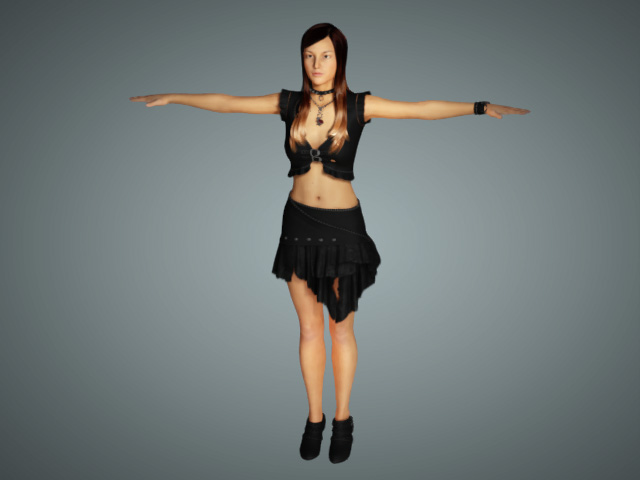
- Texture goes missing: You will know this has occurred because the character turns completely white.
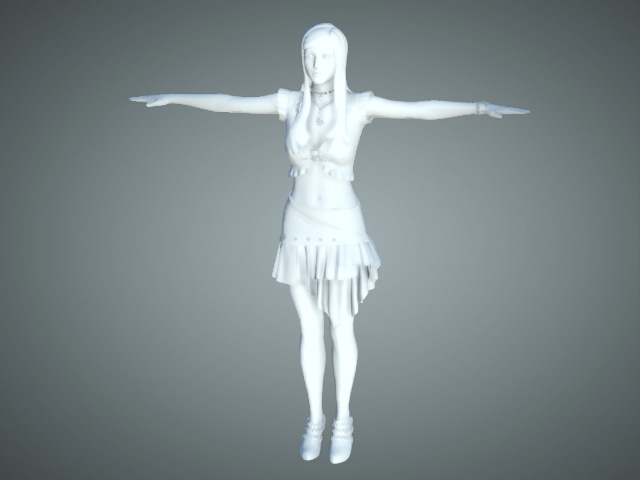
Solve this issue by finding the original textures in the DAZ 3D default texture folder and load them into Character Creator.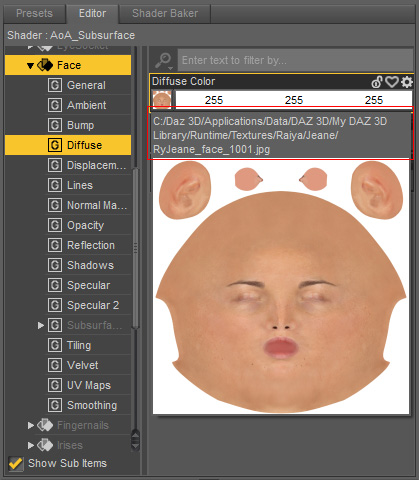
Find the location of the texture images in DAZ.
Load the texture images to the character in Character Creator.
- Whitened Eyes: The eyeballs turn completely white due to the problematic
settings for the EyeMoisture and Cornea material.
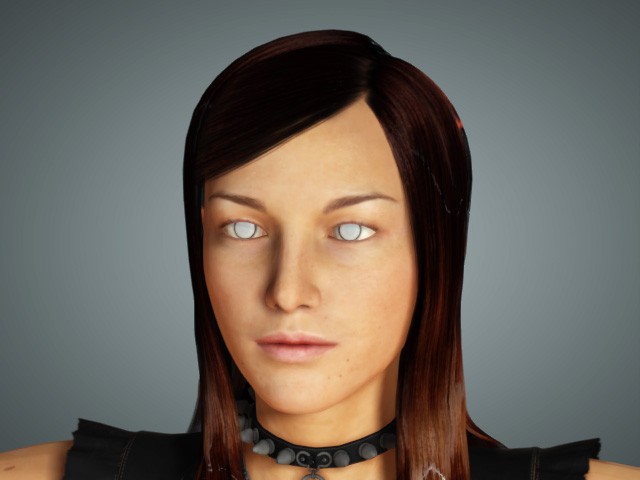
Adjust the settings as shown below to reveal the textures of the eyeballs.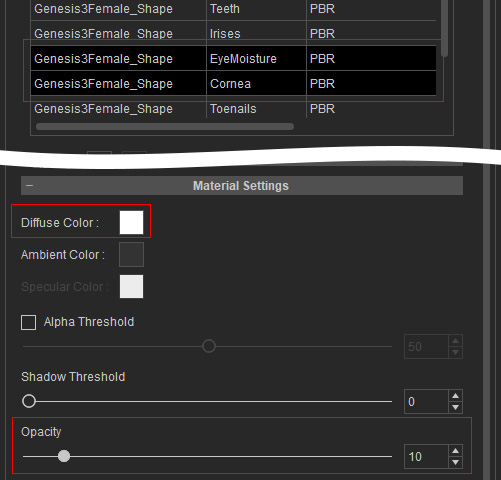
Adjust the settings of EyeMoisture and Cornea materials in Character Creator.
- Position:
When the character wears high heels, parts of the feet will pass into the floor grid.
Fix this by adjusting the vertical positioning of the character by adjusting the height with the Floor Contact
feature in the Modify panel.