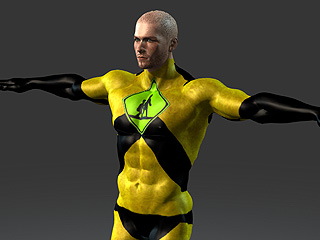
Creating Spandex Tights
In the Basic Modification for Substance Texture section, only the sliders are adjusted to do the basic and easy texture editing. However, you may also do the modification with advanced method by replacing the texture or modify the texture in any favorite external image editor.
After editing the texture, you are able to wear spandex tight for the character.
 Note:
Note:
Please note that you must have purchased Essential Morphs & Skin content pack in order to have the input channel for loading custom images.
Replacing Texture
-
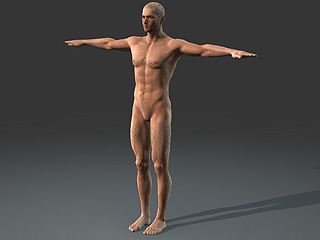
Create a new project.
-
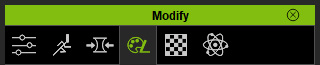
Go to the Modify (panel) >> Texture
(tab).
- Select the Actor in the tree view and click the Open Texture Editor button at the top-right of the panel to show the sections of adjustable parameters.
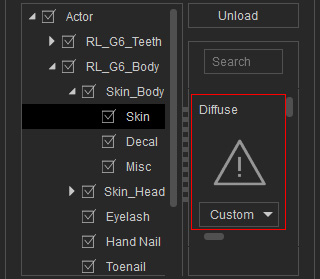
- Go to Actor >> RL_G6_Body >> Skin_Body >> Skin >> Base section.
-
Double click on the Diffuse icon and load an image to replace the original
texture of the body.
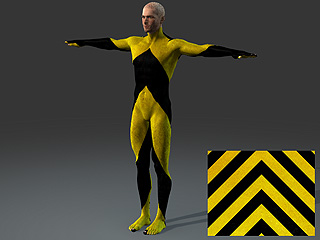
-
Optionally adjust the sliders in the section to adjust the texture look for the character.
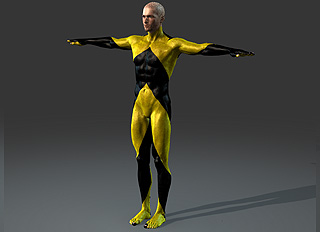
Creating Texture from Default
The method describe above simply project the loaded image onto the target part, however, it is difficult to change the size, position or angle of the image for mapping onto the character because there is no way to get the reference of the mapping method for the pixels of the image to the part of the body.
In this section, you can edit the default texture image with your favorite image editor and then import it for mapping correctly. After the image is edited and loaded, you may still utilize the Substance parameters in Character Creator to add more effects to the character.
Preparing Diffuse Texture with Image Editor
-
Optionally adjust the shape of the character.
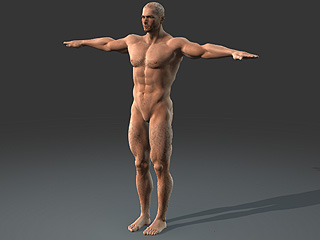
-
Export the character to iClone by the
File >> Export to >> Send Character to iClone command.
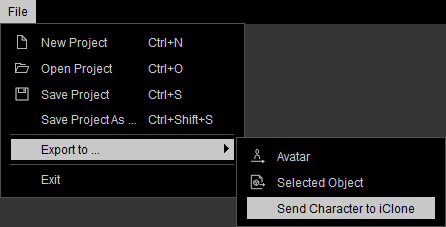
-
In iClone, make sure the character is selected.
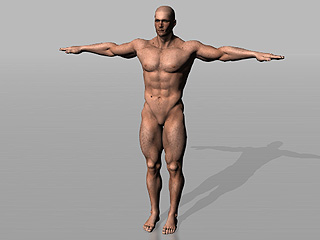
-
In the Modify panel >> Material tab >> Texture Settings section,
select the Diffuse channel and click the Launch and
UV Reference
buttons.
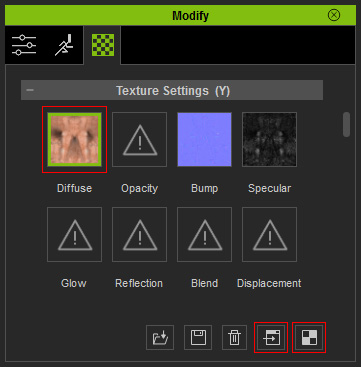
The diffuse image and its related UV reference image will thus be opened with your favorite image editor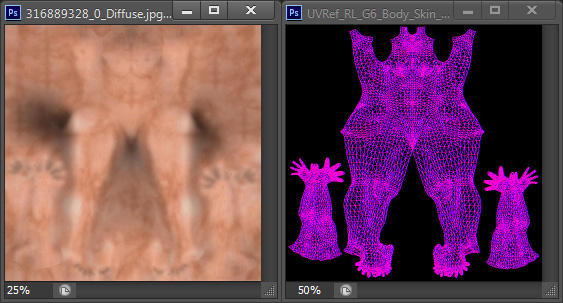
-
Edit the diffuse image in accordance with the UV reference image and save it.
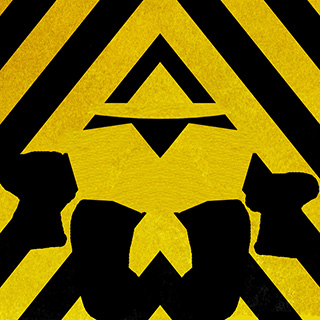
Loading Diffuse Texture and Using Substance Parameter
- Back to Character Creator.
-
Go to the Modify (panel) >> Texture
(tab).
- Select the Actor in the tree view and click the Open Texture Editor button at the top-right of the panel to show the sections of adjustable parameters.
- Go to Actor >> RL_G6_Body >> Skin_Body >> Skin >> Base section.
-
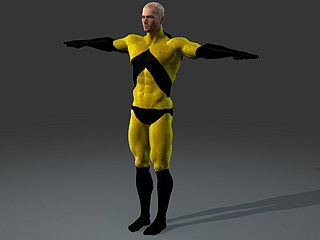
Double click on the Diffuse icon and load the prepared image to replace the original
texture of the body.
-
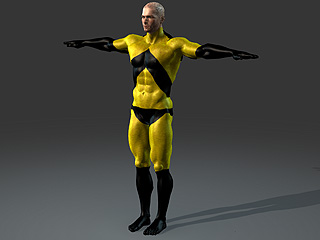
Optionally adjust the sliders in the section to adjust the texture look for the character.
-
By using the other settings, such as Decal, the texture of the character can have more variety.