Fixing Relink deformation errors
Errors in relinking the character model or object to ZBrush may result from corrupt ZBrush caches. Follow the steps below to clear the cache and relink your models to ZBrush.
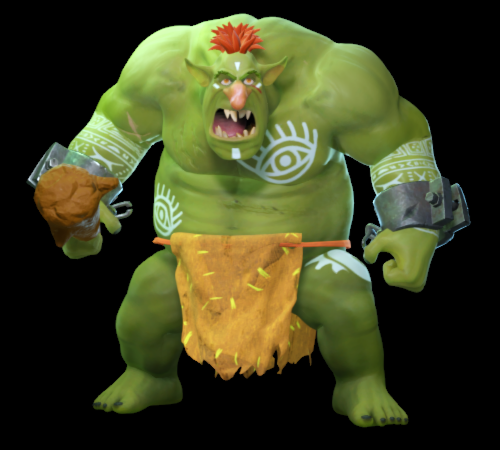 | 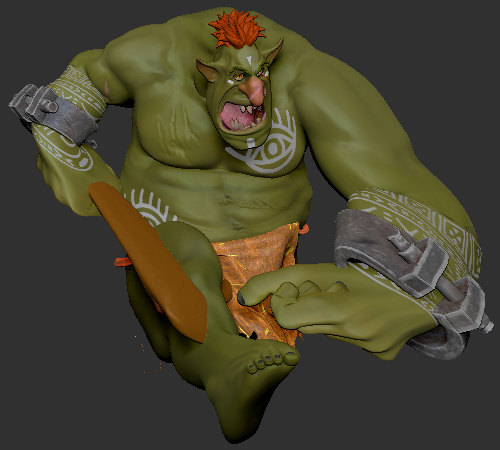 |
Character model with a custom pose in Character Creator before relinking to ZBrush. | The character model in ZBrush deforms after relink. |
- If you encounter unexpected errors in ZBrush after relinking your model, use the Undo History feature to revert to a point before the error occurred.
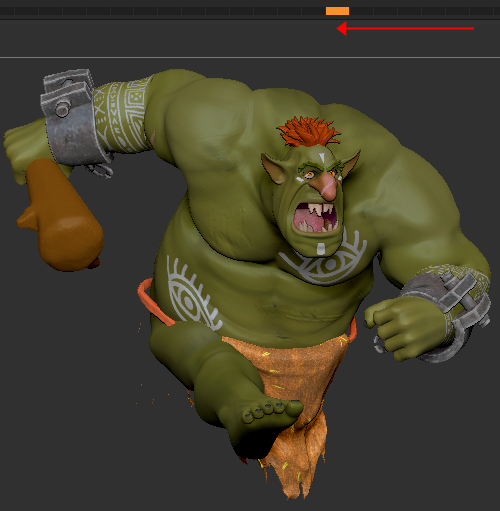
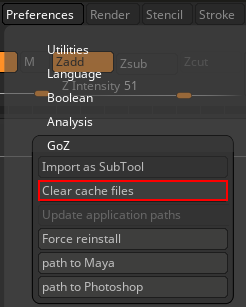
- Perform Preferences > GoZ > Clear cache files to remove corrupt cache data.
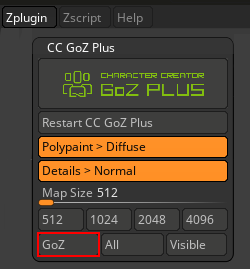
- Click on Zplugin > CC GoZ Plus > GoZ to reestablish a link between ZBrush and CC.
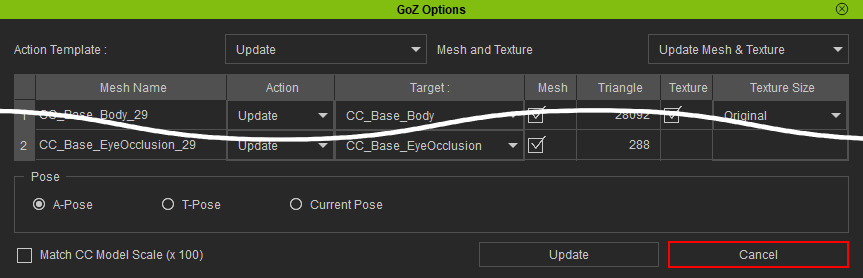
- In CC, the GoZ Options modal window will appear. Click the Cancel button to close the window.
- Click the GoZ Plus icon
 in the top toolbar to open the GoZ Settings modal window.
 - Ensure Relink is selected in the Template section to relink your model to ZBrush. In the Update Settings section, enable Relink Mesh Changes in the New Layer and select Current Pose in the Pose section.
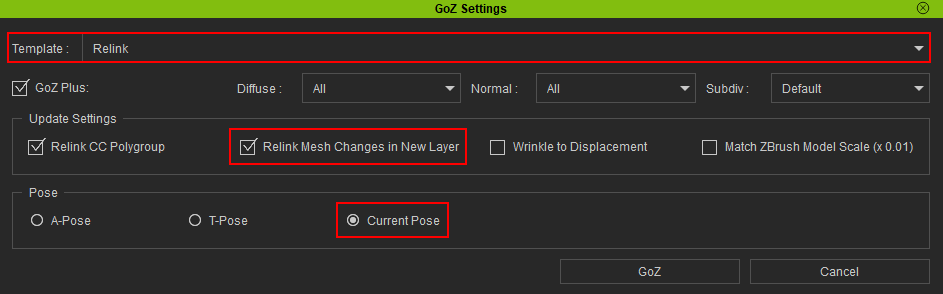
- Keep the remaining settings at default values and click GoZ to start the relinking process.

The character pose is relinked without deformations.