Launching Appearance Editor (New for v. 4.4)
To customize substance textures for CC3+, CC1 characters, clothing, accessories, and props, various methods are available for launching the Appearance Editor.
For CC3+ characters
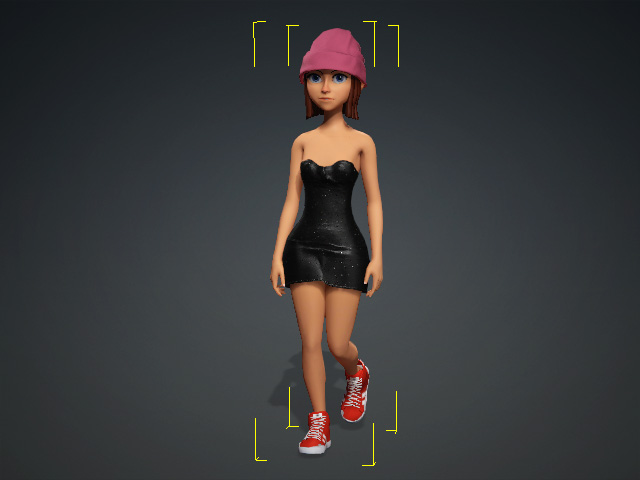
- Select the character.
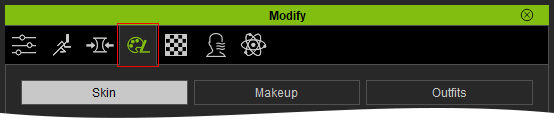
- Open the Modify panel, switch to the Appearance Editor tab.
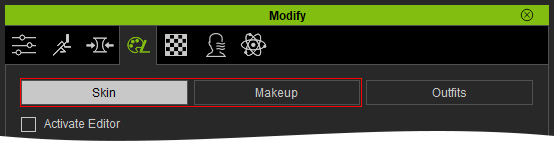
- Click the Skin or Makeup
buttons to editing the head, body, eyelash and nails materials using SkinGen.
For CC1 or G6 characters
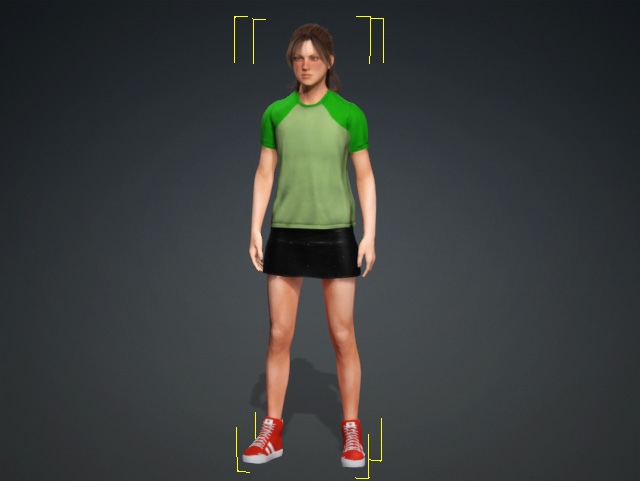
- Select the character.
- Open the Modify panel and switch to the Appearance Editor tab.

- Choose the Actor from the left tree view.
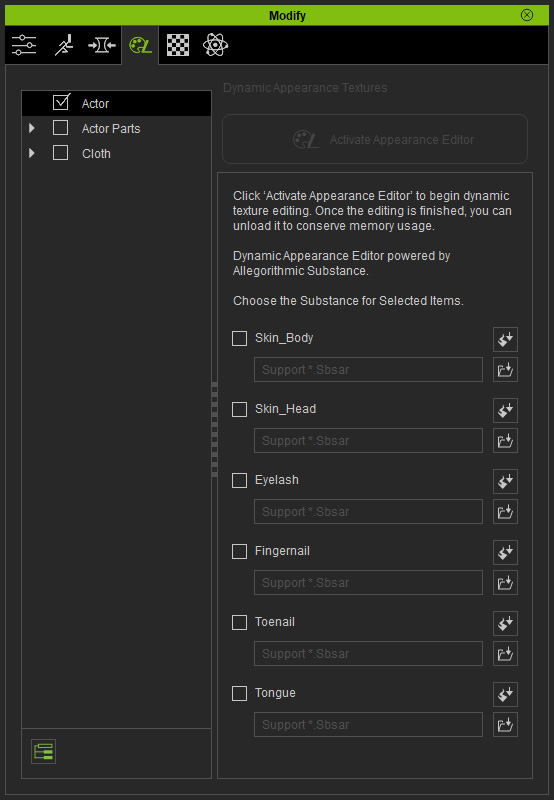
For the teeth, eyes or hair (Smart Hair excluded), activate the corresponding checkboxes in the left tree view: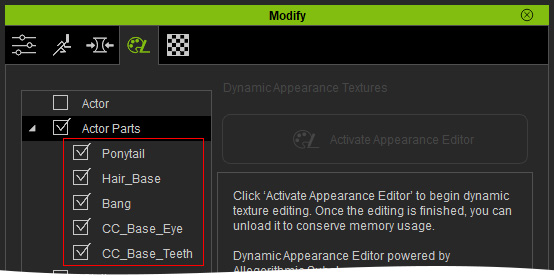
Then activate the desired material boxes for body, head, eyelash and so on, in the right pane.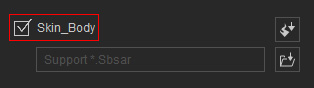
- Click the Load Substance Material button.
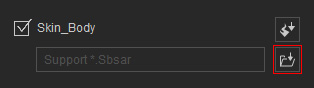
Choose the corresponding substance material (*.ccTexture) from the file browser and click the Open button.- For
G6 characters, the default path is "C:\Program Files\Reallusion\Character Creator 4\Program\Assets\ExternalFiles\Substance".
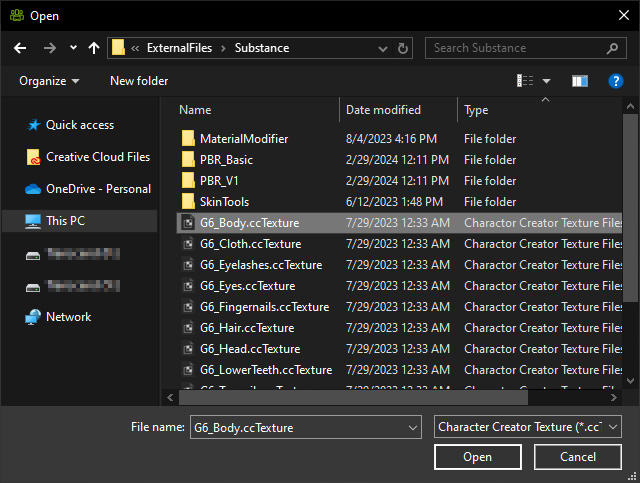
- For CC1 characters,
the default path is "C:\Program Files\Reallusion\Character Creator 4\Program\Assets\ExternalFiles\Substance\PBR_Basic".
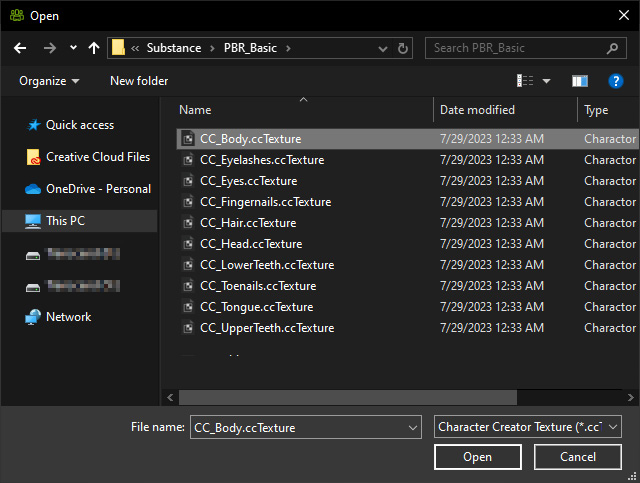
- For
G6 characters, the default path is "C:\Program Files\Reallusion\Character Creator 4\Program\Assets\ExternalFiles\Substance".
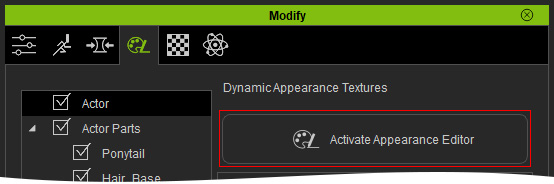
- Click the Activate Appearance Editor button to start editing the substance material settings.
For Cloths, Accessories and Props
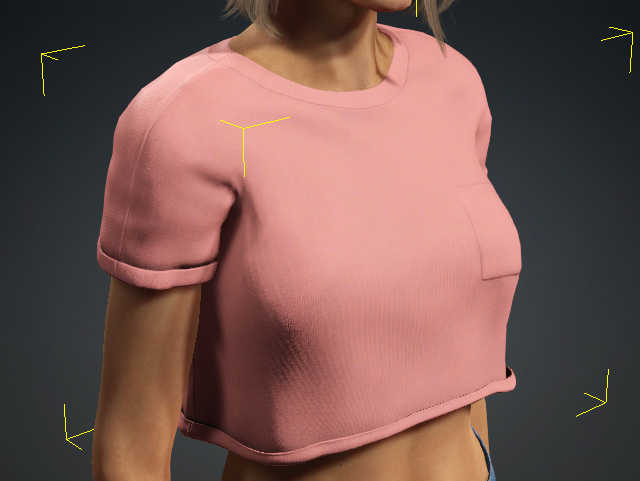
- Select an article of clothing or accessory on the character
- Open the Modify panel, switch to the Appearance Editor tab.
- If the panel shows a Skin, Makeup
and Outfits button, click on Outfits to switch to
that mode; otherwise, skip this step.
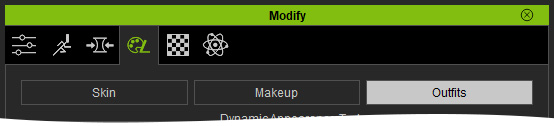
- Choose the corresponding object from the left tree view.
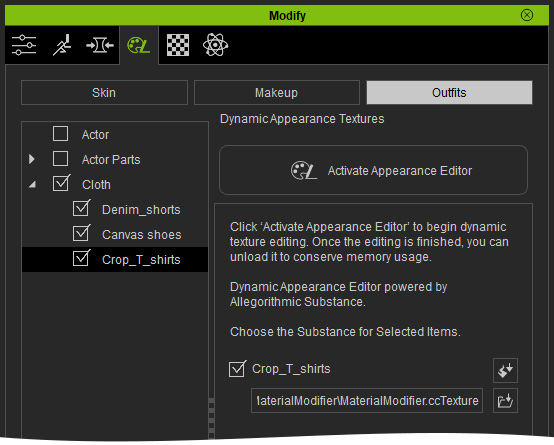
- If the substance material slot is empty, proceed with the
following sub-steps; otherwise, skip this section.
- Click the Load Substance Material button.
- Choose the substance material (*.ccTexture) in the current folder,
"MaterialModifer", "PBR_Basic" or "PBR_V1" sub-folders, and
click Open:
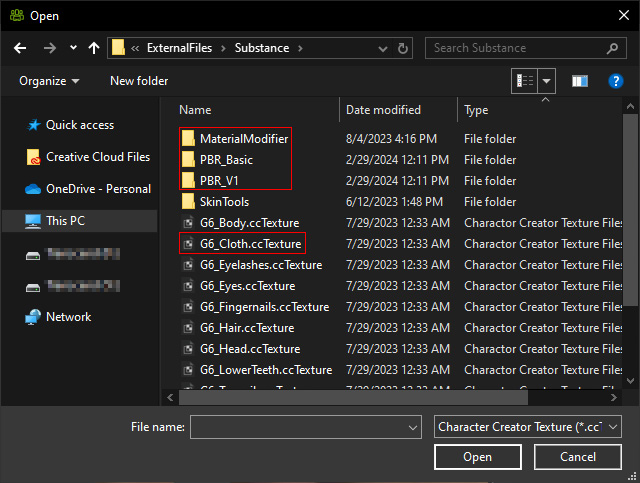
The current folder path is "C:\Program Files\Reallusion\Character Creator 4\Program\Assets\ExternalFiles\Substance".
- Click the Load Substance Material button.
- Click the Activate Appearance Editor button to start editing the substance material settings.
You may need to try a different substance material in step 5 to correct the settings.
