Baking Detailed Normal for Meshes of Lower Subdivision Level
To achieve high details on low-polygon characters, CC5 provides a Bake Normal feature. This allows you to transfer the surface bump details from a high-resolution mesh into a normal map. By applying this normal map to a low-polygon character, you can simulate the appearance of fine surface details—even if the geometry itself lacks the necessary mesh density to represent it.
- Apply a CC5+ character or a CC3+ character (decrease the subdivision to 0 for CC5+ character).
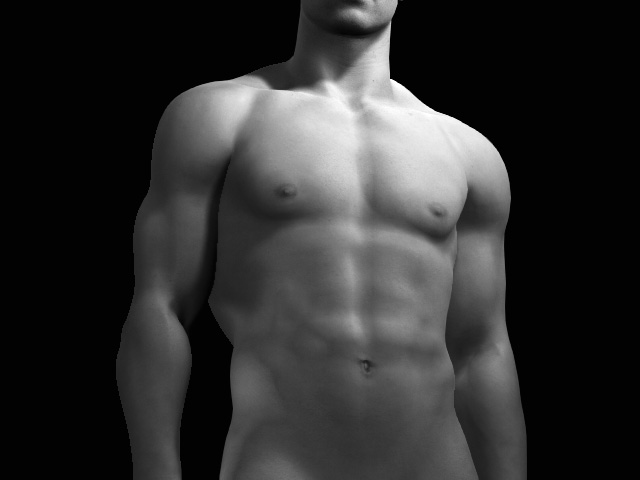
This step ensures the character has the lowest subdivision level.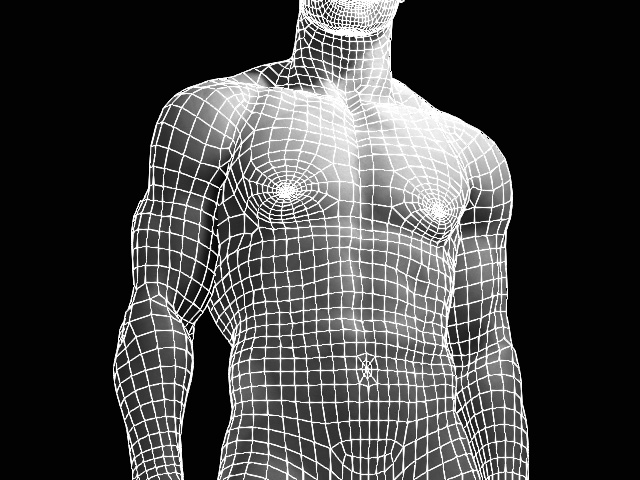
- In the Material tab page, check out the Normal map.
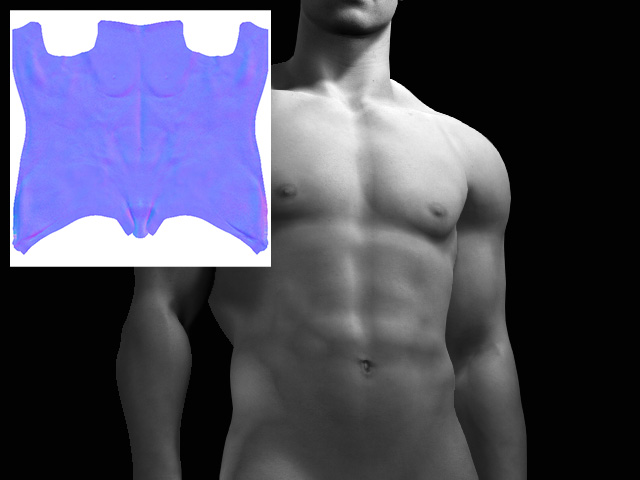
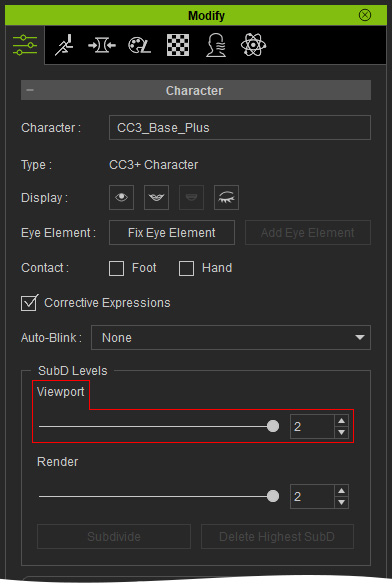
- Increase the Subdivision level to 2 (for CC3+ characters, you need to Increase Mesh Levels first).
- Use the HD morph sliders to add surface details of the character.
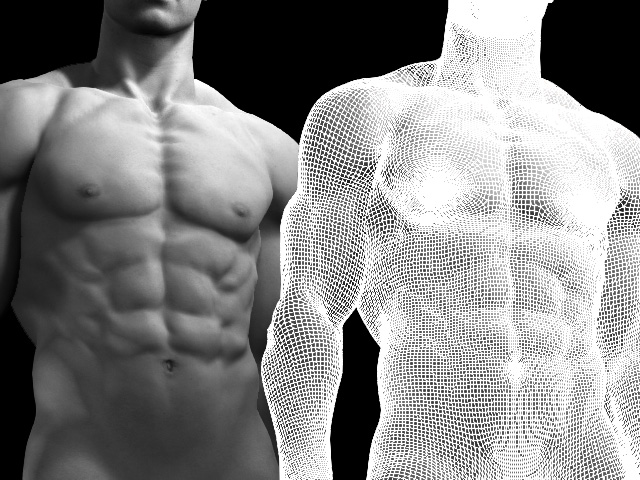
Since the details is produced by the high-poly mesh, the normal map of the character is left untouched.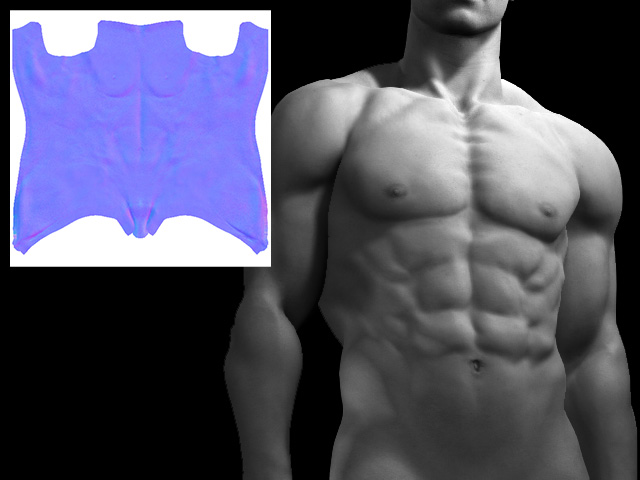
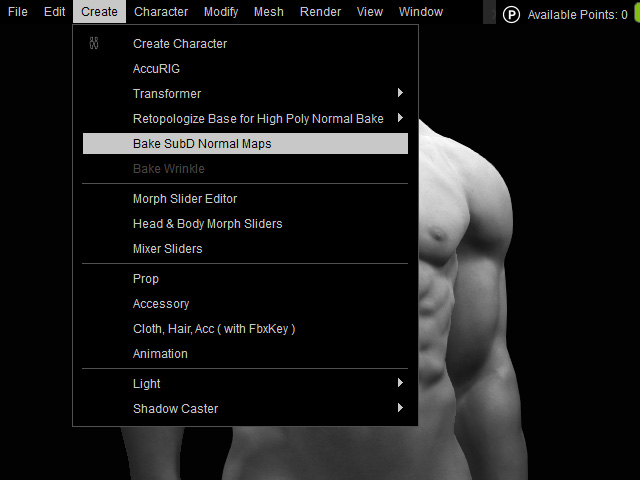
- Select the character and access Create > Bake SubD Normal Maps.
- On the Bake SubD Normal Maps panel, choose the options accordingly.
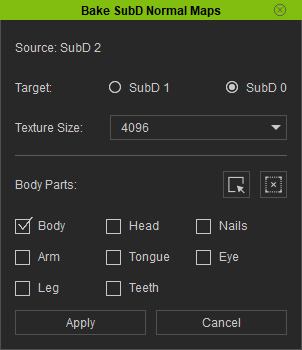
- Source: Displays current subdivision level.
- Target: Choose the target subdivision level for baking the current mesh details to normal map.
- Texture Size: Choose the texture size from the drop-down list (1024 to 8192).
- Body Parts: Activate the desired body parts (material) for baking the normal map. You can click the Select All or Deselect All button to activate or deactivate all options (in this case, only the Body is activated).
- Click the Apply button.
- As you can see the mesh is low-poly while the details are transferred to the normal map by baking.
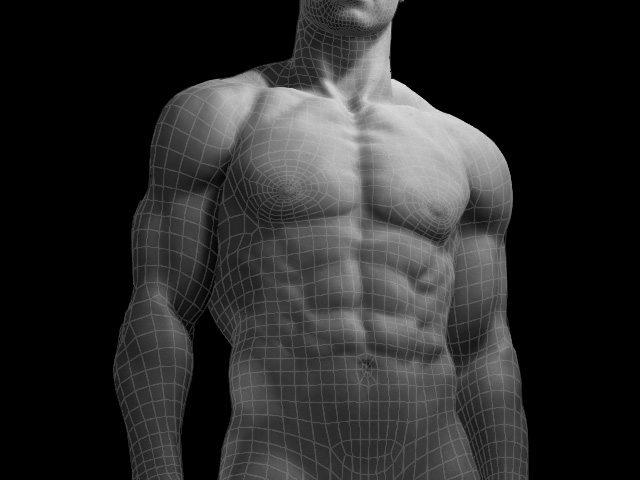
- Even If you take out the HD Morph effects, the details will be kept on the normal map for this level.
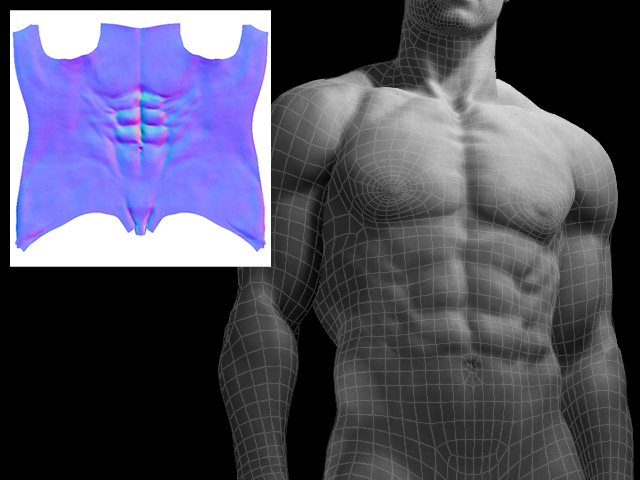
Notice that the details only baked to the normal map for subdivision level 0 (step 6). When you increase the level with the HD Morph sliders reset to 0, the details will not be kept.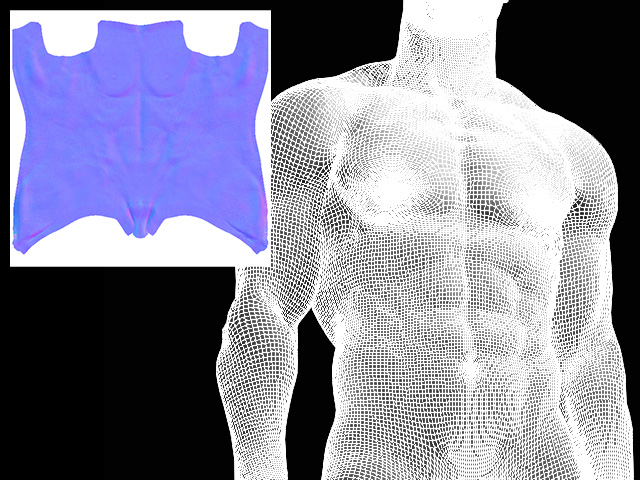
Normal map for level 1 and 2
