Increasing and Switching Subdivision Levels
In CC4, due to polygon count limitations, surface detail and smoothness had to be simulated using rendering techniques and normal maps. However, in CC5, characters can use the Subdivide function to increase mesh resolution by up to two levels. This allows the surface to physically support more bump detail, rather than relying solely on normal maps to achieve the same effect.
 Note:
Note:The meshes for the embedded CC5 standard characters are sub-divided to level 2 already.
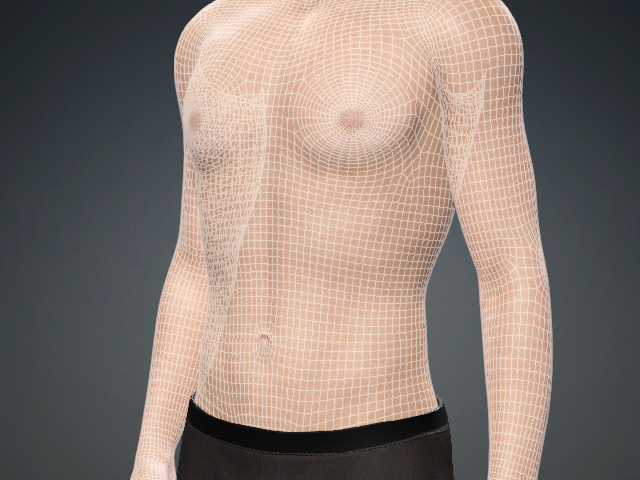
In the following illustrations, you can see the model differences of details in different subdivision levels.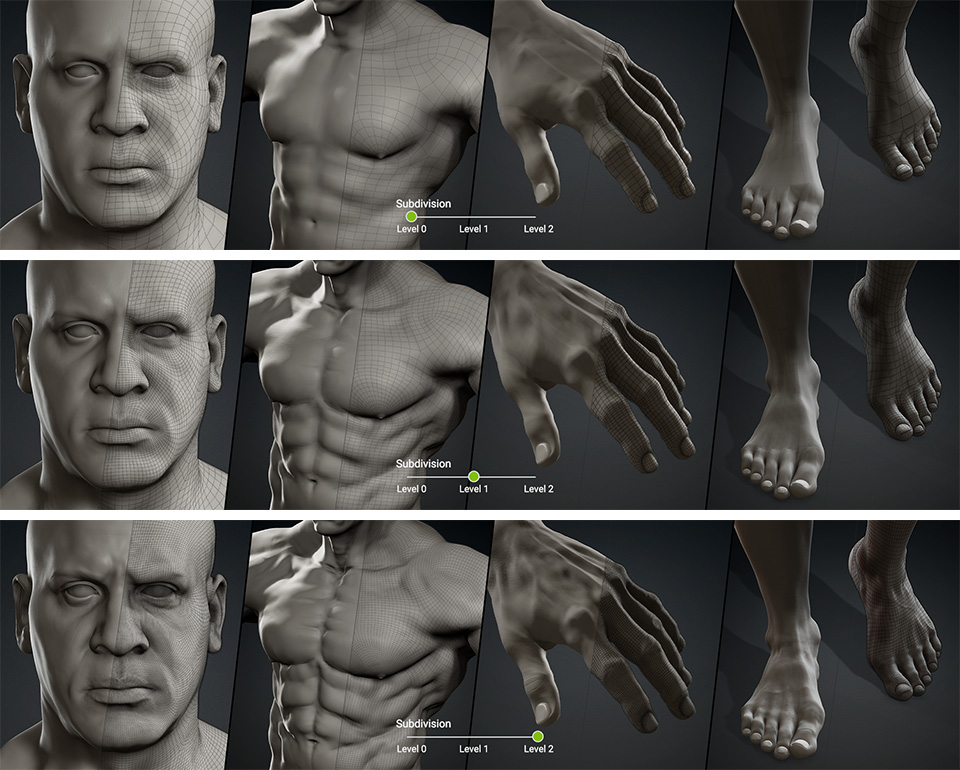
Increasing Subdivision Levels
- Apply a CC3+ character.
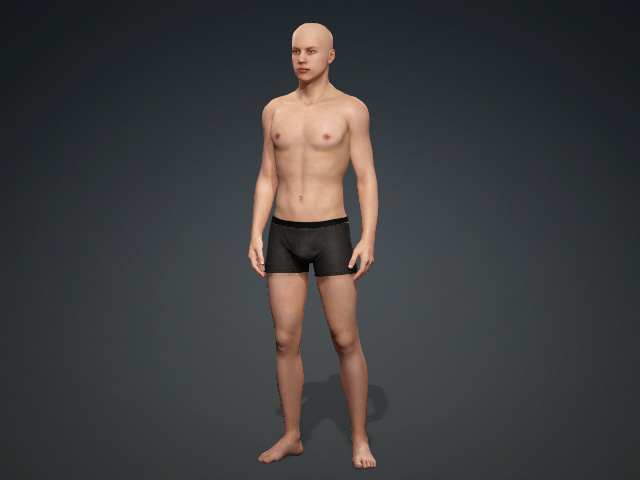
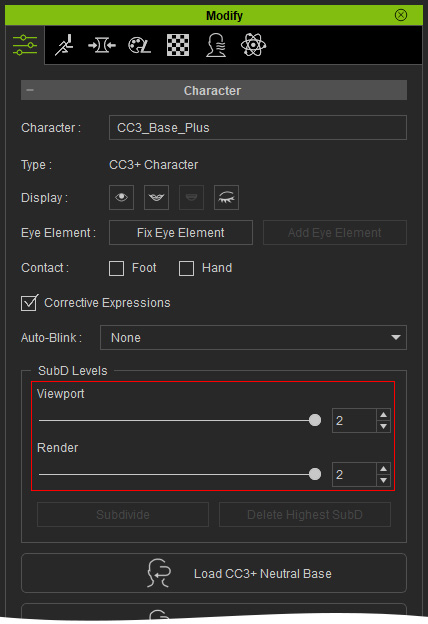
- In Modify panel, click the Subdivide button in the Character section.
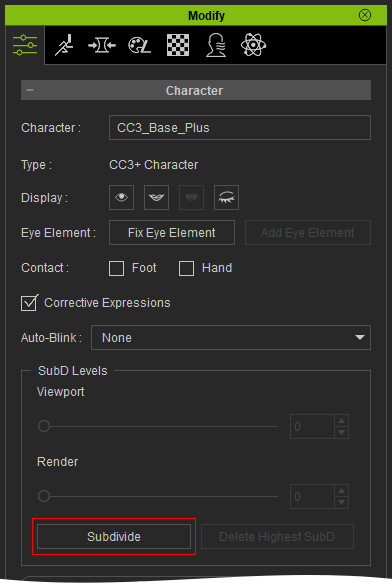
- The SubD Levels increases one level for both the Viewport and Render.
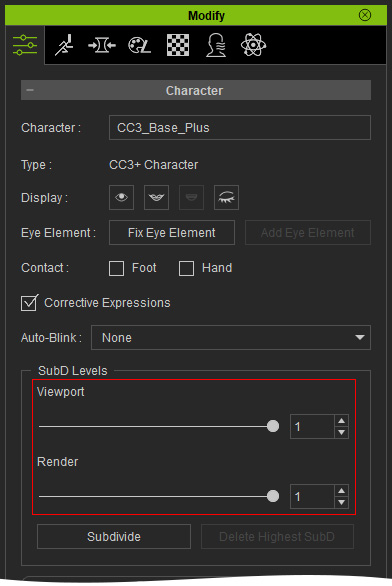
** You can click the Subdivide button again to increase the level to 2 (Maximum). Click the Delete Highest SubD button to remove the high-level mesh of the character.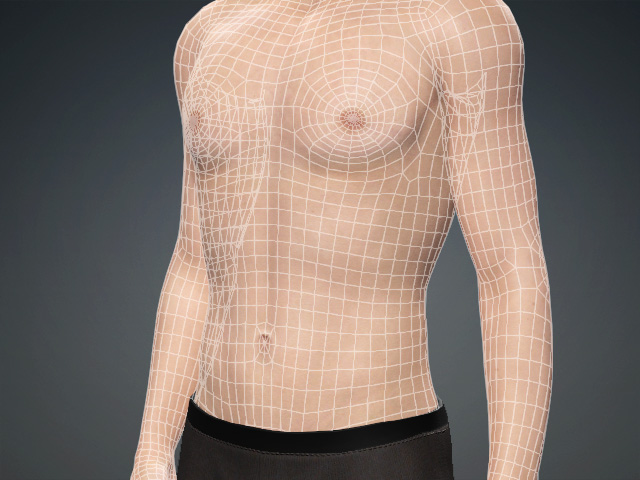
Level 0
Level 1
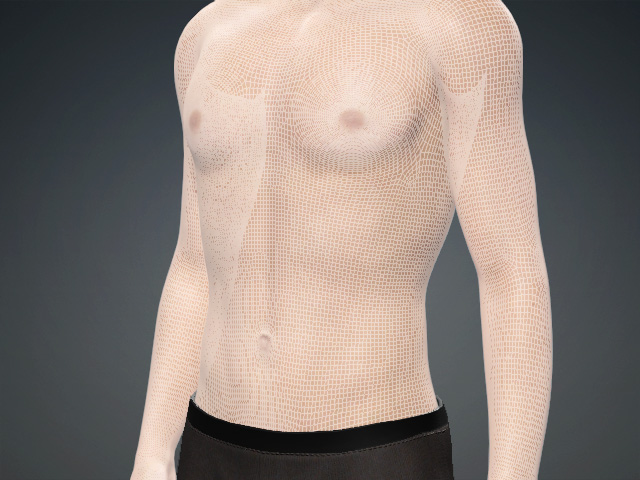
Level 2
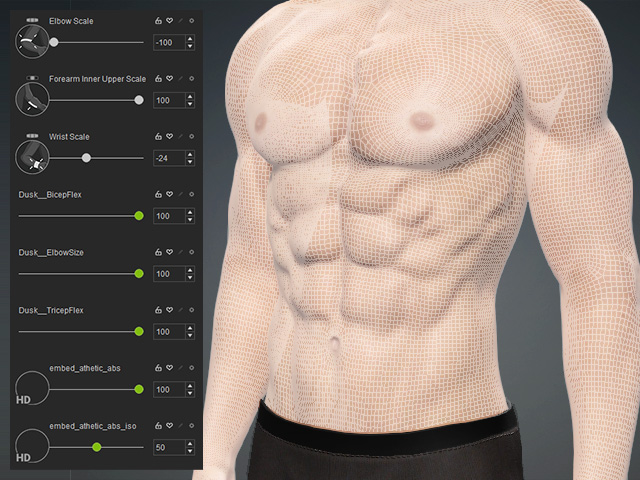
- Use legacy or HD Morph slider to alter the proportion of the character or increase the details of the surface.
Switching Subdivision Levels
There are three methods to switching between different subdivision levels:
- Modify panel: Drag the Viewport slider to switch between different subdivision levels; while the Render slider determines the subdivision levels for rendering the model.
- Toolbar: On the rightmost side of the Camera toolbar, you can choose the viewport realtime-rendering subdivision level from the drop-down list.

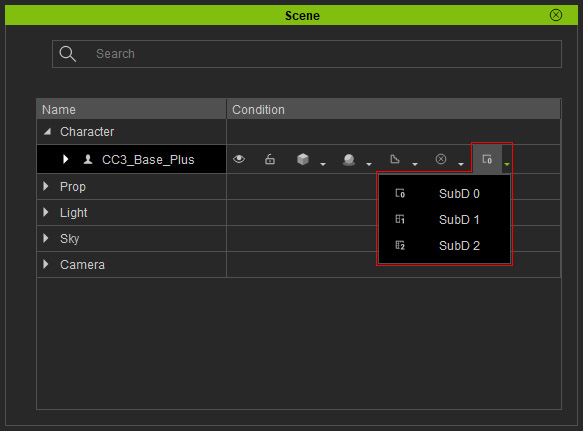
- Scene Manager: The rightmost button of the character in the Scene Manager can be used to switch the character to different subdivision levels as well.