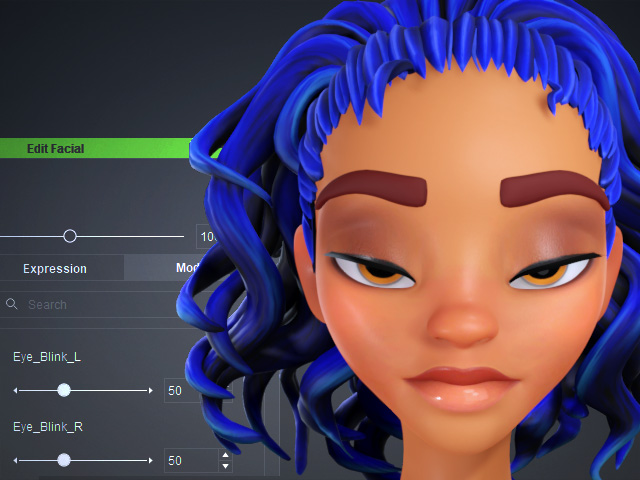
Recommended Order for Modifying Expression Morph Sliders
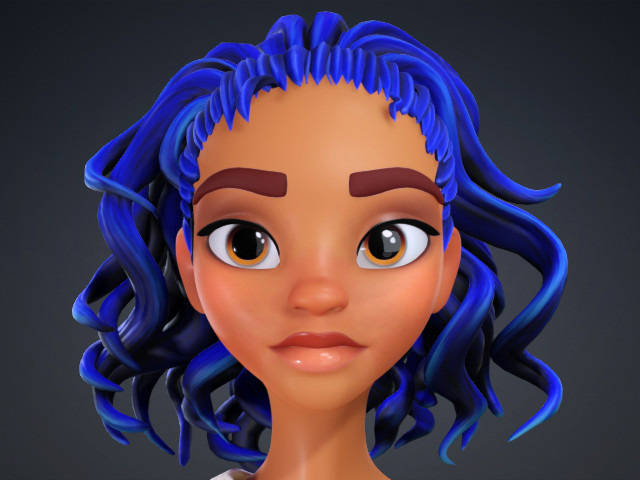
After a new character is created by either humanoid creation, morph sliders, GoZ or ActorMIXER plugin, you might need to check out the expressions result, especially stylized cartoon characters due to their exaggerate facial features and expressions.
Generally, the checking criteria are:
- Special eye shapes and sizes: Expression morph sliders relate to eyes must be inspected and examined.
- Special mouth shapes and sizes: Expression morph sliders relate to mouth must be inspected and examined.
- Neck-less characters: Expression morph sliders relate to neck and head rotation must be inspected and examined.
Basic Procedure: Correcting Facial Expression Morph Sliders
- Create a character.
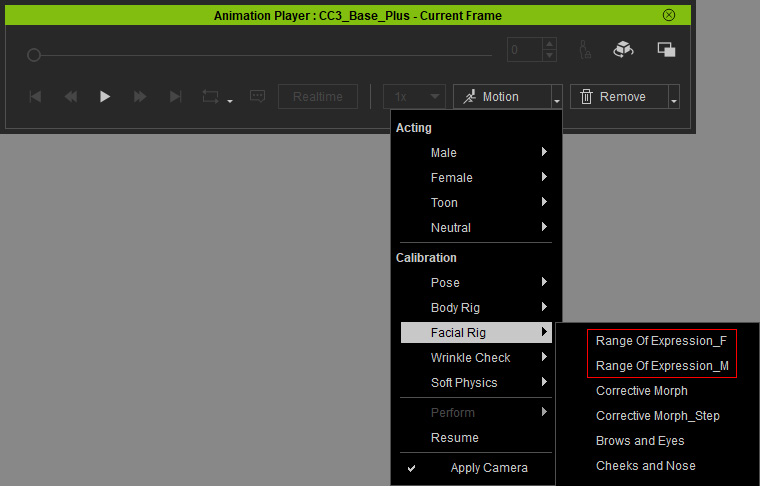
- Apply the Motion > Facial Rig > Range Of Expression _F or _M in accordance with the gender of the character.
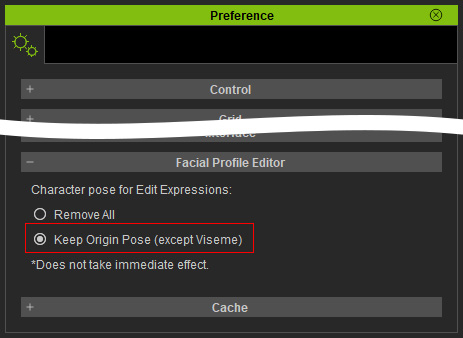
- Open the Preference panel and make sure the Keep Origin Pose (except Viseme) radio button in the Facial Profile Editor is chosen.
- Open the Facial Expression Editor, under the Currently Used node, pinpoint the sliders found in the previous step.
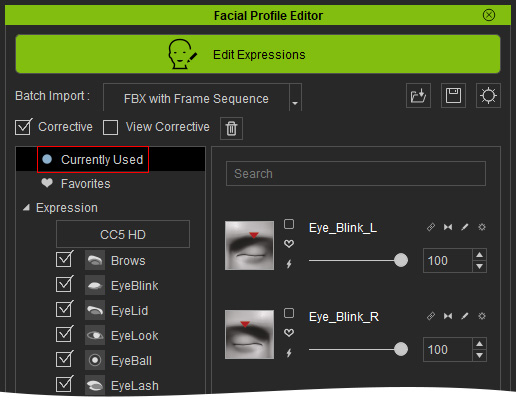
- Fix the morphing result of the slider.
- Open the PDF file in which the priorities for corrections are highlighted.
- In lite yellow: Highest priority, you must drag the sliders to inspect the morphing results. Fix if necessary.
- In lite green: Medium priority, you can optionally check out the morphing results.
- In gray: Low priority. Mostly correct.
The expression sliders are all included under the Expression node in the Edit Facial Expression Editor.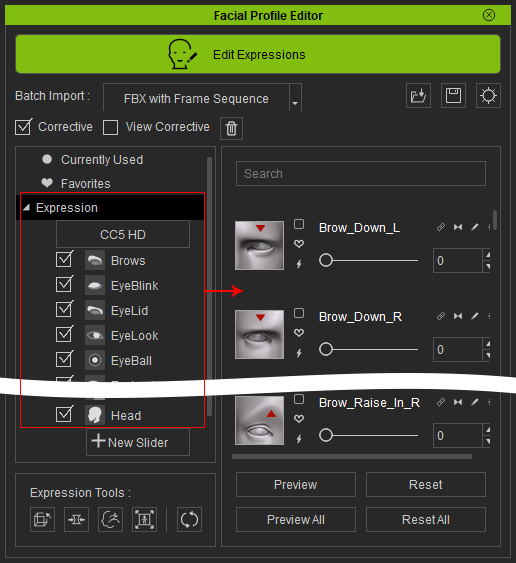
- Playback to view the corrected expression animations again.
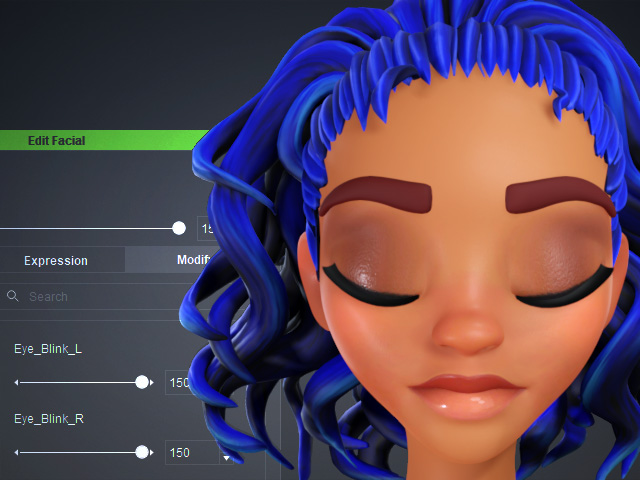
Advanced Procedure: Modifying Corrective Region Morph Sliders
After the expression sliders are inspected and corrected, you need to further correct the flaws caused by the combination of these sliders with Corrective Region Morph Sliders.
- Take the previous character (basic procedure are completely corrected) as an example.
- Apply the Motion > Facial Rig > Corrective Morph_Step in accordance with the gender of the character.
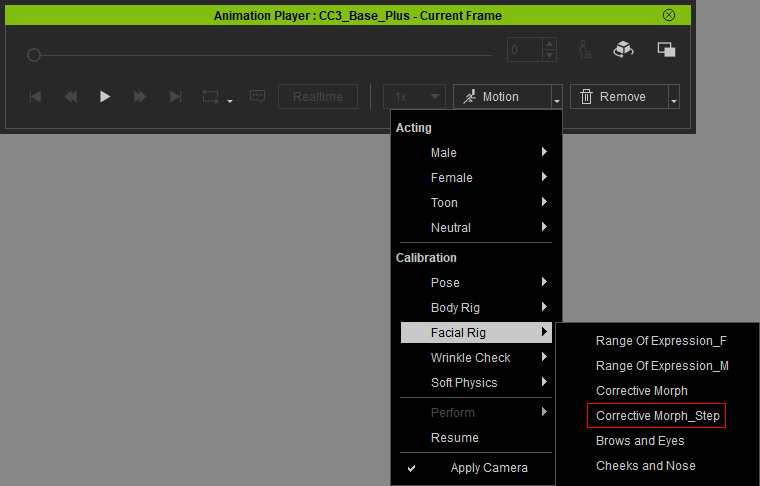
- Open the Preference panel and make sure the Keep Origin Pose (except Viseme) radio button in the Facial Profile Editor is chosen.
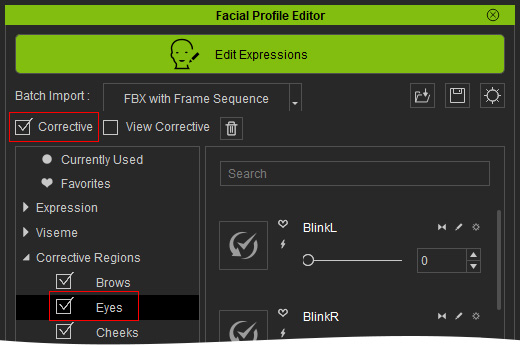
- Open the Facial Expression Editor, make sure the Corrective is activated, and under the Corrective Region node, pinpoint the node that includes the sliders (In this case, Eyes).
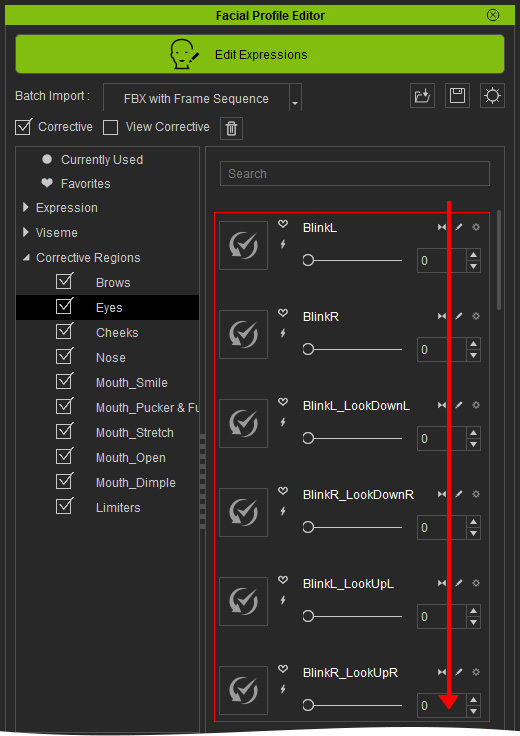
- Drag the sliders in the right pane one after one in a top-down order to view the morphing results. Refine the morphing result in necessary.
- You may need to go over all the sliders in the left categories under the Corrective Regions node and solve any issues, such as penetrations or over-exaggerations.
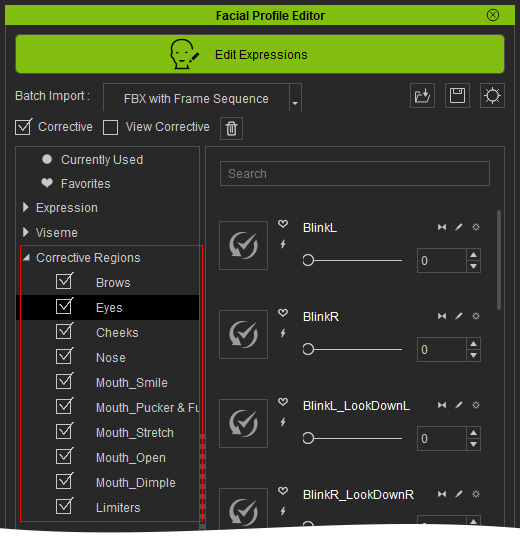
** Notice that for the left categories, you can randomly choose either one of them for correction processes. However, for the sliders at the right pane, top-down order is highly recommended. - Playback the Corrective Morph animation to view the corrected expression animations again.