Refining Expressions by Adjusting Bones or Corrective Morphs
After creating a character, it's essential to check the facial expressions to avoid artifacts or mesh breakage during future animation. These issues are most commonly seen around the eyes and mouth. To fix them, you can adjust bone positions or edit the morph results of the Corrective Rule Sliders.
** These issues most commonly occur around the eyes of stylized characters.
- Create a character by either method provided by Character Creator (such as morphing, accurig, headshot).
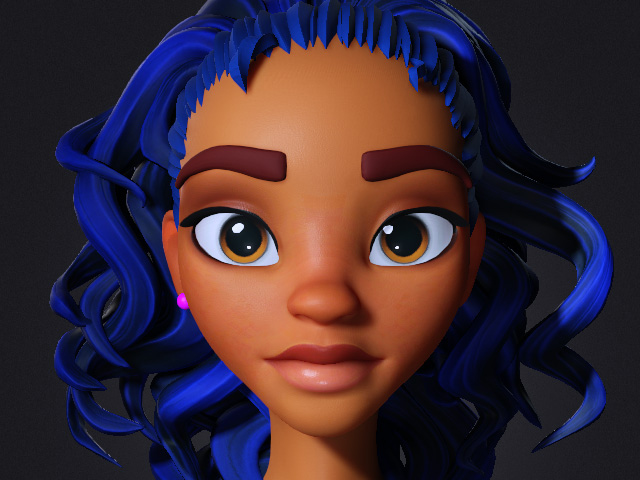
- Make sure the character is applied with Extended or Extended Plus or HD facial profile.
- Use the calibration expressions to check out the artifacts of the facial expressions.
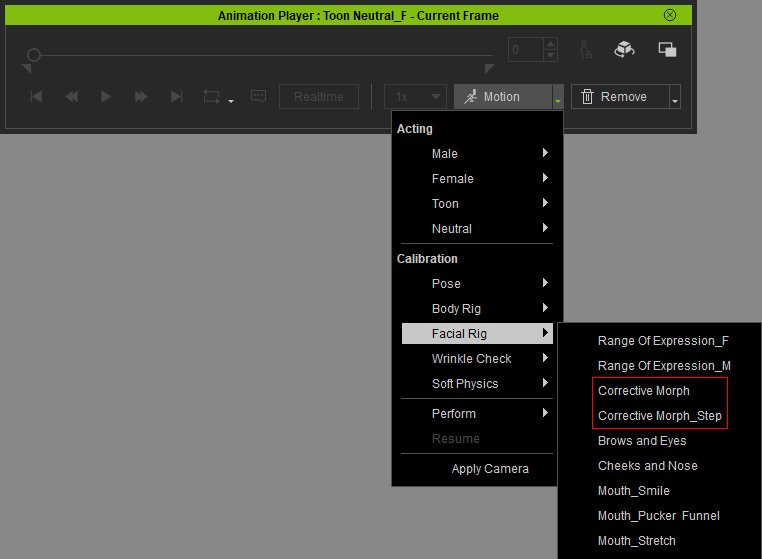
- Extended_Step: Playback to examine expressions for all facial features.
- Extended_Linear: Playback to examine the transitions between expressions.
- If the issue appears as shown in the image below (Extended_Step animation) mostly for the eyeballs and jaws, it is likely caused by bone misalignment.
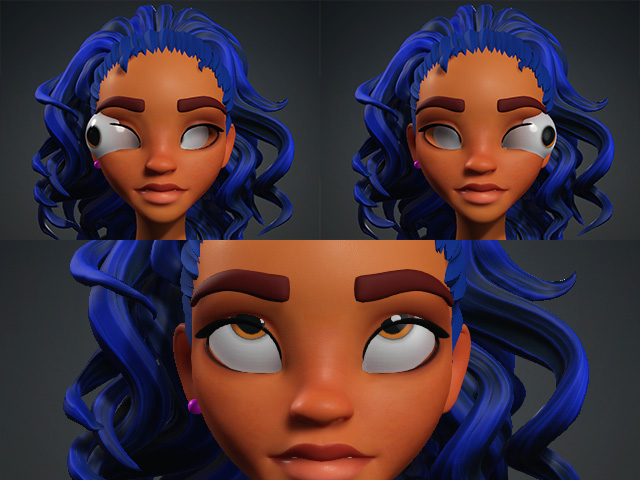
Fix this misalignment by Adjust Bones or Proportion features.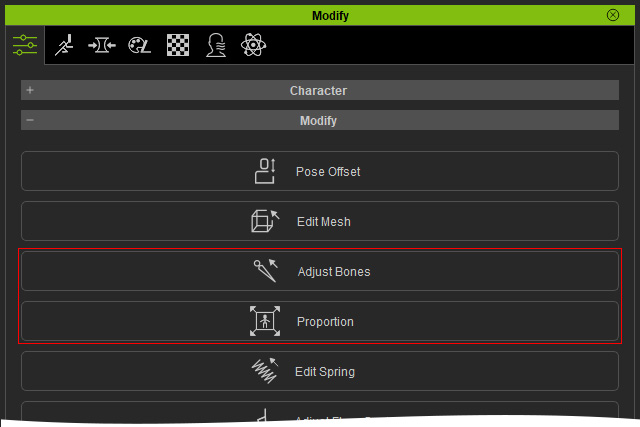
- When playing the Extended_Linear animation, issues are likely to occur during the transition animations, as illustrated in the image below.
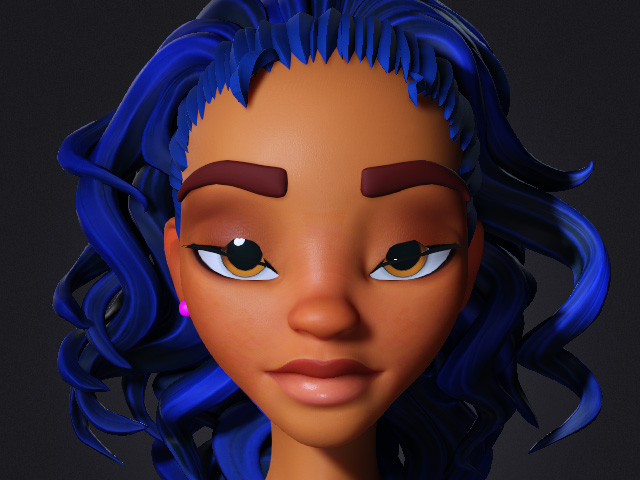
- Open the Preference panel and make sure the Keep Origin Pose (except Viseme) radio button in the Facial Profile Editor is chosen.
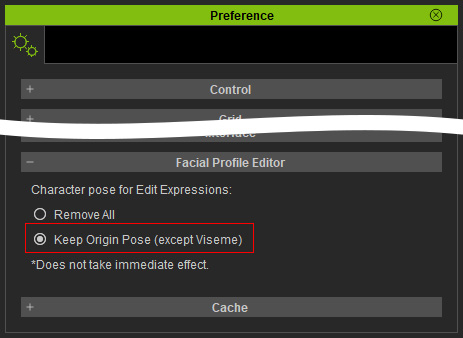
- Open the Facial Profile Editor by clicking the Facial Profile Editor button on the Modify panel.
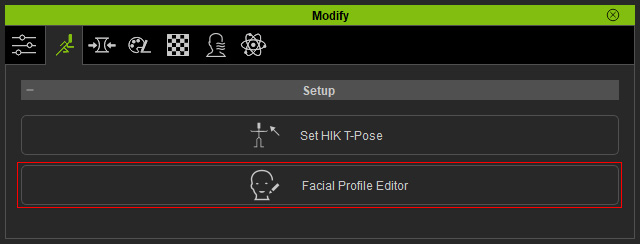
- Click the Edit Expressions button to enable the entire panel.
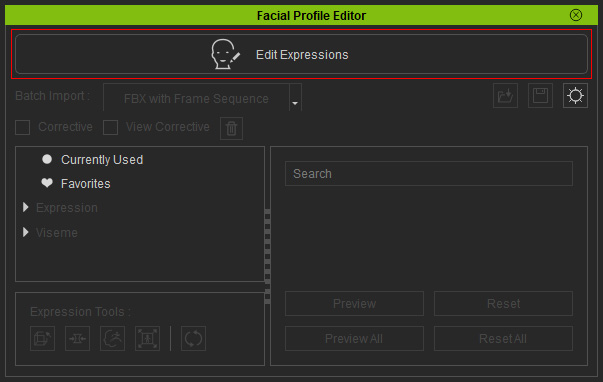
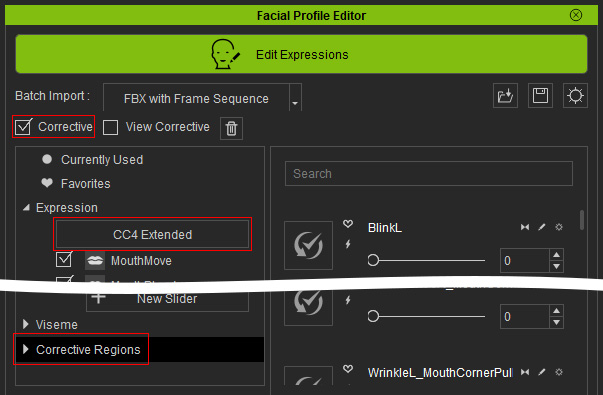
- In the Expression node, verify the Facial Profile the character is using. Convert the facial profile to Extended Plus or CC5 HD before proceeding the following steps.

Extended Plus
CC5 HD
 Note:
Note:To identify and correct problematic facial expression combinations, enable the Corrective checkbox and consult the corresponding potentially problematic expression slider combinations (Extended Plus or CC5 HD). These tables list common expression slider combinations and their associated Corrective Rule Sliders.
- Make sure the Corrective checkbox is activated.
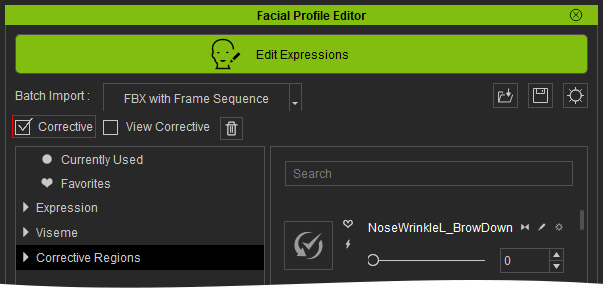
- Select Currently Used, you will see the expression sliders contributing to the current facial expression.
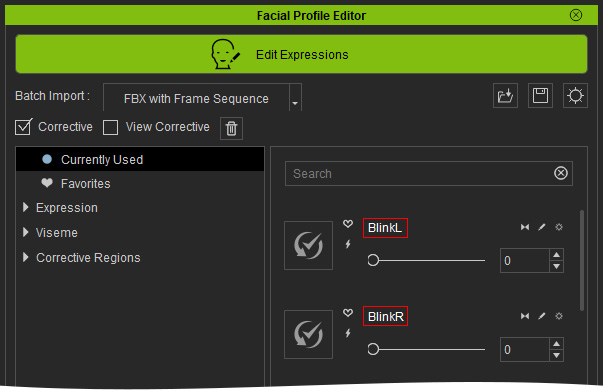
Alternatively, locate the corresponding corrective sliders under the Corrective Rule Sliders category.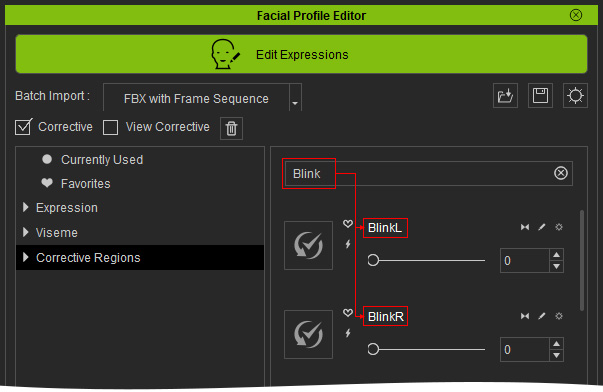
Refer to the Recommended Order for Modifying Expression Morph Sliders section for more information. - Maximize the values of the sliders. Since the Corrective checkbox is activated, the issue should be automatically fixed up.
However, if the issue remains, please proceed the following steps.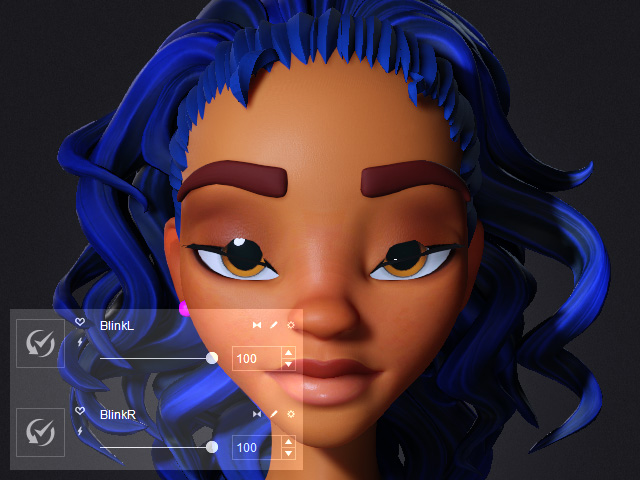
- Use the Expression Tools (Edit Mesh, Morph Sliders, ZBrush , Proportion) to edit the mesh and correct any mesh breakage issues.
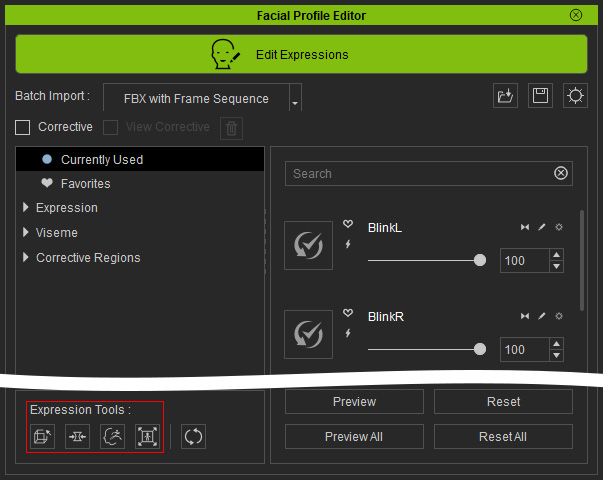
You can alternate between these tools to fix the mesh breakage issues until the result is satisfactory.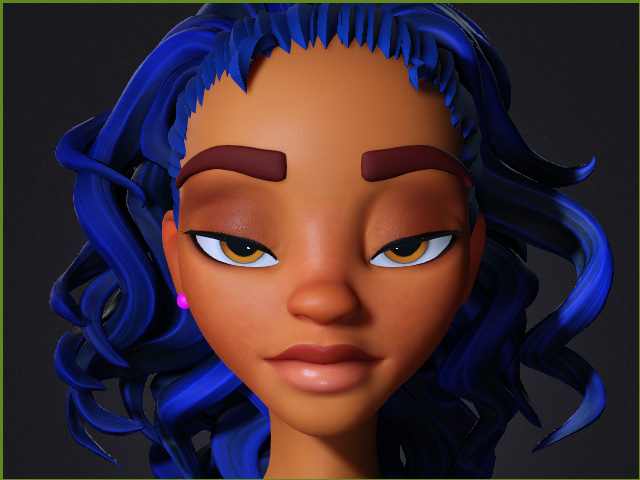
- Click the Quick Update (lighting icon) of one of the sliders with issues.
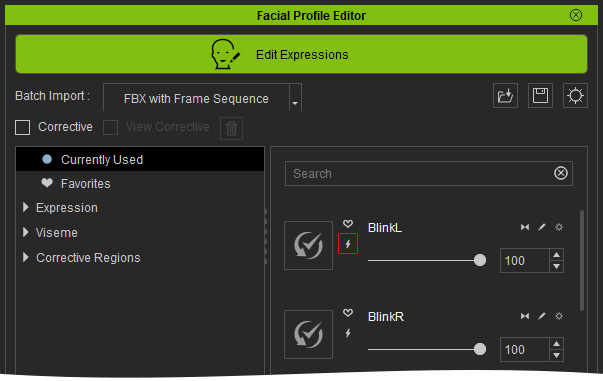
The Morph Current Slider panel will appear.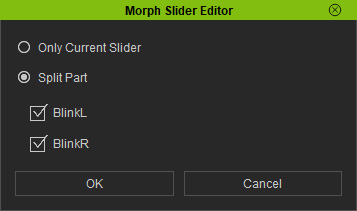
- Only Current Slider: Updates the edited mesh shape to the slider selected by clicking the Quick Update button.
- Split Part: Update the edited mesh morph to the sliders of the symmetrical facial features simultaneously. This helps save time compared to updating each side separately.
- Click the OK button to update the Corrective Rule Slider.
- Check or uncheck the Corrective checkbox to compare the differences before and after the correction.
** By checking or unchecking the View Corrective checkbox, you can see the underlying morph changes that were applied to fix the mesh breakage (In this example, the eyelid is manually pushed forward to prevent mesh breakage caused by intersection with the eyeball).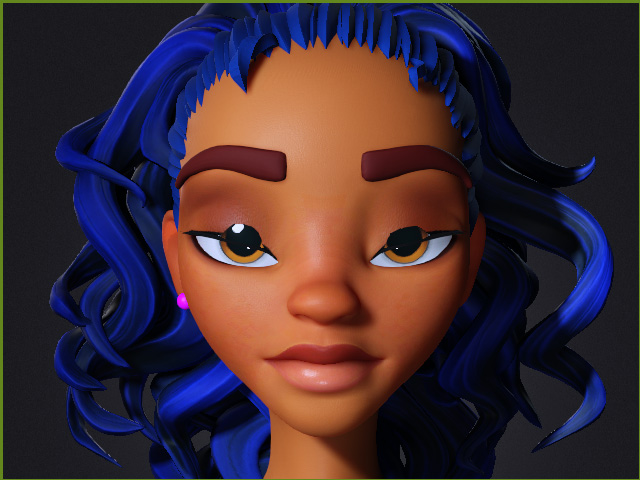
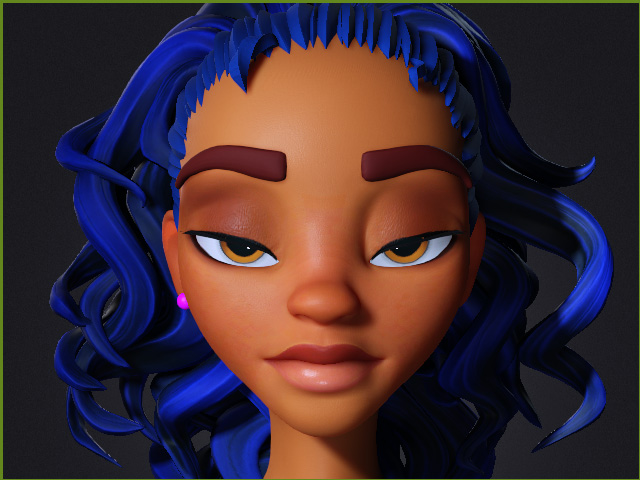
Before
After
- Exit the Facial Profile Editor and begin checking the expressions from Step 1. If any issues are found, proceed with corrections by following the same steps.
