Sharing Detailed Normal Map for All Levels
To ensure that a character subdivided to Level 3 still retains normal map detail while minimizing character file size, the optimal solution is to share the same normal map across all subdivision levels. This approach eliminates the need for two additional normal maps, effectively reducing the overall file size.
Before getting started, please increase the character's mesh subdivision by one or two levels and refer to the Add Details by HD Morphs for Lower Level Model section.
- Create Detailed Normal Map for the level 0 character.
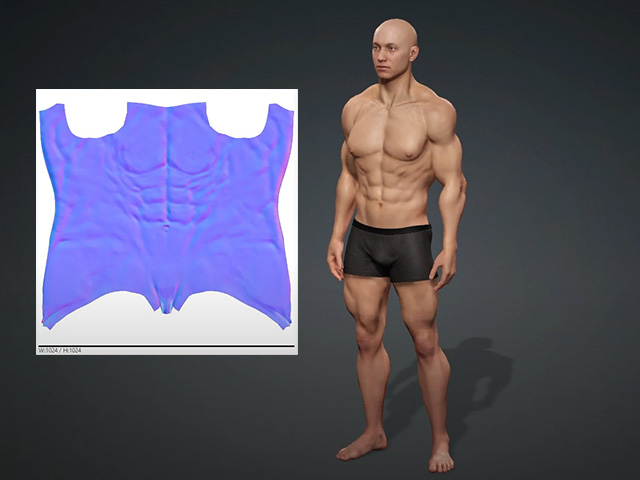
- Make sure the character is set to SubD 0.

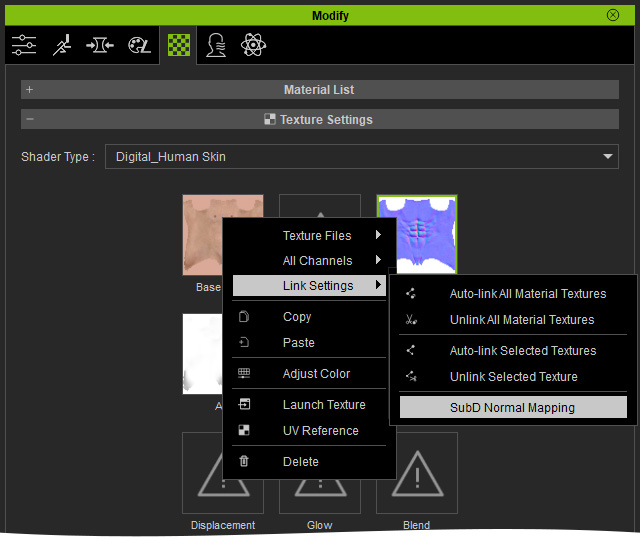
- Go to the Material tab, right click on the Normal channel in the Texture Settings section. Choose the Link Settings > SubD Normal Mapping command.
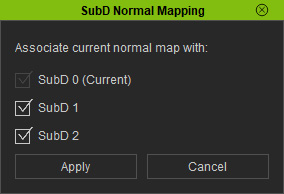
- The SubD Normal Mapping panel will appear for specifying the target level for sharing with this normal map. In this case, SubD 1 and SubD 2 are both activated. Click the Apply button.
An icon labeled "crosshair" will appear in the bottom-left corner of the thumbnail, indicating that the texture has been shared across other subdivision levels.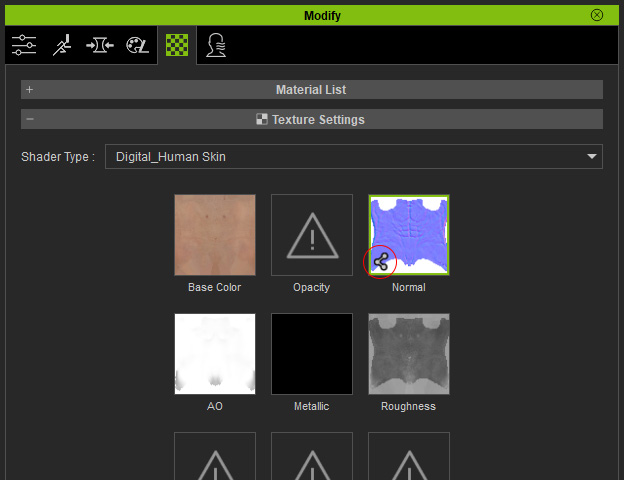
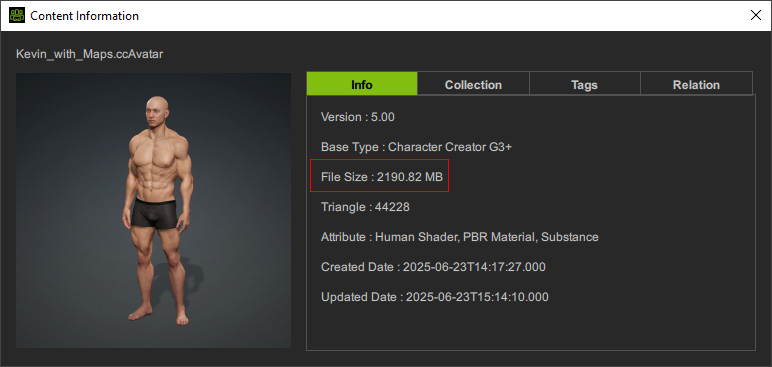
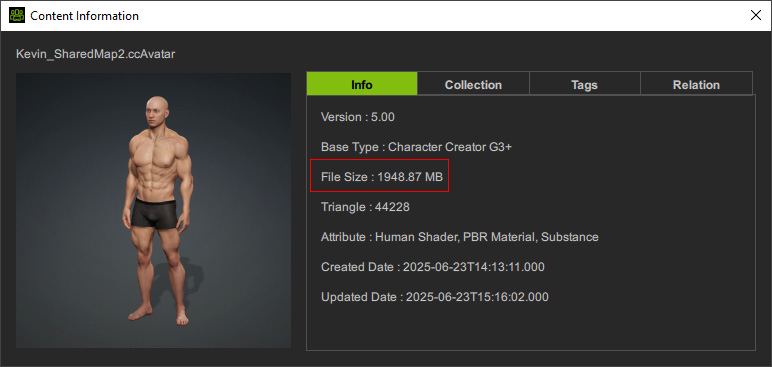
- Save the character with or without the sharing normal map. Compare the File Size from the Content Information panel.
- Without shared Normal map:
- With shared Normal map:
- Without shared Normal map:
- You can then switch to different subdivision level and check out the shared Normal map channel.
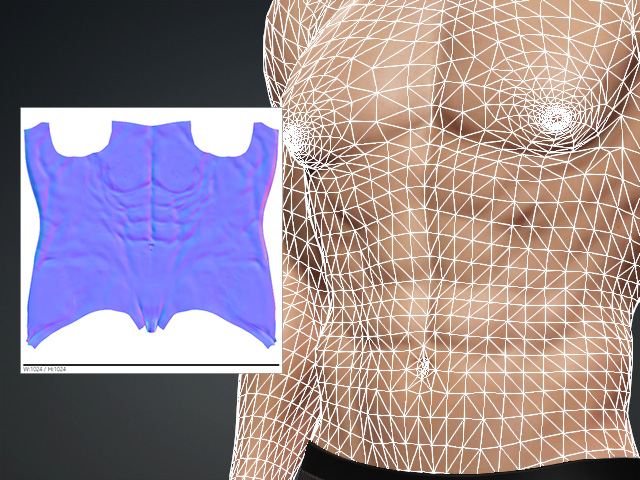
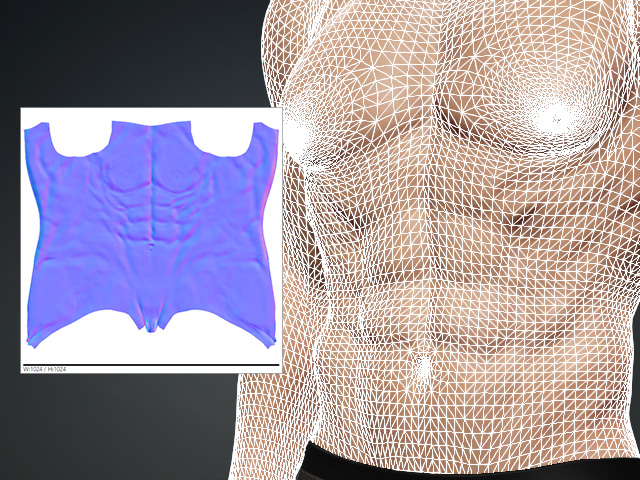
Mesh in 0 subdivision level
Mesh in 1 subdivision level
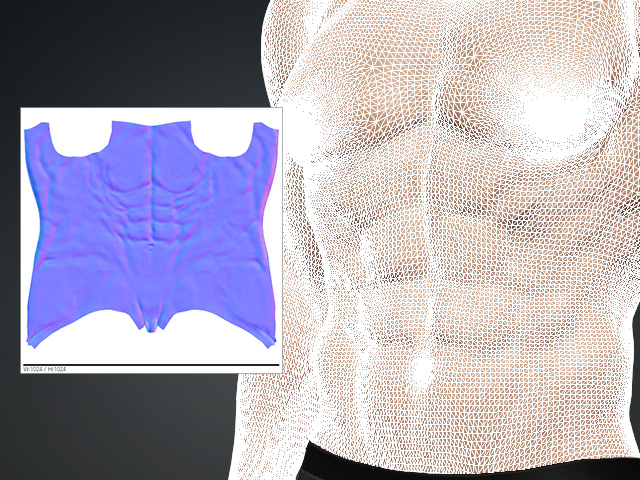
Mesh in 2 subdivision level
