Importing Character with Basic or Advanced Mode
Character Creator (CC) utilizes the Transformer feature to seamlessly import character FBX files from DAZ Studio or HiveWire 3D. Depending on your texture requirements, you can choose between Basic or Advanced conversion methods.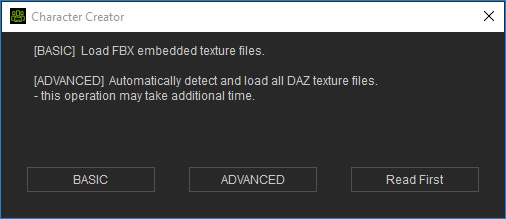
- BASIC: Loads textures embedded within the FBX file.
- ADVANCED: Automatically detects and loads all associated DAZ texture files (Note: This process may take additional time).
Both methods support the following assets: body Skin, Eyes, Eyelashes, Teeth, Nails, Hair, Accessories, Clothes, Gloves, and Shoes. After selecting a mode, the Asset Import Status Report panel will appear to manage mesh details and textures.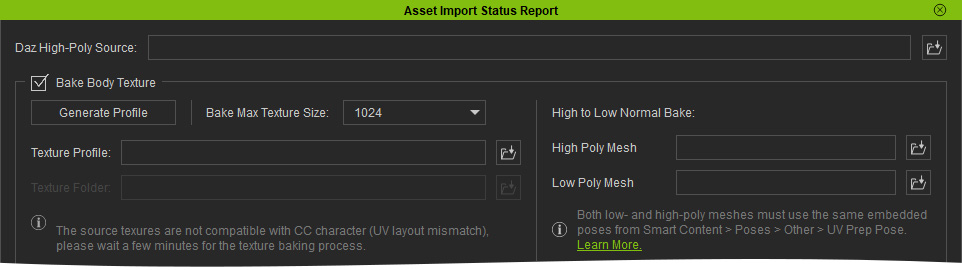
The Bake Body Texture checkbox determines how character textures are loaded: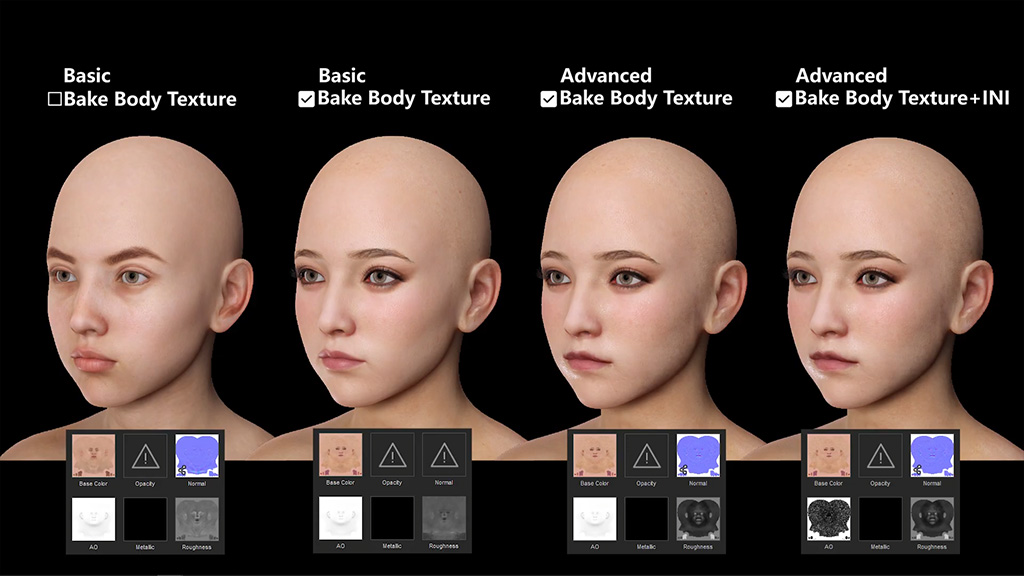
- Bake Body Texture Option:
- When deactivated, Character Creator applies its default body texture set.
- When activated, DAZ Studio body textures are baked and applied.
- BASIC (Recommended for Speed):
imports Diffuse and Opacity (eyelashes only) textures from the FBX file.- It is the fastest way to preview the basic material appearance.
- Key Features:
- Supports DAZ G3, G8, G8.1, and G9 characters for conversion to CC3+ and CC5 HD formats.
- Applies to Skin, Eyes, Eyelashes, Teeth, Nails, Hair, Clothes, Accessories, Gloves, and Shoes.
- ADVANCED:
- This method uses auto-detection to import a comprehensive set of maps: Diffuse, Opacity, Bump/Normal, AO, Displacement, Specular, Metallic, and Roughness (or Roughness converted from Specular).
- Note: This process requires more time for a detailed appearance. Minor texture mapping errors may occur if texture names do not follow standard naming conventions.
- Key Features:
- Supports DAZ G3, G8, G8.1, and G9 characters for conversion to CC3+ and CC5 HD formats.
- Applies to all character components (Skin, Hair, Clothes, etc.).
- Automatically detects and loads textures based on specific naming strings.
 Naming Convenstions & Troubleshooting:
To ensure textures are correctly identified and assigned to their respective channels in Character Creator, the source textures in DAZ Studio must include the following strings:
- Normal: "normaldirectx", "normalmap", "normal01", "normals", "directx", "normalf", "normal", "nmrl", "norm", "nmap", "nrm", "nm", "n".
- Bump: "basebump", "bumpmap", "bump01", "bump", "bum", "bmp", "b"
- Roughness: "roughness", "rough", "ruff", "r"
- Specular: "shininess", "specular", "spec01", "spec", "spc", "gl", "sp", "s", "g"
- Metallic: "metroughness", "metalness", "metallic", "glossines", "gloss"
- Displacement: "displacement", "height", "displ", "disp", "h"
- AO: "ambientocclusion", "diffuseintensity", "occlusion", "lightmap", "ao"
- If the auto-loaded textures for Skin, Eyes, or Nails are incorrect, use the INI method or Baking DAZ Studio Textures to ensure complete and accurate texture loading.
Note:
See also:
- Using INI for Loading All Body Textures - for body Skin, Eyes, Eyelashes, Teeth and Nails materials only.
- Baking DAZ Studio Textures - for body Skin, Eyes, Eyelashes, Teeth and Nails materials only.
- Procedures after Conversion
