Importing DAZ Studio Character Animations to Character Creator
The DAZ Studio library provides Animation Clip templates that can be applied to characters to generate motions. After converting these into Pose Keys, the motions can be imported into Character Creator using the FBX format and the features provided by Character Creator.
If you wish to import static poses from DAZ Studio, or animations created from poses, into Character Creator, please refer to the Importing DAZ Studio Character Poses to Character Creator section.
Export FBX with Pose from DAZ Studio
- Add a character in DAZ Studio (G3, G8, G8.1, G9, or HD).
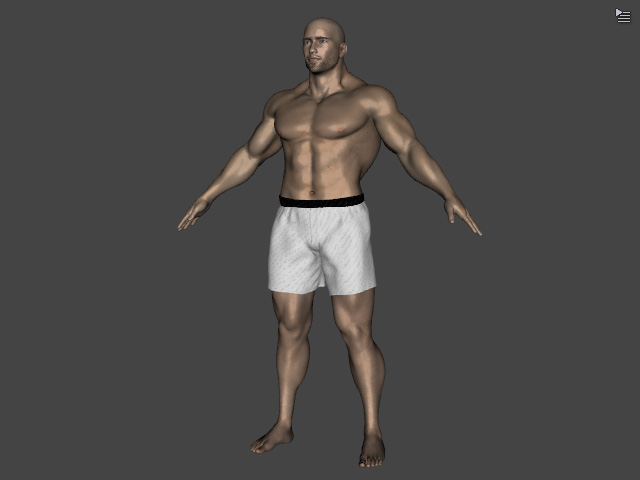
Convert the character to Character Creator using either Basic or Advanced mode. - Apply a motion to the character at the first frame.
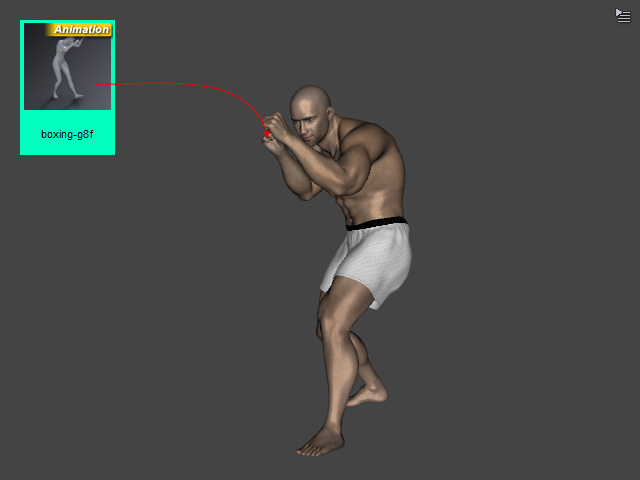
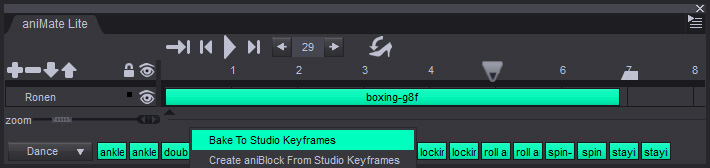
Play back the timeline to view the animation results. - If you are using the free version of DAZ Studio, open the aniMate Lite panel. You will see that the template has been added as a clip.
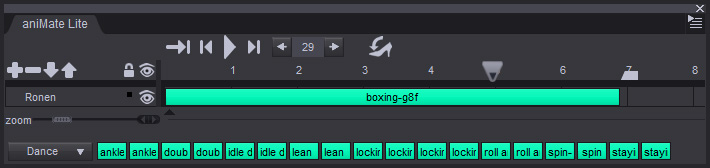
- Right-click the space beneath the clip and choose the Bake To Studio Keyframes command from the context menu.
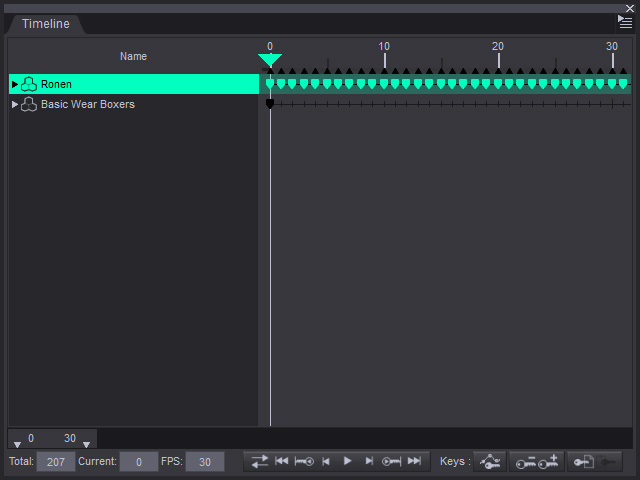
- Open the Timeline panel. You will see that the clip has been sampled into keyframes.
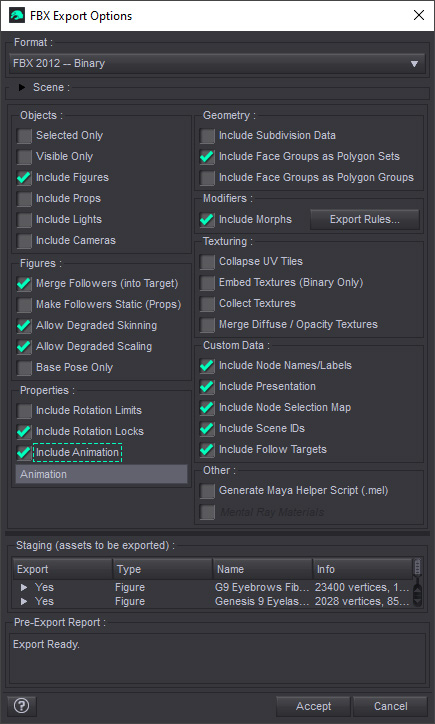
- Export the character in FBX format, ensuring that the Include Animation checkbox is activated. Click the Accept button to save the character and motion to a file.
Import Pose FBX to Character Creator
- In Character Creator, use the character converted in step one of the previous section. (Alternatively, you may apply any CC3+ or CC5 HD character).
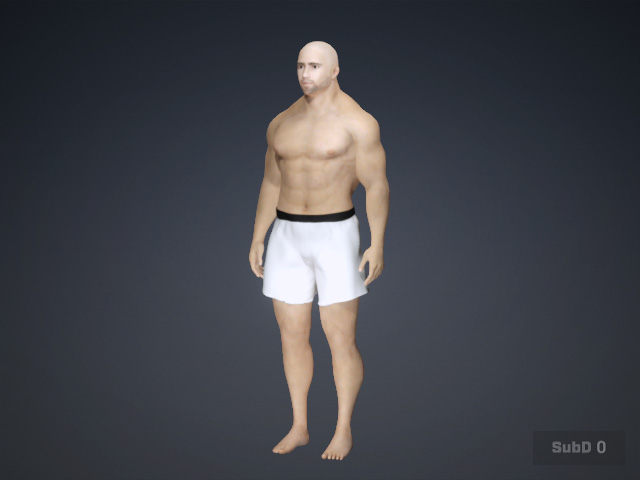
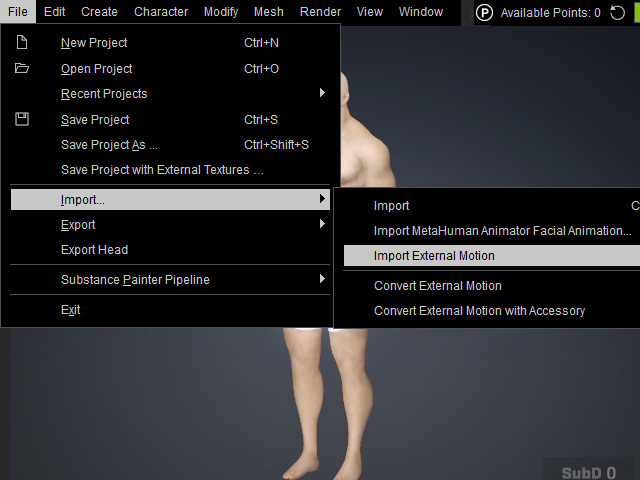
- Ensure the character is selected, then go to File > Import > Import External Motion.
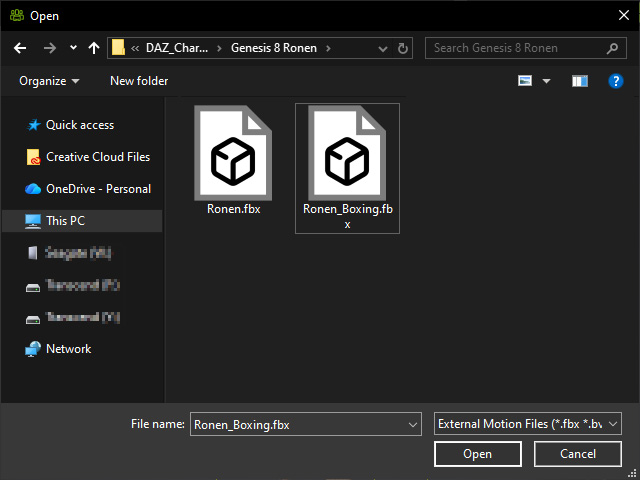
- Select the FBX animation file previously exported from DAZ Studio.
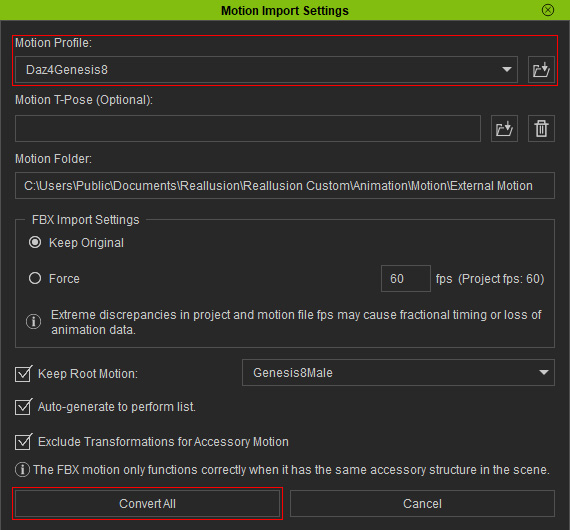
- The Characterization profile will be configured automatically. Click the Convert All button.
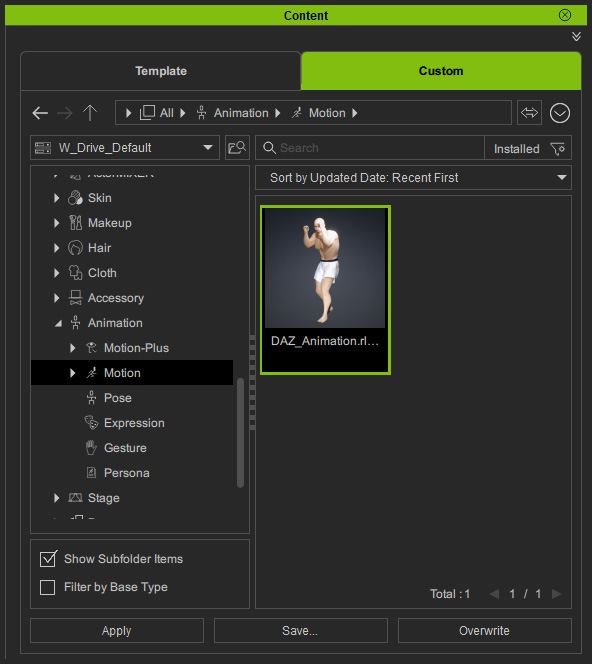
The animation will be imported.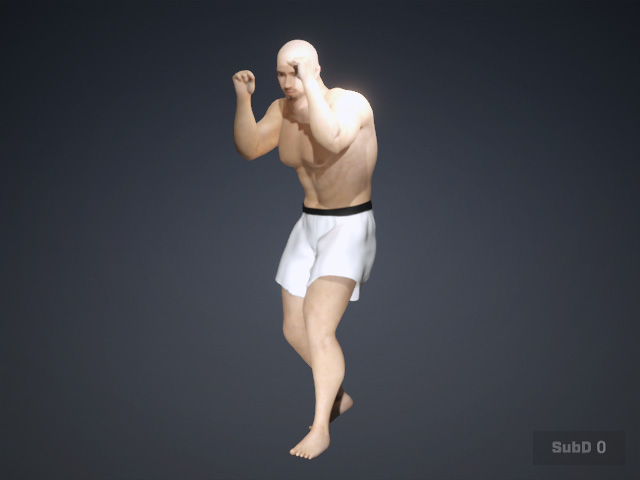
Play back the timeline to view the animation results. - You may save the pose to the Custom Motion library for future use.