Actions after Mesh Generation (New for v5.2)
After the mesh generation task is complete, use the Mesh tab in the Task Queue panel to apply the generated mesh. The available post-generation actions depend on the selected Mesh Type.
Applying the Generated Mesh
- Open the Task Queue panel and switch to the Mesh tab.
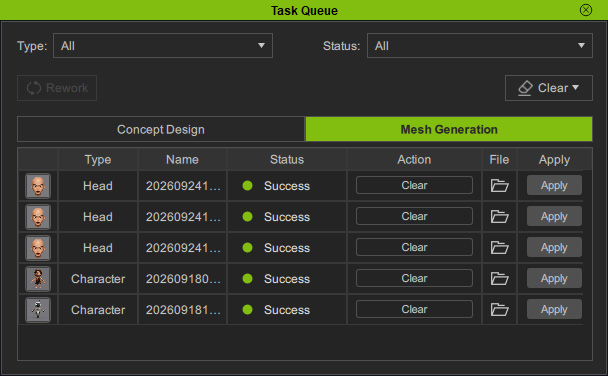
- Locate the completed mesh generation task.
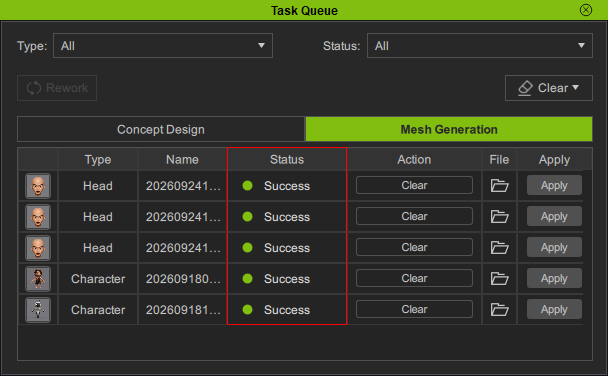
- Click Apply in the Action column of the desired task.
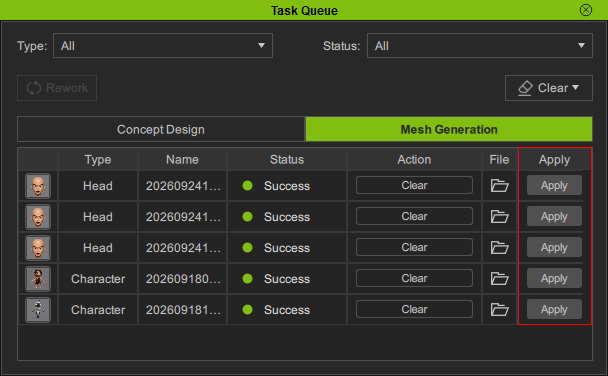
- The corresponding post-generation options or actions are displayed based on the selected Mesh Type.
Character
When Mesh Type is set to Character, the Rigging Options panel opens with the following options: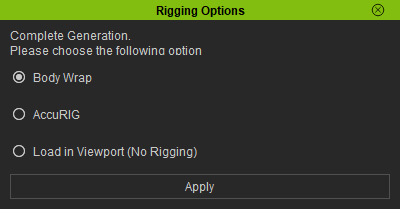
- Body Wrap — Sends the generated character to Body Wrap to convert it into a CC5 HD character.
- AccuRIG — Sends the generated character to AccuRIG for rigging as a humanoid character.
- Load in Viewport (No Rigging) — Loads the generated character into the viewport without rigging.
Select the desired option and click Apply to proceed. The generated Body Only / Full Design mesh also uses a predefined Pivot position, Lower Center.
Head
When Mesh Type is set to Head, the corresponding options are displayed: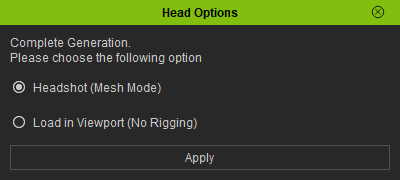
- Headshot — Sends the generated head to Headshot to create a CC5 HD character head.
- Load in Viewport (No Rigging) — Loads the generated head into the viewport without further processing.
Select the desired option and click Apply to proceed. The generated head mesh also uses a predefined Pivot position, Middle Center.
Cloth
When Mesh Type is set to Clothes, the generated mesh is automatically positioned on the current character and attached as an accessory without skin weights.
- If a character is present, the generated clothing item is positioned on the character.
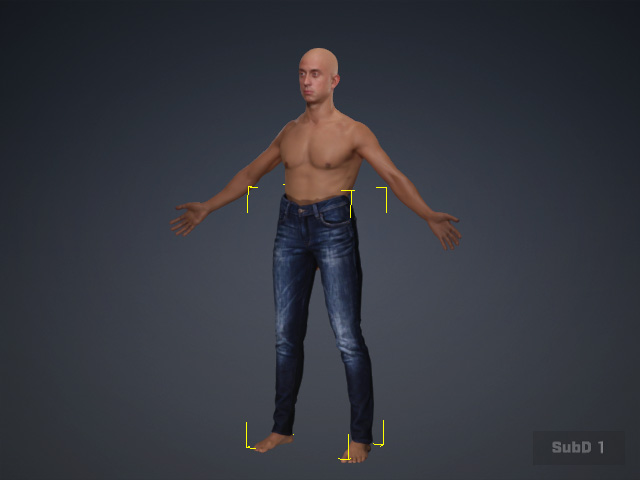
- If no character is present, create a neutral CC5 HD character first so that the generated clothing can be positioned correctly.
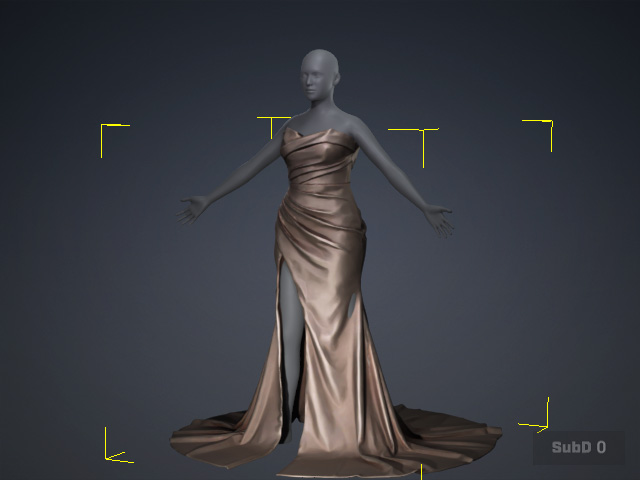
- AI Mesh Generator automatically positions each generated mesh to its designated bone and sets a predefined pivot based on the selected Type, minimizing Transform adjustments before Transfer Skin Weight.
- You may need to adjust the mesh's position, size, or orientation as needed, then use Transfer Skin Weight to convert it into clothing.
- The generated mesh is attached to the following bones:
Clothes > Parts
Attached Bone
Top / Upper
Hip
Pants / Lower
Hip
Gloves
Hand
Dress / One-Piece
Hip
Hat
Head
Shoes
Foot
Each generated mesh also uses a predefined Pivot position according to its type:Clothes > Parts
Pivot Position
Top / Upper
Lower Center
Pants / Lower
Upper Center
Gloves
Lower Center
Dress / One-Piece
Middle Center
Hat
Lower Center
Shoes
Lower Center
This setup provides a consistent starting position and pivot for further transformation, skin-weight transfer, and editing. - Please note that you may need to use the tools provided in Edit Mesh to create openings in AI-generated clothing meshes, such as necklines and cuffs.
- For gloves and shoes, please refer to the Creating a Pair of Gloves or Shoes with Mirror Duplicate section for more information.
Hair
When Mesh Type is set to Hair, the generated hair mesh is automatically positioned on the current character in the scene.
- If a character is present, the generated hair is positioned on the character.
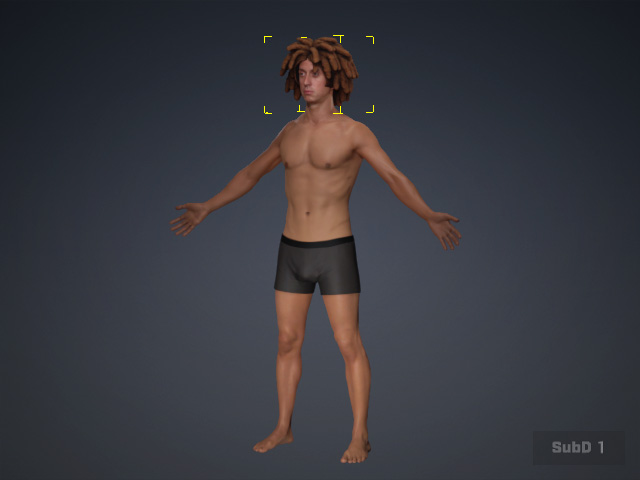
- If no character is present, create a neutral CC5 HD character first so that the generated hair can be positioned correctly.
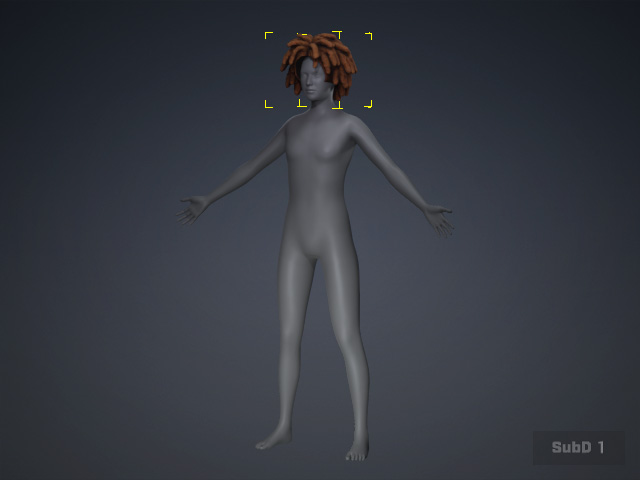
AI Mesh Generator automatically positions the generated hair mesh near the Head bone, sets its Pivot to Lower Center, and attaches it to the Head bone as an accessory, preparing it for the subsequent Transfer Skin Weight process.
Prop / Accessory
When Mesh Type is set to Prop & Accessory, the generated mesh is directly loaded into the scene as a prop at the scene origin.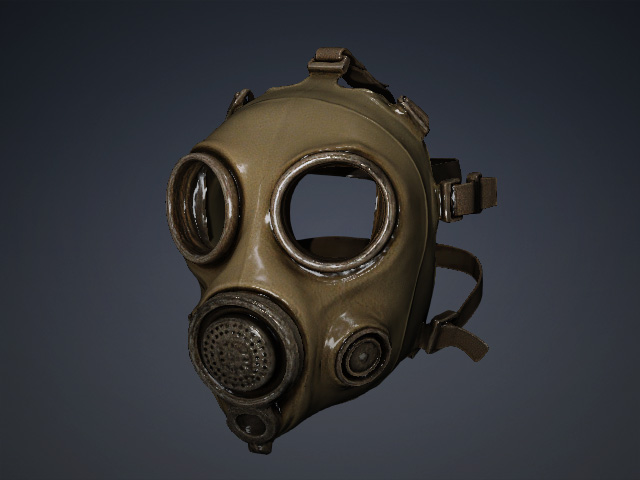
You can then adjust its position, size, or orientation, or further refine its shape using the Transform tools or Edit Mesh function, and also use the Creating Custom Accessory function to convert the object into accessory.
