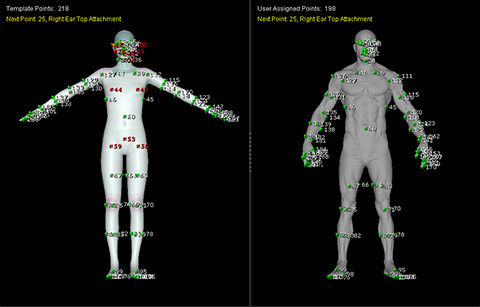
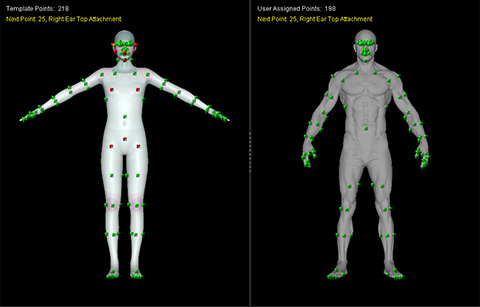
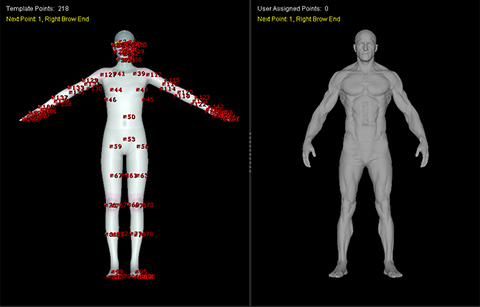
User Interface for ALIGN POINTS Step
The DETECT JOINTS step establishes the key joint positions of the imported character using Guide Points. These points are then used to generate a full-body skeleton, which serves as the basis for generating the Align Mesh Points required for the subsequent wrapping process.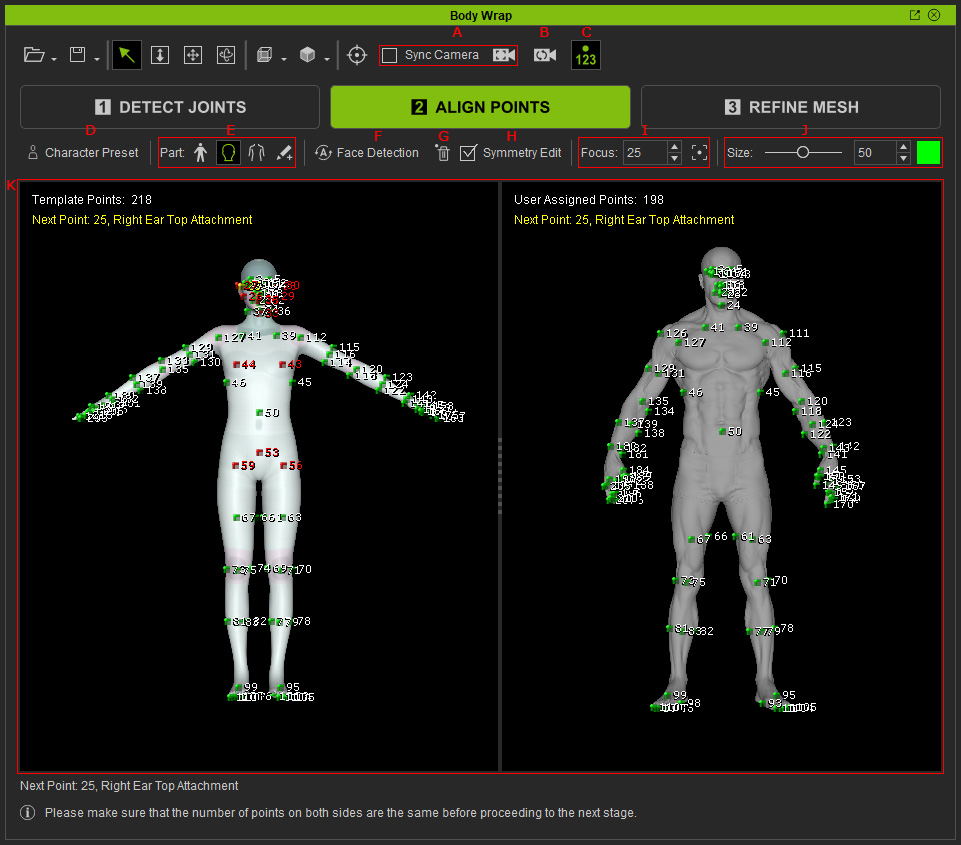
|
Feature |
Description |
|||||
|
A |
Sync / Calibration Camera |
** Note: The two viewports do not need to show the same view initially, but subsequent zoom, pan, dolly, and orbit operations are synchronized. |
||||
|
B |
Reset Camera (Match Camera View) |
Matches the right viewport's camera view to the current view of the left viewport and enables Sync Camera, allowing both viewports to share the same view and synchronize subsequent zoom, pan, dolly, and orbit operations. |
||||
|
C |
Show / Hide Point Numbers |
Shows or hides the numbers of the Align Points displayed in both viewports.
|
||||
|
D |
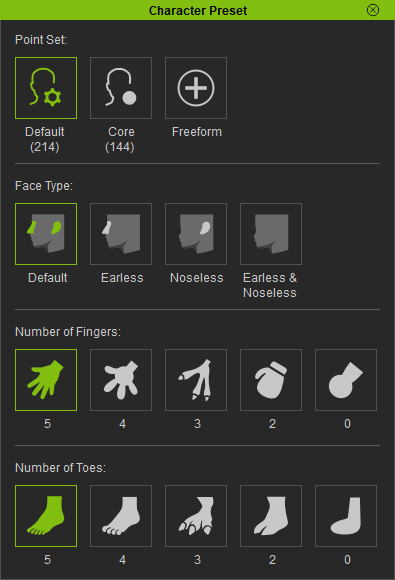
Opens a panel for selecting the Align Point preset and character template. |
|||||
|
E |
Selects the point-assignment mode: Full Body, Head, Body, or Freeform. Then adjust the Align Points for both viewports. |
|||||
|
F |
Face Detection |
Automatically detects and assigns Align Points on the character's face. |
||||
|
G |
Delete Assigned Points (Clear Points) |
Deletes all Align Points from the right viewport and resets the manually assigned points.
|
||||
|
H |
Symmetry Edit |
Enables symmetrical editing so that corresponding points on both sides of the character can be adjusted together. |
||||
|
I |
Focus |
Enter an Align Point number, then click the Focus button to automatically zoom the viewport to that Align Point, making it easier to locate a specific point. |
||||
|
J |
Point Size / Color |
Adjusts the size and color of the Align Points displayed in the viewports. |
||||
|
K |
Align Point Viewports |
Displays the CC5 HD character and imported model side by side for assigning and aligning corresponding Align Points. |