Grouping Sprites for Render Style

The Render Style feature assists you to change the color of grouped sprites once and for all. You are able to group custom poses and angles in sprites for easily adjusting their colors by the use of the Render Style.

*Please note that this feature is for the Pipeline version only.

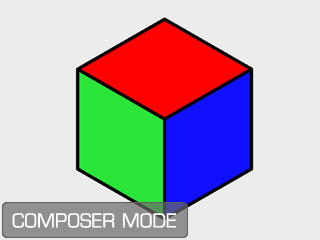
  1. Create a custom prop (in SWF format) and switch to the Composer Mode by clicking the Prop Composer button.
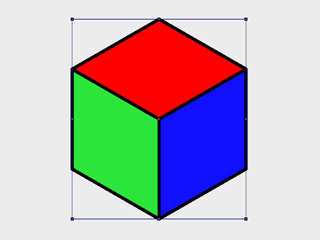
  2. Select the prop.
  3. Click the Vector Grouping Tool button to open the panel.
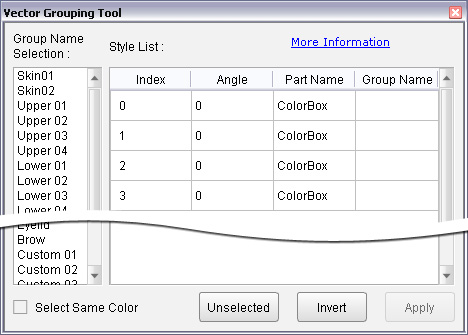
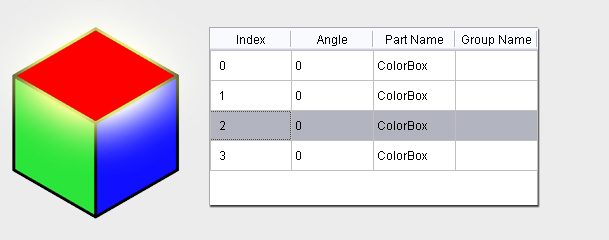
    The right pane of the editor lists the components that build up the prop in the view port.
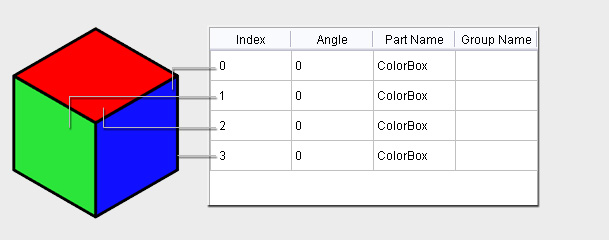
  4. Click to select one of the component row. The selected area in the view port will be flashing.
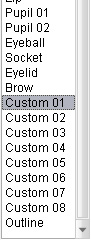
  5. Select a desired group name from the left pane of the editor.
  6. Click the Apply button at the bottom right of the editor to assign the group name to the component.
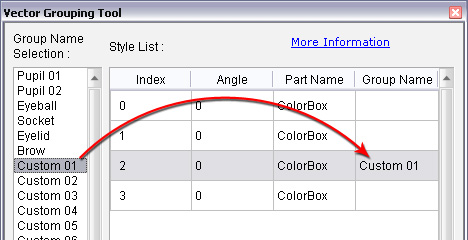
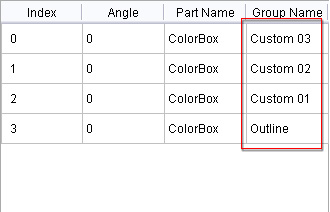
  7. Repeat the same steps to assign group names to every component that is without a group name.
  8. Select another component and repeat step 2 to 7 until every one is grouped.

    Note:

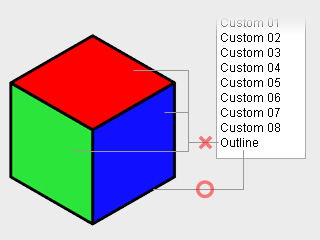
    Please note that since the SWF from Flash can be divided into two main components, Shape and Line, when you are doing the vector grouping procedure, DO NOT assign the "shapes" into the Outline group, because although the color of the shapes are able to be adjusted with the real lines, they can not be turned off by deactivating the Show Outline. Make sure you only assign "lines" to Outline group.

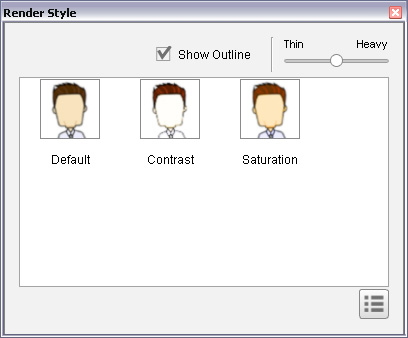
  9. Close the editor and open the Render Style panel by clicking the button.

    Note:

    • For the custom object, you can only have three templates after the Render Style button is clicked.
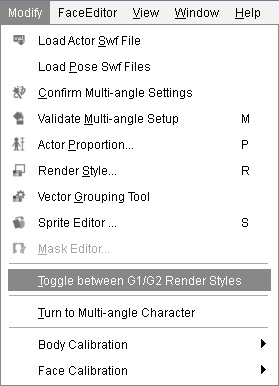
    • If you want to have ten default Render Style templates, then execute the Modify >> Toggle between G1 G2 render styles command for switching to the list with these templates.
    • Please note that you need to manually set the settings of the ten templates, including the Default one.
  10. The grouped components thus can be assign with different render styles.

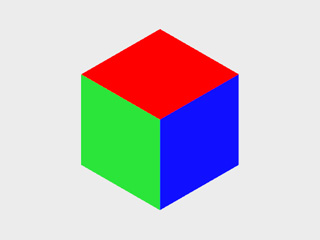
    The outline is turned off

    The colors of the surfaces are adjusted (Retro style).

    Note:

    Please refer to the sections below for more information: