Photo Re-Projection
Image Mode generates a high quality face mesh and textures based on the photo, however there might still be minor flaws such as mesh and photo (texture) are not exactly aligned with each other. We can easily fix the issue using the Sculpt Morph tool and Headshot Morph 1400+. Once the mesh has been properly modified, simply press Re-Project Photo to produce the texture again with improved visual quality.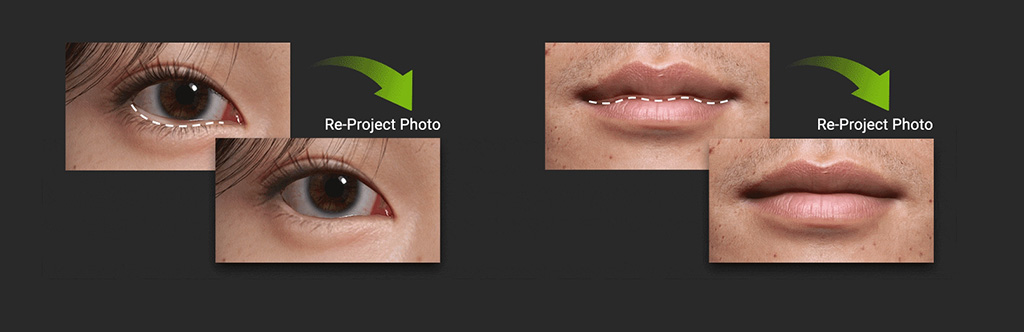
Below are an example of how Re-Project Photo works:
- The mesh of lip corners and the texture are not perfectly aligned with each other.
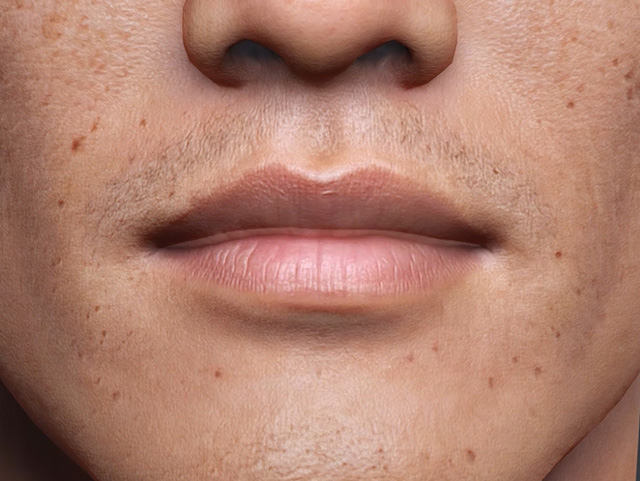
- Use Sculpt Morph tool and morph sliders to reform and align the lips to the source photo.
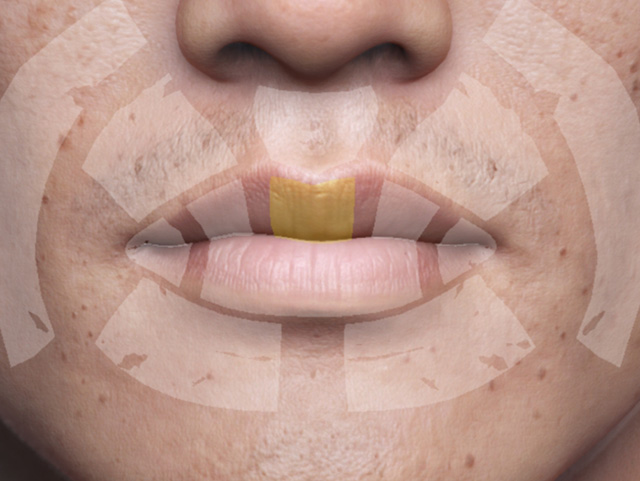
- Click on Re-Project Photo to recreate the texture.

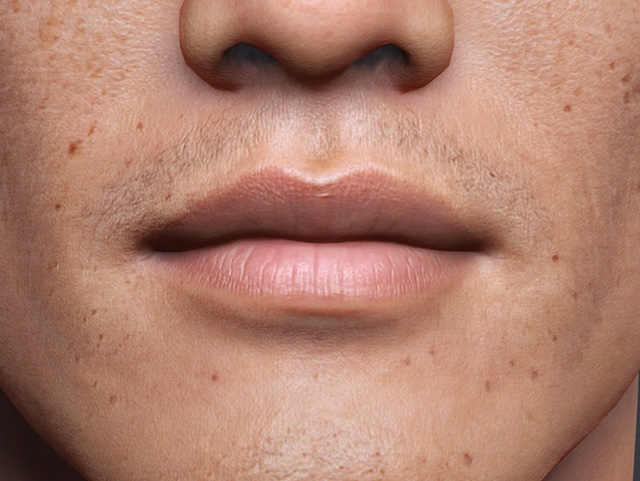
- After re-projecting, the texture now perfectly aligns with the mesh.
Related content:
- Changing Source Image: Used to project a modified version of the original image onto the character’s texture. This helps refine details such as removing eyebrows or hair to avoid coverage issues, removing makeup, correcting uneven lighting, and improving 4K upscale results.
