Theory for Stencil & Clone Brush Tools
Before using the Stencil and Clone Brush tools, it is important to understand how texture modifications are stored and applied.
- When using the Stencil or Clone Brush tools, brush strokes are painted onto a temporary Correction Layer instead of directly modifying the original texture.
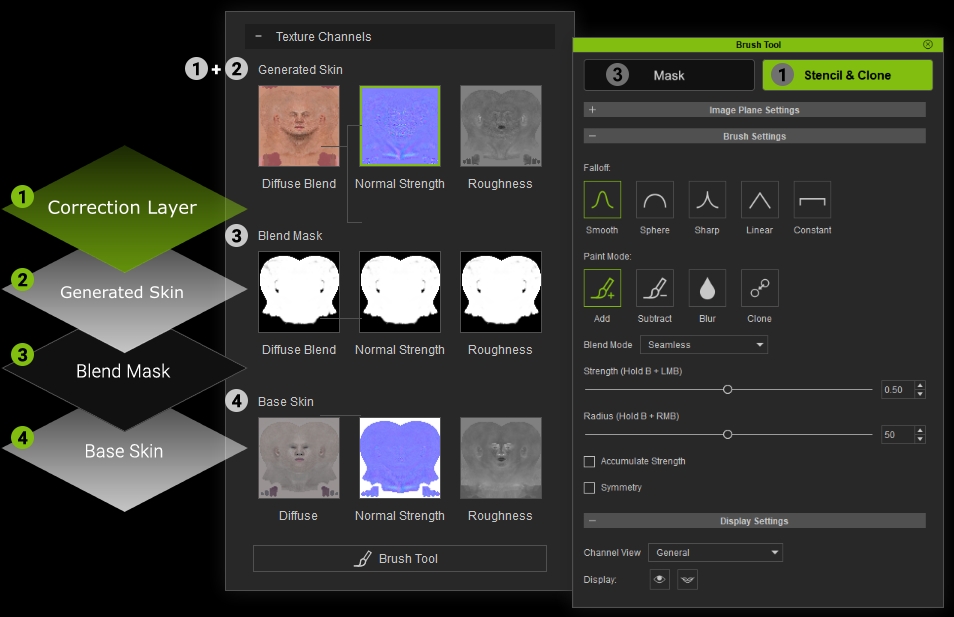
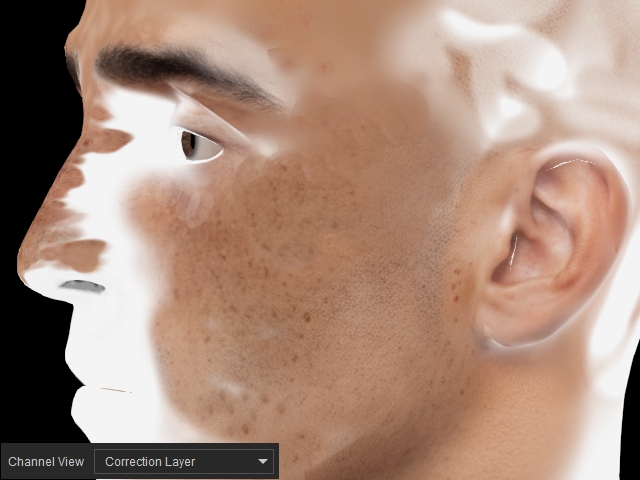
- The Correction Layer is overlaid on top of the current texture channel, allowing you to preview edits non-destructively. Its contents can be viewed by selecting the corresponding channel from the Channel View drop-down list in the Display Settings section of the Stencil & Clone Brush Tool panel.
 Note:
Note:Until Merge Layer is performed, the original texture remains unchanged and all edits exist only on the Correction Layer. Modifications can be refined or removed at any time using the Subtract brush mode in Stencil & Clone mode.
-
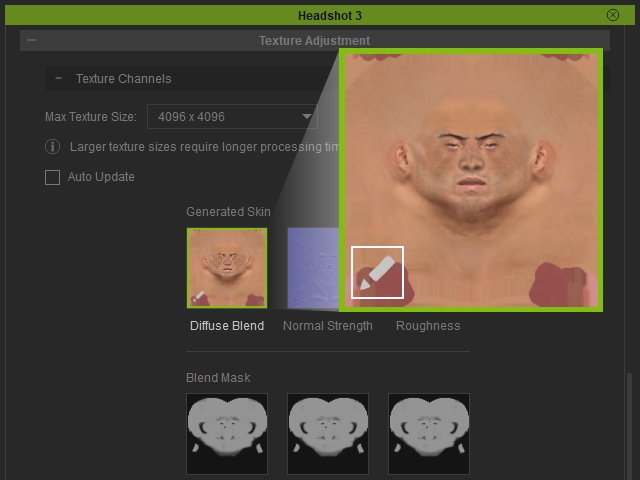
Texture channels with an existing Correction Layer display an indicator icon at the lower-left corner of the channel thumbnail.
-
After you are satisfied with the modification made in Stencil & Clone Brush Tool, click Merge Layer from the Tool list in the Texture Channel sub-section, to permanently apply the modifications to the underlying texture.
 Note:
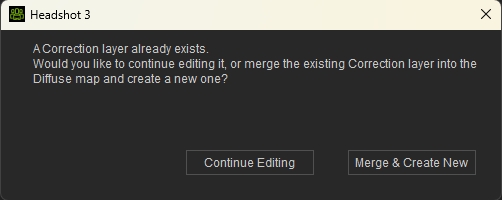
Note:If a texture channel already contains a Correction Layer, entering the Brush Tool displays a dialog prompting you to either continue editing the existing Correction Layer or merge it with the underlying texture and create a new Correction Layer for further painting. For best performance and smaller project files, it is recommended to merge Correction Layers that no longer require editing.