Transferring Contents to Unreal
In order to enrich Unreal scenes with iClone content, you'll need to transfer these contents to Unreal through the Live Link Plug-in. Currently, the supported contents for transferring are characters (standard, non-standard and non-human), lights (directional light, rectangle light, point light and spotlight), Props and cameras. Refer to the Supported iClone Contents section for more information.
- Create an object in iClone (in this case, a standard character).

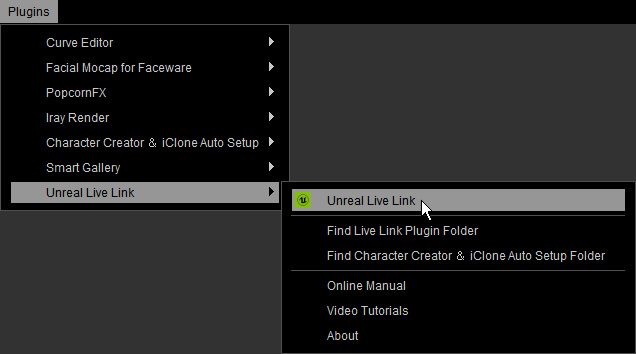
- Launch the Unreal Live Link panel (Plug-in menu > Unreal Live Link > Unreal Live Link).
- Switch to the Transfer mode and activate the check-box of the objects that you desire
to transfer to Unreal.

- Confirm in the Skeleton drop-down menu that the desired Unreal Skeleton has been selected.

- Click the Transfer File button at the bottom of the panel.
 Note:
Note:- Refer to the Transfer Files Setting section for more information.
- The activated contents will be completely transferred to the current Unreal level.
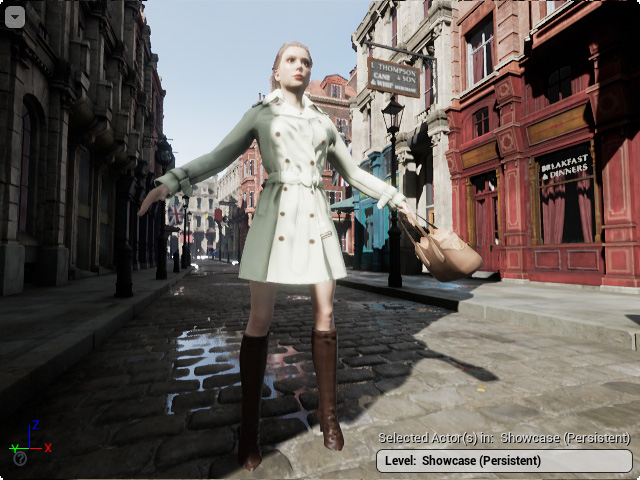
You can also find the content in the Content Browser panel as well (Content > RLContent > Camera, Light and Character folders). Note:
Note:- The pose of the transferred character is Unreal's default pose. If you want the character's pose identical to the one you see in iClone, you need to activate the link between Unreal and iClone with Live Link plug-in.
- Refer to the Connecting iClone and Unreal with Live Link Plug-in and Animating Transferred Contents in Unreal sections for more information.
- If you activate the link between iClone and Unreal with Live Link Plug-in, then you can animate the object with various iClone animation systems.

