Recording Spotlight Animations
The spotlight animations created in iClone can be sent to and controlled in Unreal. Furthermore, these animations can be recorded in Unreal for further usage. With Unreal v 4.21, the lights' animations are kept by means of the Sequence Recorder
Mapping Lights in iClone and Unreal
- Prepare a spotlight in Unreal and iClone by one of the three methods below:


- Connect iClone and Unreal with Live Link plug-ins.
- Playback to view the light animations in Unreal authoring mode.
- Go to the start frame in iClone.
Recording Spotlight Animation in Unreal
- In Unreal, select the controlled spotlight.

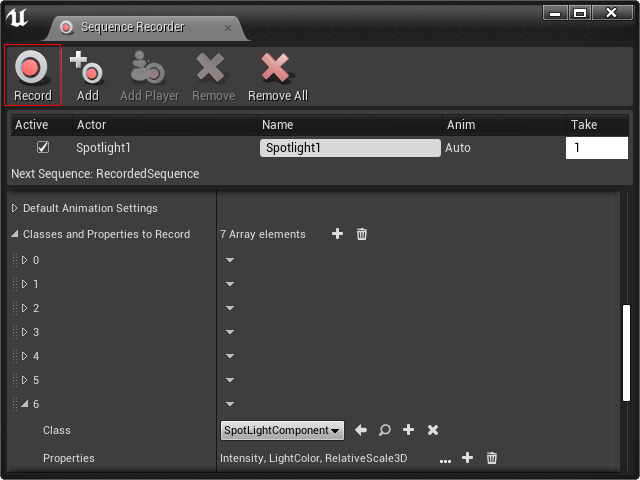
- Open the Sequence Recorder panel, click the Add button to add the spotlight into the list.

- In the Sequence Recording section, click the Add button to add one more class for recording.

- Set the Class to SpotlightComponent.

- Click the Choose Properties to be recorded for this class button of the Properties to determine the settings for receiving the spotlight data from iClone.

- Activate the Intensity, Light Color, and Transform settings in the Choose Properties to Be Recorded panel.

- Press the Record button to start recording.
The Unreal viewport will start to countdown.
- Play back the project in iClone to animate the spotlight after the countdown ends.
- Click the StopAll button in Unreal after the iClone project finishes.

- By default, the recorded file is saved in Content > Cinematics > Sequences > RecordedSequence folder.

- Double click on the sequence and you can see all the light's animation-related data in the Sequencer panel.

Examining Recorded Spotlight Animation
- Hide the original spotlight and select the spotlight in the sequence (marked with a lightning bolt).
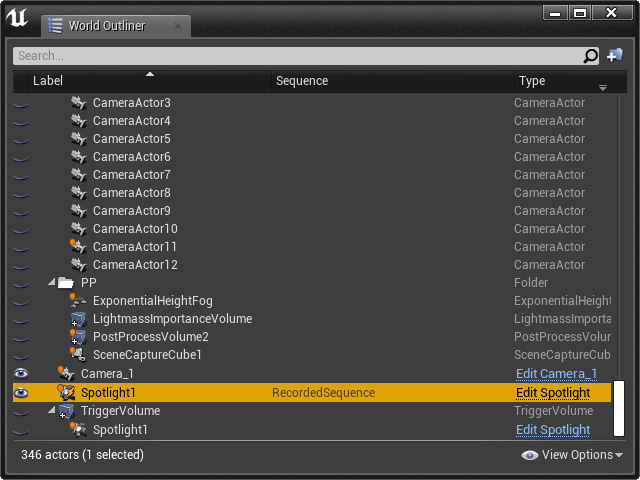
- In the Live Link section on the Detail panel, delete the Subject Name.

Keep in mind that this step ensure the spotlight's animation come from the recorded take instead of the spotlight in iClone.
Alternatively, you can remove the source from the Live Link panel instead of deleting the Subject Name of the spotlight.
- Click the play button to check out the recorded spotlight animation on the viewport.

- The light animation should be identical to the one triggered by iClone light.
