Using Check Position Point Nodes
The Check Position Point nodes can be used to verify whether a specific MD Prop position point is occupied by any character in the scene, and direct the flow toward different branching events accordingly.
** Please note that this node is best suited for scenarios involving interactions between multiple characters, or between characters and objects (props or MD Props).
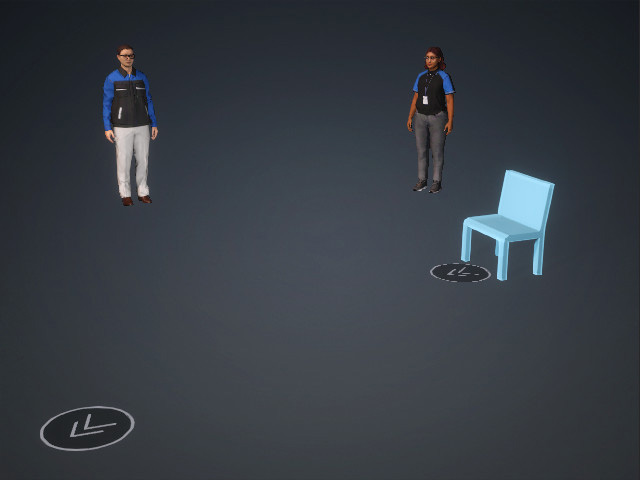
- Create a project with at least two characters, a MD prop, and a T2 State Switch node.
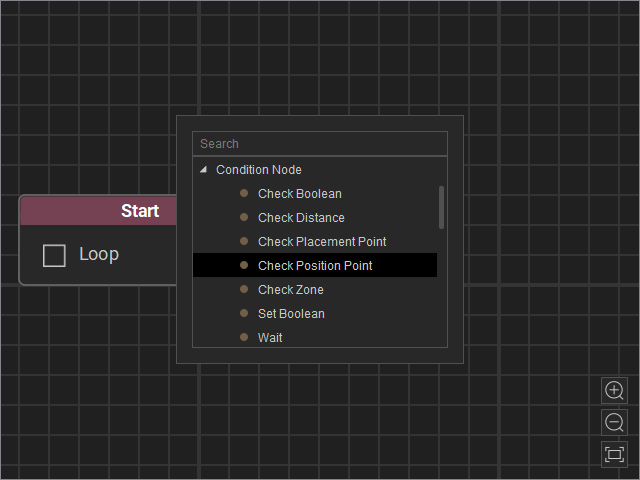
- Open the MP Node Graph panel. Right-click on the viewport space and choose Condition Node > Check Position Point.
A new Check Position Point node will be inserted on view.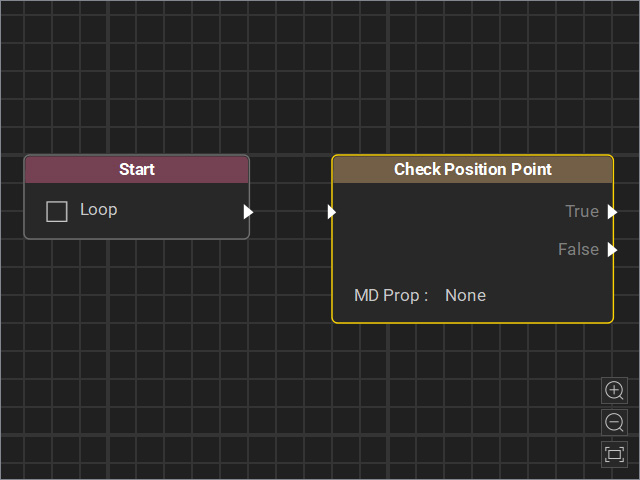
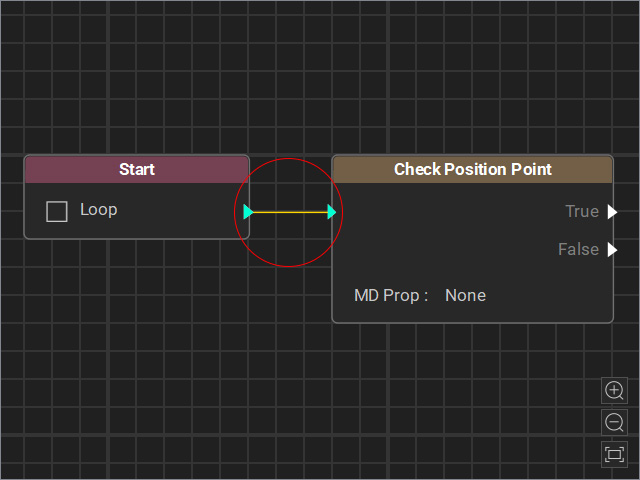
- Drag a flow line from the Start node’s output and connect it to the Check Position Point node’s input.
- Select the node and adjust the settings in the Attributes page.
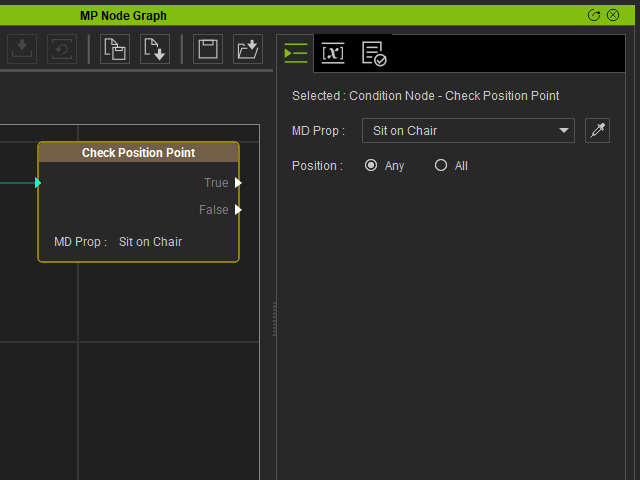
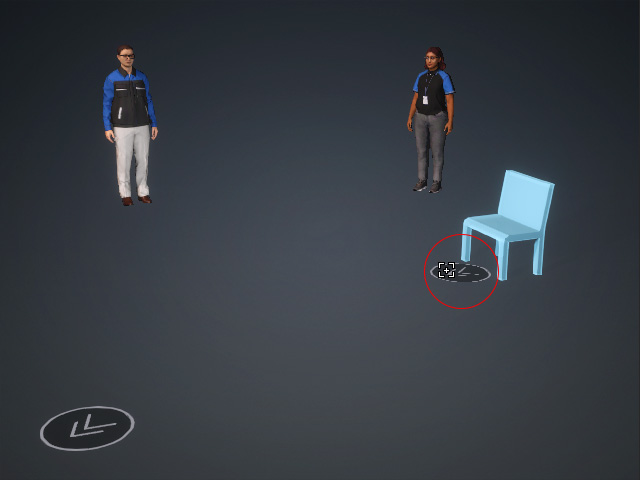
- MD Prop: Specify the target MD Prop for occupation status detection. If you use the dropper tool, click the waypoint marker (the flat disk with double arrows) instead of the model’s mesh.
- Position: Choose Any or All for the True / False judgment based on multiple crowd occupation points.
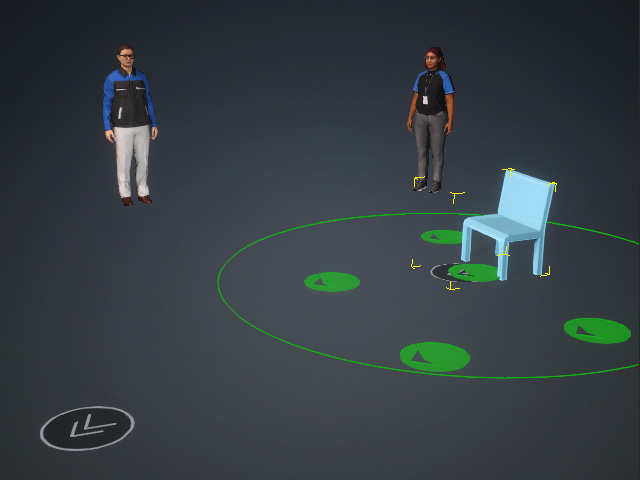
- Any: If any one of the points is occupied, the node outputs True.
- All: Only when all points are occupied does the node output True.
- MD Prop: Specify the target MD Prop for occupation status detection. If you use the dropper tool, click the waypoint marker (the flat disk with double arrows) instead of the model’s mesh.
- Connect events to the outputs of the Check Position Point node.
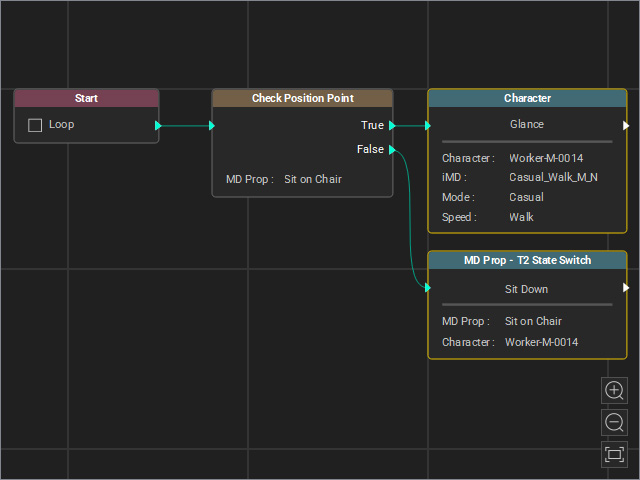
- True: Connect to a Character node, indicating that the character performs the Glance motion when the MD Prop is occupied.
- False: Connect to a MD Prop – T2 State Switch node, which causes the character to sit when the MD Prop is not occupied.
- Use joints to loop back from the True event for continuous detection.
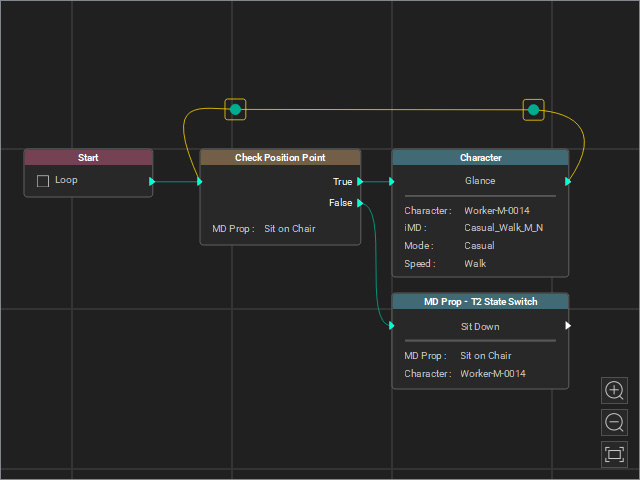
- Create another thread that drives the other character to walk to the MD Prop, occupy it, unoccupy it, and walk away.
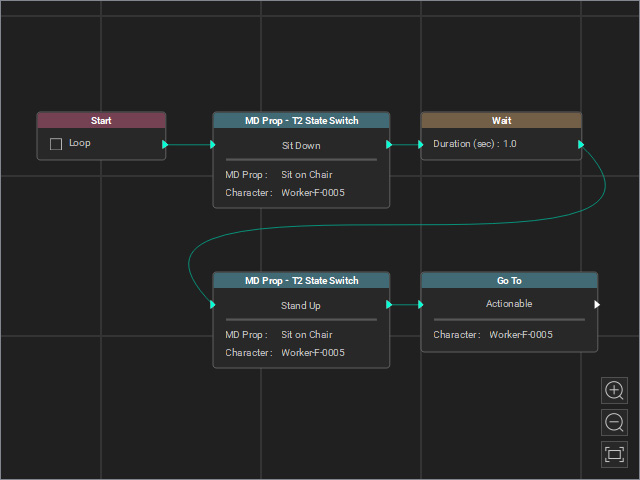
- Start the Go MD Mode to view the animation results.
