Applying Expression Curve Presets
Expression Curves adjust how facial motion capture data affects character expressions. By changing the curve response, you can control the intensity and smoothness of facial movements to achieve more natural results.
Expression Curve Presets provide ready-to-use curve settings that quickly adjust facial expression responsiveness without requiring manual curve editing. This feature is available only for characters using the CC5 HD or CC4 Extended Plus facial profile.
- Prepare a character in an iClone scene.
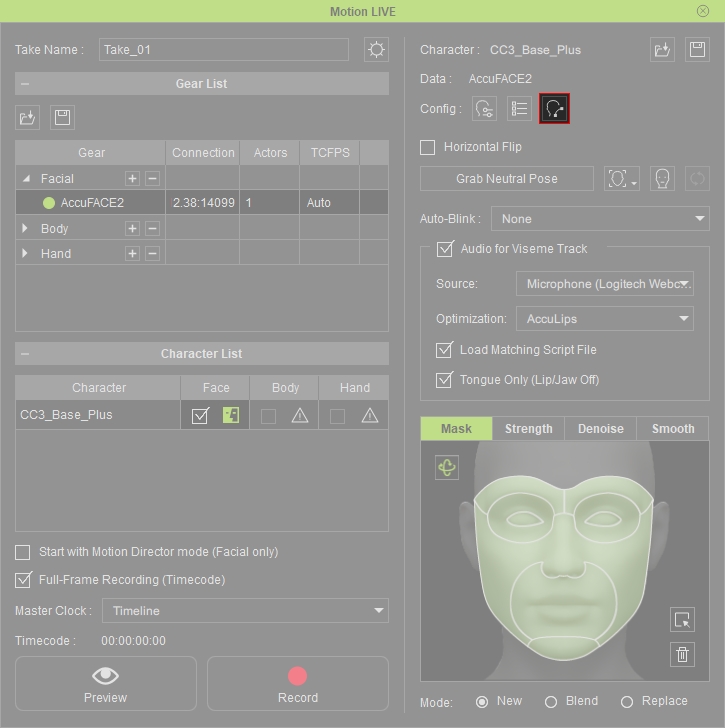
- Open Motion LIVE panel and make sure it is connected to the facial mo-cap device (AccuFACE2, for example).

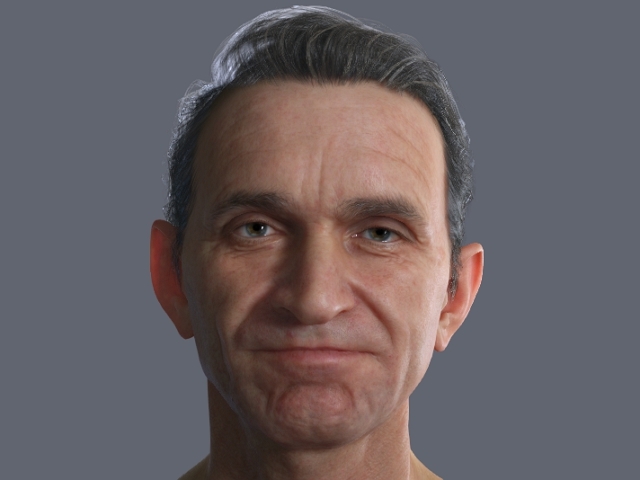
- Start previewing the facial mo-cap result. In this case, the transitions between facial expressions appear slightly unnatural.
- Stop previewing, click the Expression Curves button to show the Expression Curves panel.
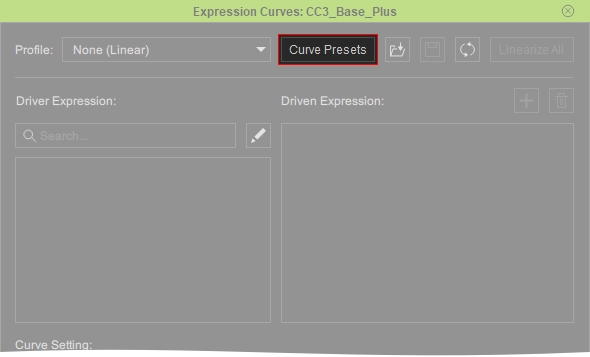
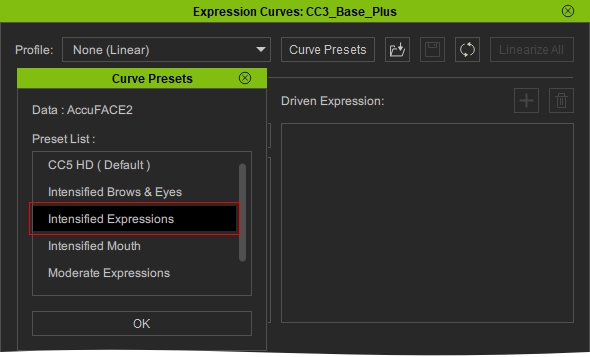
- Click the Curve Presets button to open the Curve Preset List panel.
- Pick the desired Preset from the drop-down list and press OK, in this case, Subtle Expressions.
 Note:
Note:Make sure if your character has a CC5 HD expression profile applied to have all 5 presets available to choose from. If not, you will have only 2 to choose from with CC4 Ext+ Facial profile, and zero with the others.
- Click the Preview button and press the Spacebar to preview your own expressions on the virtual character. For better capture results, click the Grab Neutral Pose button to initialize the facial expression.

- Click the Record button and press the SpaceBar to start recording.
Note:
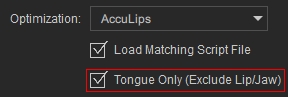
Prior to recording your facial performance, it is recommended to utilize the Acculips option to improve the precision of your character's mouth, lip and tongue movements.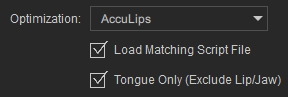
Turn on Tongue Only for best results in AccuFACE 2 workflows.