|
1 |
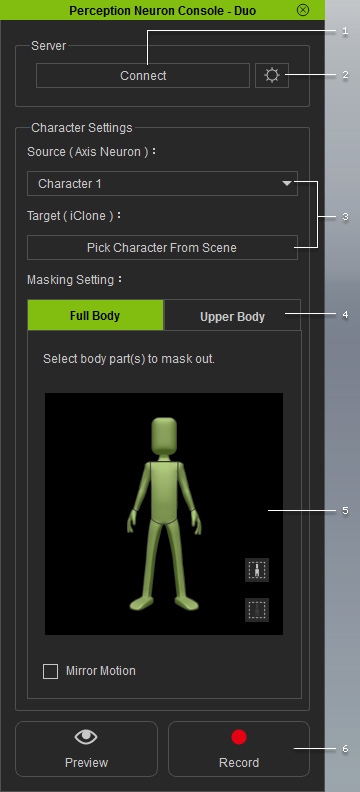
Click this button to connect the console to the Axis Neuron application for receiving motion data from it. |
|
2 |
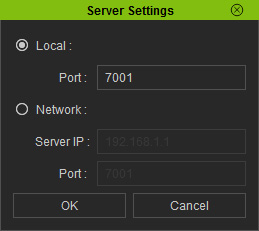
Click this button to open the panel for
Server Settings.
|
|
3 |
Use these two controls to map the virtual characters in iClone to the ones in the Axis Neuron if you want to have motions captured for two characters. |
|
4 |
Switch between these two tabs in order to capture the motion of the entire body or merely the upper body. |
|
5 |
Use the dummy to filter out the motion of the body parts you do not wish to capture. Please refer to the Multi-Layer Capturing section for more information. |
|
6 |
Click on these two buttons to view the Preview, or Record the captured motions. |