Smart Gallery Menu (New for v. 1.3)
You can access the Smart Gallery Menu by click on the down-arrow button at the top right
corner of the Smart Gallery panel.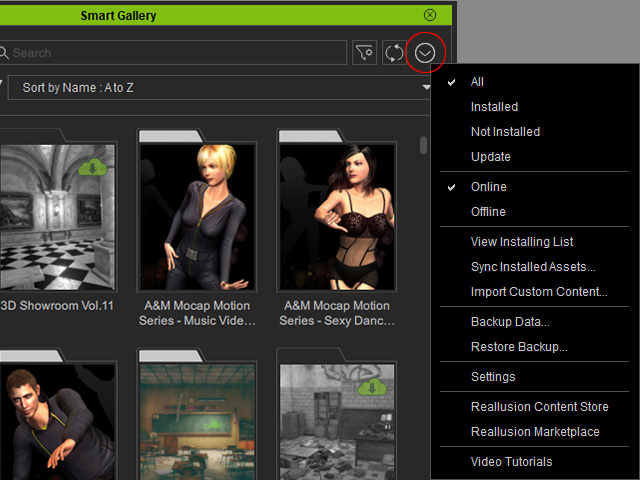
- Display Filter: Filters the contents for display (pack or item views).
- All: Displays all contents.
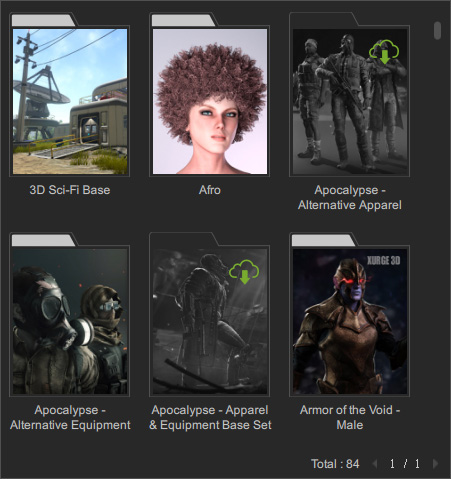
- Installed: Displays contents that have been installed.
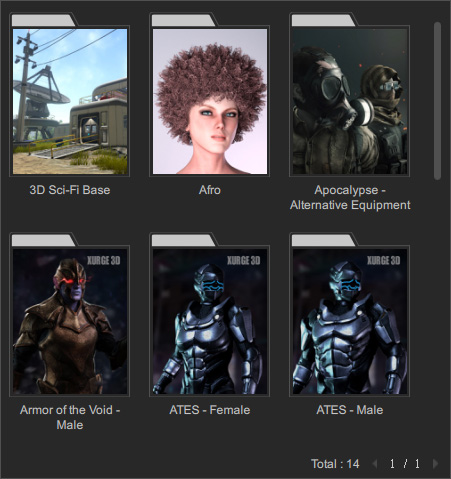
- Not Installed: Displays contents that have been purchased but yet installed.
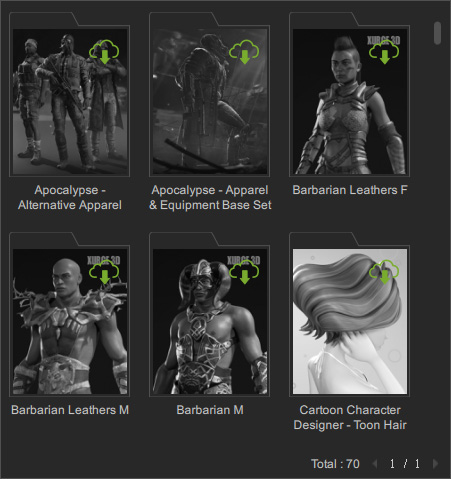
- Update: Only show the items that are currently updated. You can determine if you want to update the items ever installed on your local machine.
- All: Displays all contents.
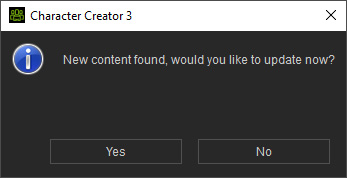
- Online / Offline: Choose one of these two commands to set the Smart Gallery online or offline in order to connect or disconnect to the content server. You will be asked to update your content whenever change happens on server only if you set Smart Gallery to Online mode.
- View Installing List: When one or more contents are installing, you can click this button to view the installing progresses of all contents integrated in a panel.
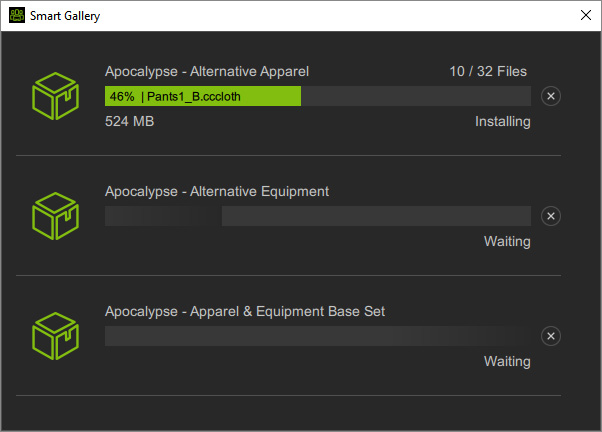
Click the cross button to stop installing. However, the installed items will not be removed. - Sync Installed Assets: If you manually move content, or install content using outdated means, then you must execute this command to sync with Smart Gallery's local database.
- Import Custom Content: Select this command to import custom contents that are created before iClone 7.6 or Character Creator 3.2. Refer to the Importing Custom Contents section for more information.
- Backup Data... / Restore Backup...: Use these commands to backup and restore meta-data or content with meta-data.
- Settings: Click this command to show the Settings panel for content-installation folders and for hiding the Update List or Invisible content.
- Reallusion Content Store: Opens the Reallusion Content Store with browser.
- Reallusion Marketplace: Opens the Reallusion Marketplace with browser.
- Video Tutorials: Opens the Video Tutorials web page with browser.
