Master Clock Options
It's recommended to set the Master Clock before starting the motion capture process. To help you decide which of the three options to use, consider the following scenarios:
 When going deviceless or using timecodeless devices:
- Option 1: Choose "System Timecode" as the master clock.
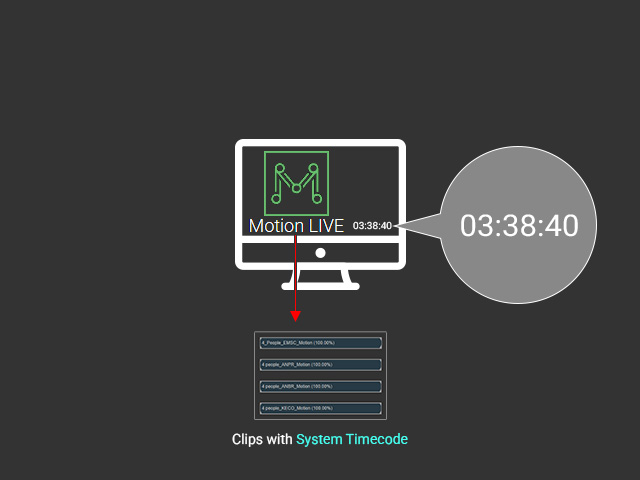
If you are not using timecode-generating devices or software, then you can choose to use system time as the master clock in Motion Live.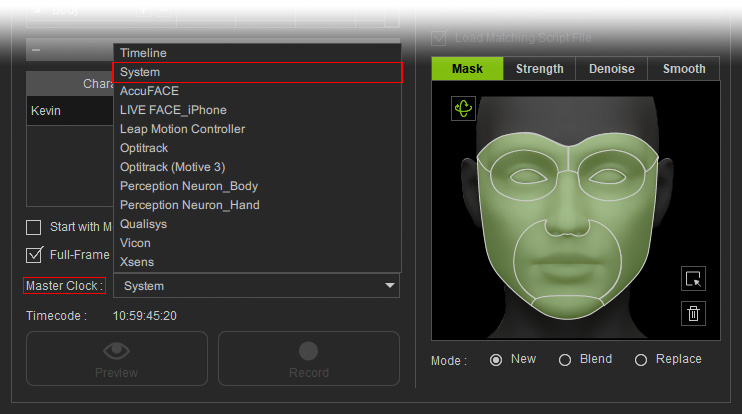
- Option 2: Choose "Timeline Timecode" as the master clock.
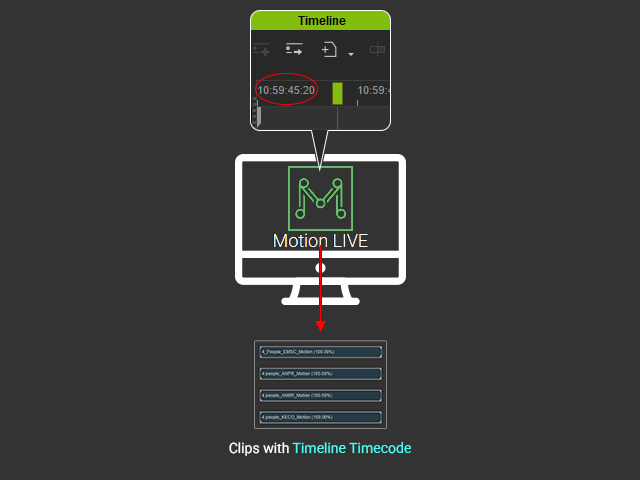
Choosing the timeline timecode will give you the option to adjust the timecode for the project.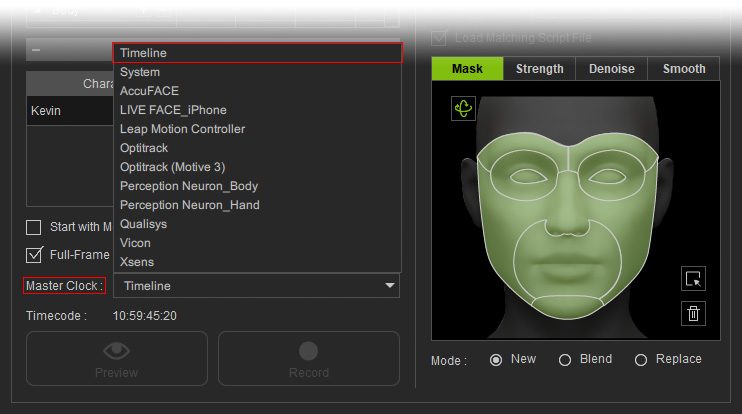
When working with body mocap devices that generate their own timecode:
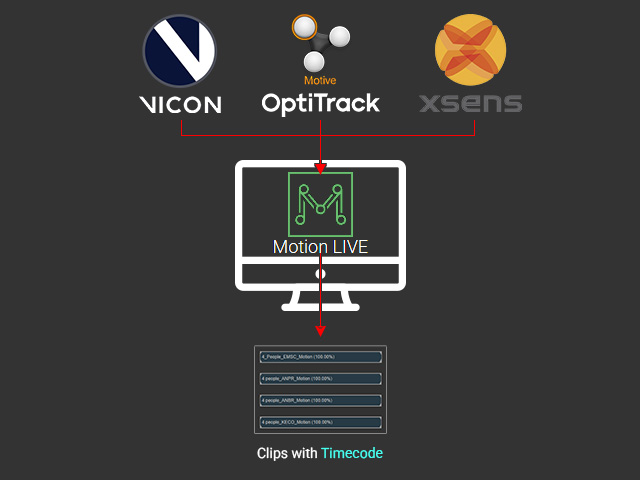
Enable the timecode generation for you devices:
Generally you'll want to source the timecode from the mocap software on your local machine when it's available. Devices that have this feature include Optitrack (Motive 3), Vicon and Xsens. You can choose one of these devices as the master clock in the Motion Live panel.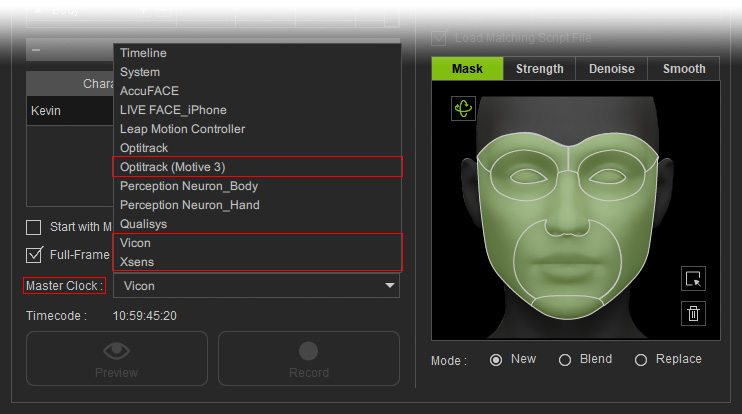
For face and body mocap devices connected to a timecode generator, like Tentacle Sync:
You also have the option to use timecode generators like Tentacle Sync to distribute timecode data for your capture devices.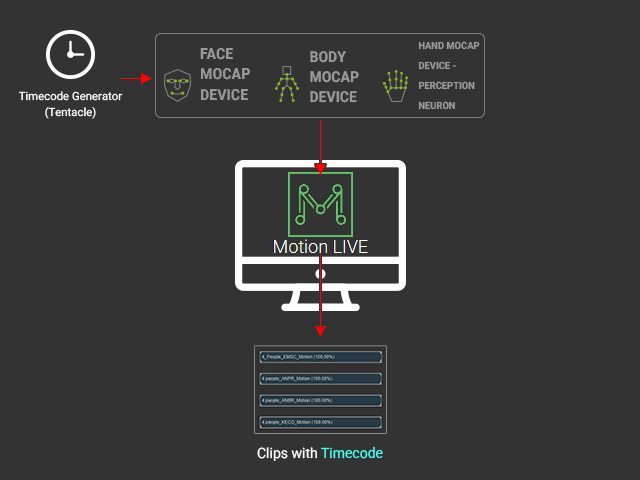
-
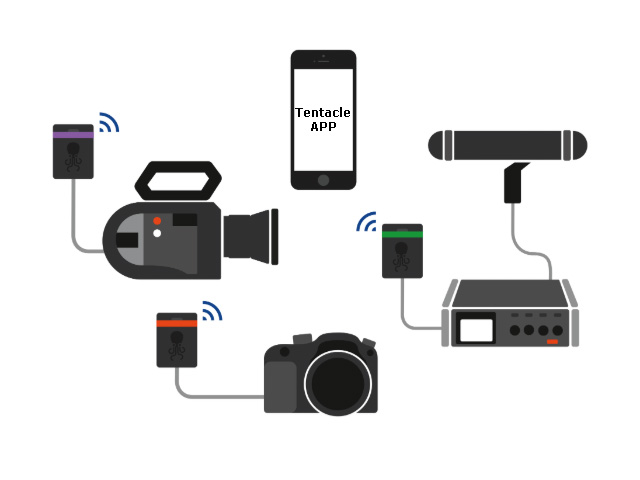
Mount the timecode generators onto your mocap devices. Tentacle and Mocap Devices
Tentacle and Mocap Devices
- Facial Mocap Device
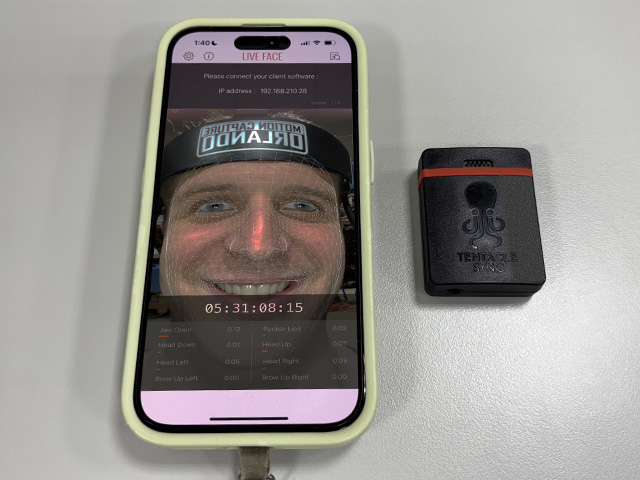
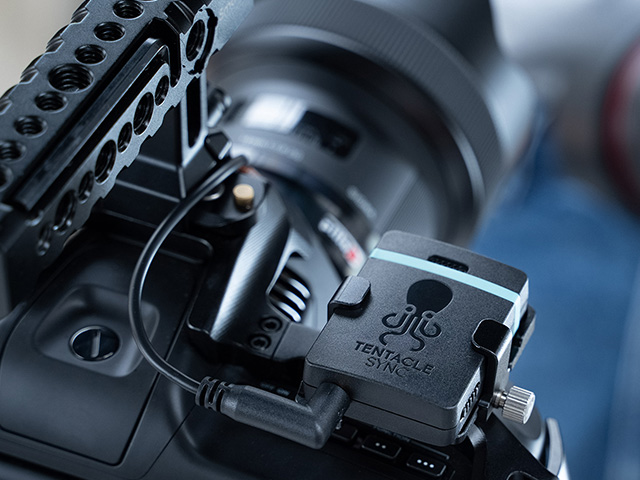
Tentacle Sync for iPhone - Live Face
Tentacle Sync on a professional camera using the AccuFace procedure
- Body Mocap Device (Perception Neuron for example)
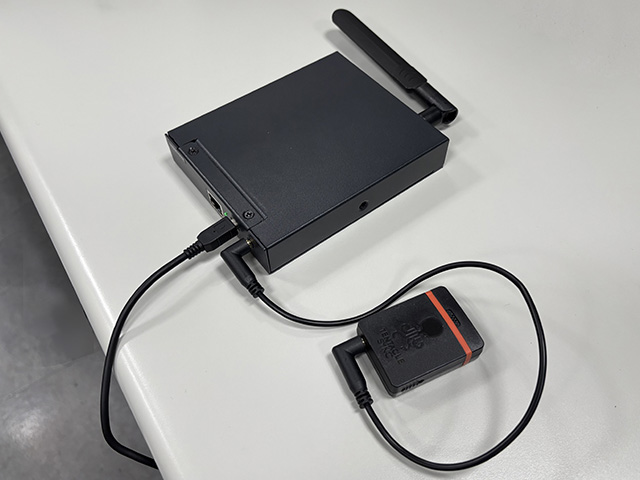
- Audio Recorder (Microphone)
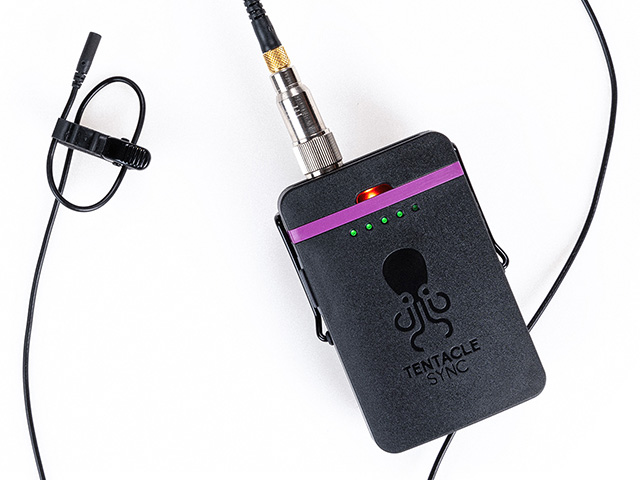
The voice with timecode data can be captured through the Motion Live panel.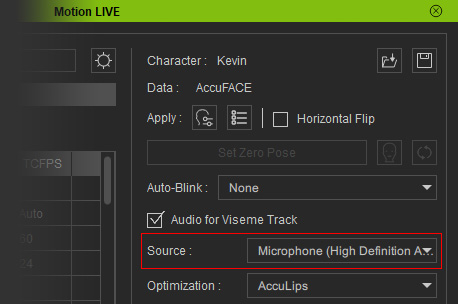
- When combined with the use of a professional camera, the timecode data will be embedded into the video recordings.
- Facial Mocap Device
- Synchronize the timecode generators. For Tentacle Sync this is done from a central app.Synchronization by Tentacle APP
- Make sure the timecode generators are all connected to the Tentacle app on your phone via Bluetooth.
- Open the Tentacle app on the phone. The detected timecode generator will be presented as a separate entry in the list.
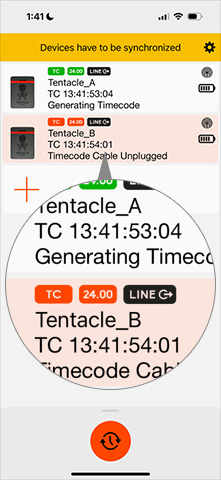
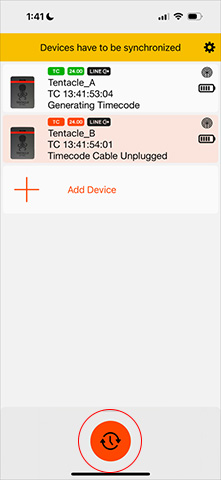
- Tap the Synchronize button.
- Tap the Start button.
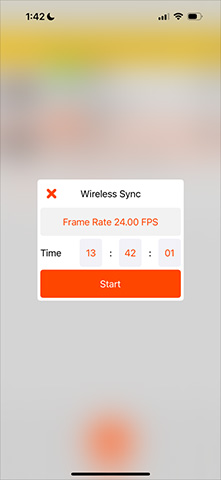
- Close the Sync dialog box and you will notice that the timecode generators are all synchronized.
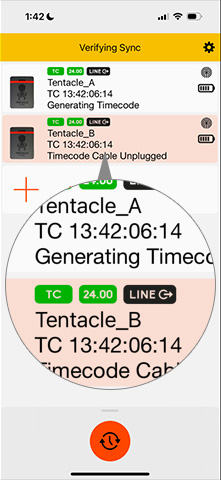
- Make sure the timecode generators are all connected to the Tentacle app on your phone via Bluetooth.
- Make sure the mocap devices are all connected to your local machine.
- In the Motion LIVE plugin panel, activate Full-Frame Recording (Timecode) and choose a Master Clock from the drop down list.
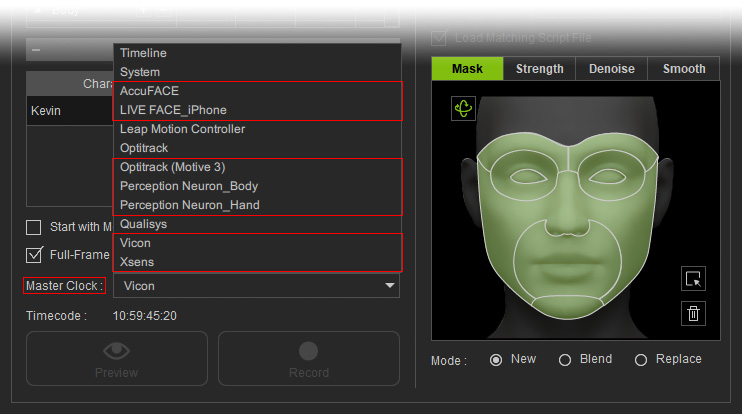
- Refer to the Mocapping Clips with Timecode Integrated section for more information on the mocap software settings.
