Upscaling Resolution
To enable faster generation, AI-generated results are initially produced at a limited resolution. You can use the Upscale slider in the AI Render View or the full History page to upscale images and videos for enhanced quality.
From AI Render View
Click the image or video in the History on the right to display it in the AI Render View.
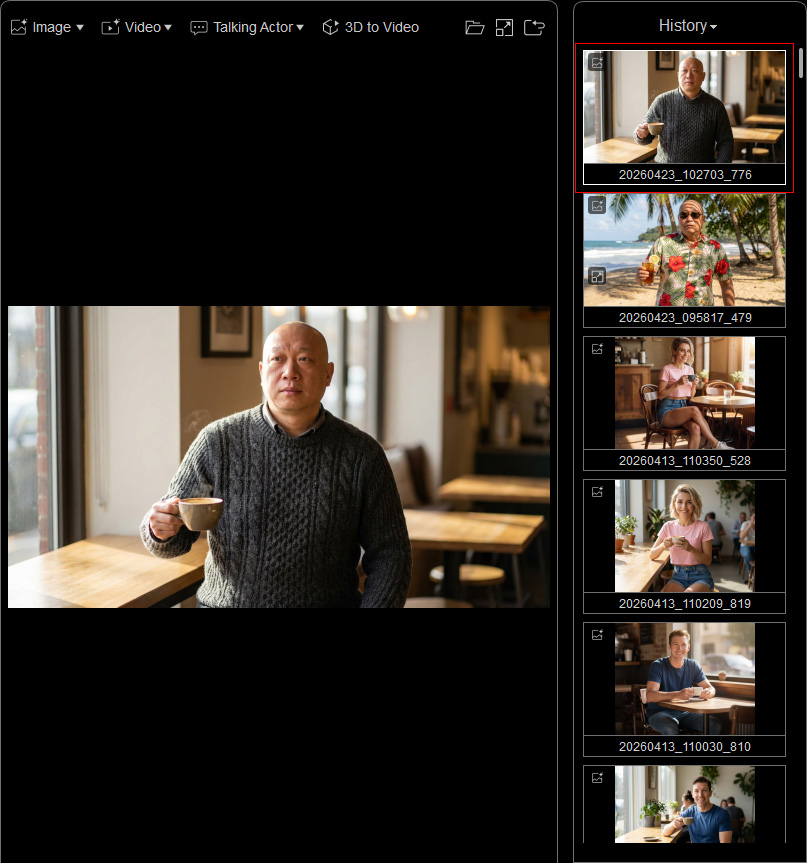
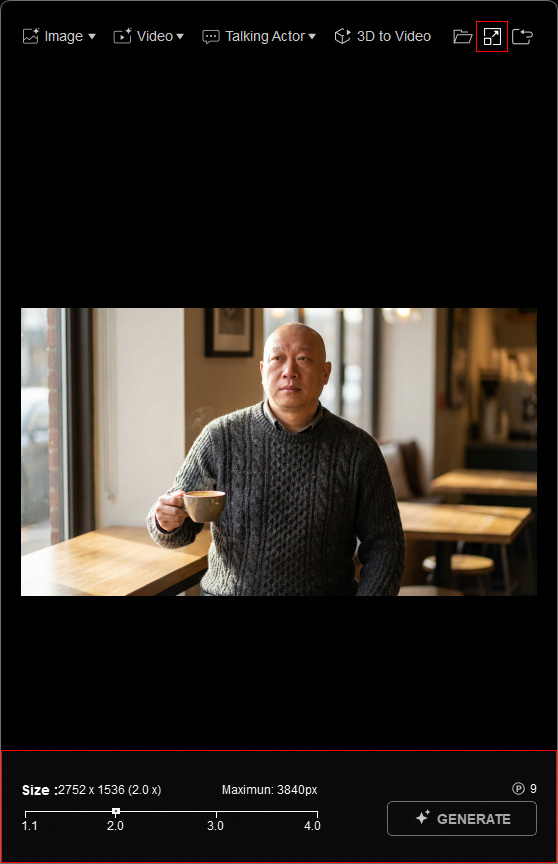
Then click the Upscale button in the top-right corner to reveal the scale options at the bottom.
From History
Double-click the item in the full History page.
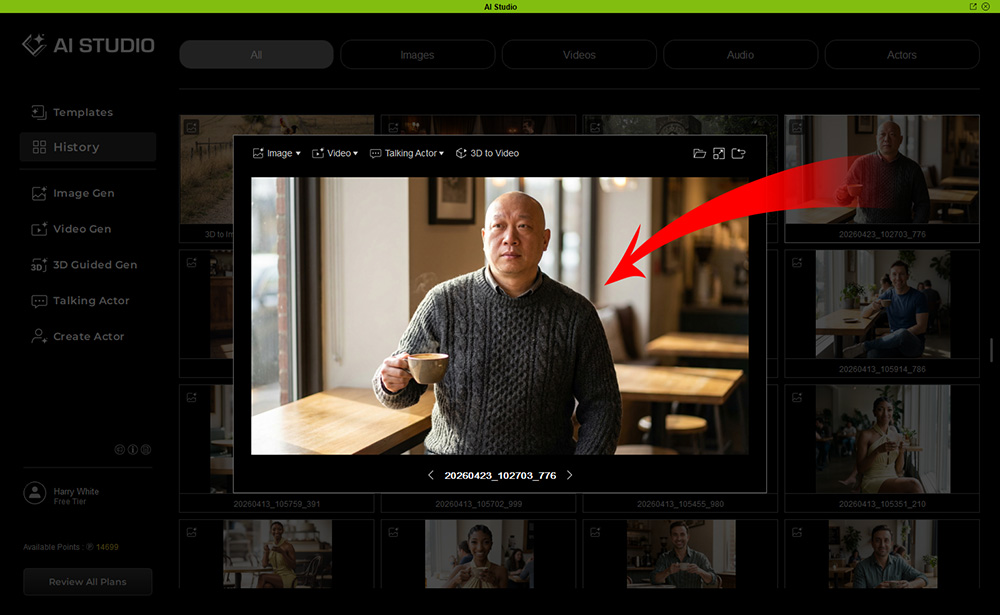
Then click the Upscale button in the top-right corner to reveal the scale options at the bottom.
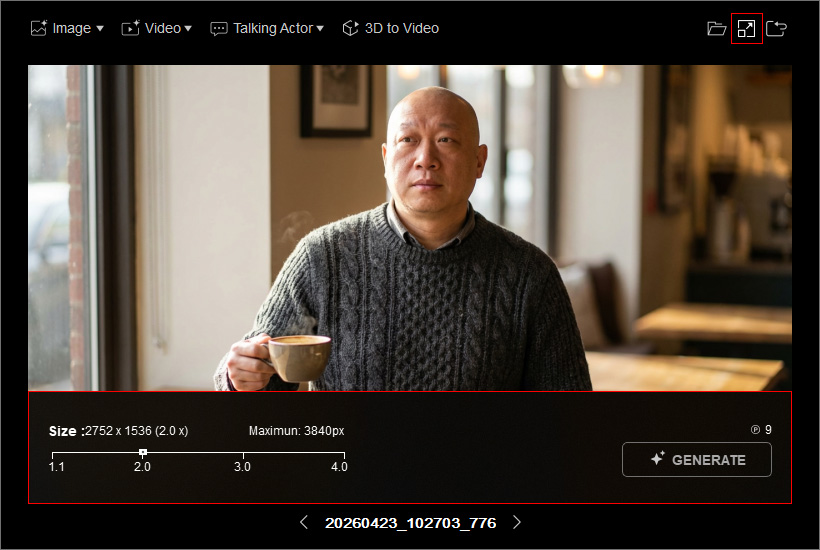
- Drag the slider to select a zoom level from 1.1x to 4.0x.
The upscaled resolution updates in real time, with a maximum side length of 3840 pixels.

- Click the GENERATE button to re-render the image or video.
Note the task price displayed on the button before clicking.
When the submission completes successfully, the upscaled media appears as a new entry in the History, marked with an Upscale
 icon in the bottom-left corner of the thumbnail.
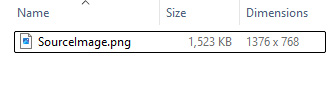
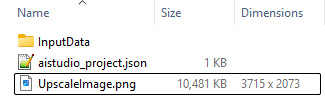
Note that the Rework feature is not supported for upscaled media. - Right-click the thumbnail and choose Find File to locate the file, then compare it with the original file stored in the InputData folder.
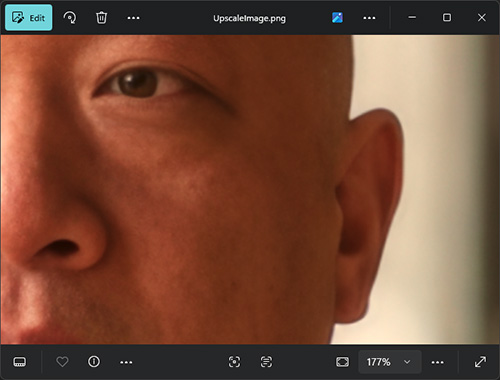
Before Upscale After Upscale 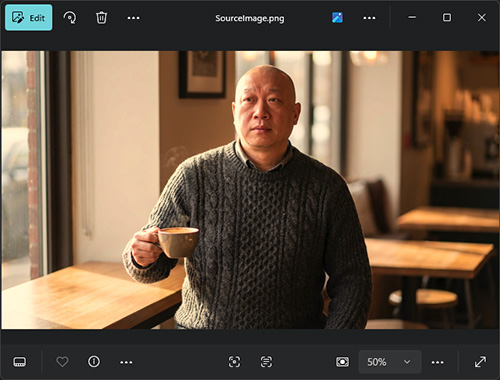
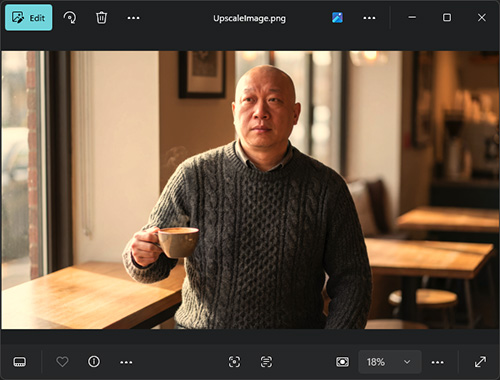
- Zoom in on the images to observe the differences in detail before and after upscaling.
Before Upscale After Upscale 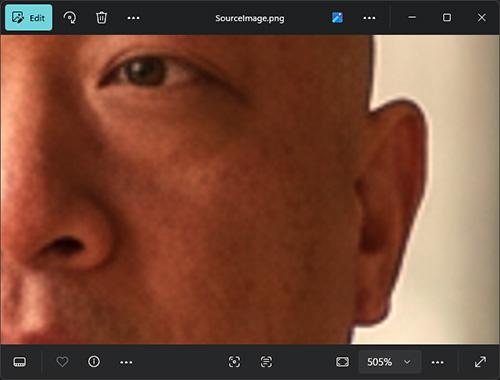
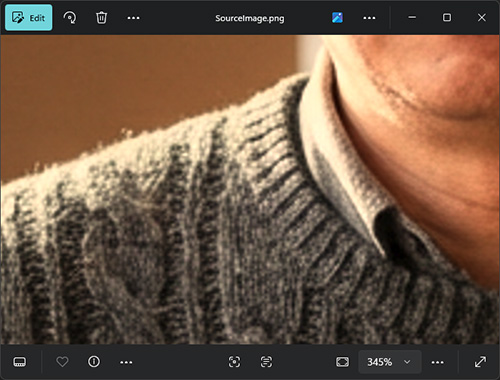
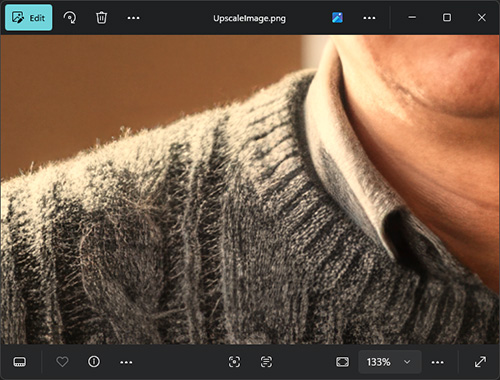
Skin details and facial silhouettes appear vague and aliased, with blurred fabric textures.
Skin details and facial silhouettes appear sharp and smooth, with more refined fabric textures.
