Applying Content via Drag and Drop
You can drag content or image files onto the clothing to apply them. By using Color IDs that divide the CC mesh into separate regions, you can apply fabrics or patterns to specific garment areas.
- Drag-dropping into the Layer Manager.
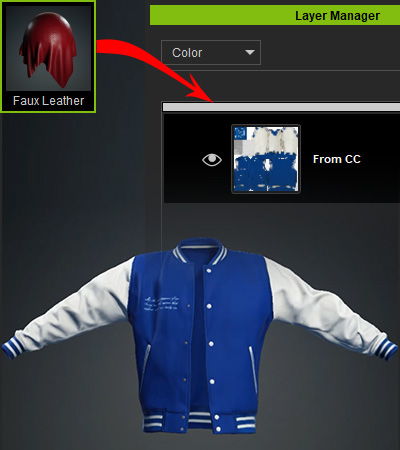
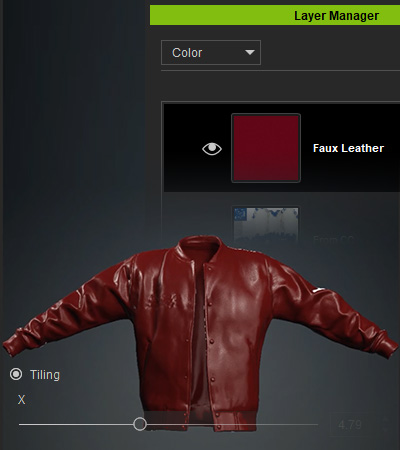
Drag the Faux Leather content into the Layer Manager, and drop it in the desired layer order.
The leather fabric is applied to the jacket as a new layer above the base. Adjust its tiling as needed.
- Drag-dropping into the Texture Editor.
The existing image in the channel will be replaced.
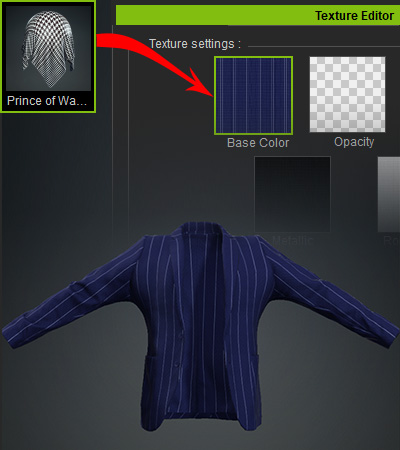
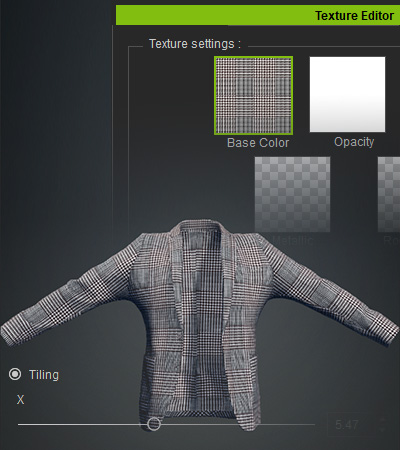
Drag the Prince of Wales Check content into the Texture Editor, and drop it onto the Base Color channel.
The crossing pattern replaces the current image in the channel and updates the texture on the suit. Adjust its tiling as needed.
- Drag-dropping onto the viewport.
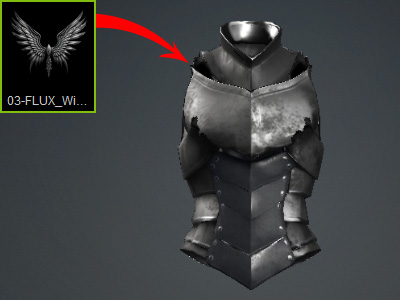
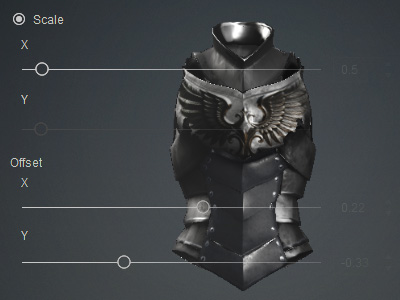
Drag and drop the decal image onto the viewport.
The decal is applied to the armor. Adjust its size and position as needed.
- Drag-dropping into the Stamp Tool.
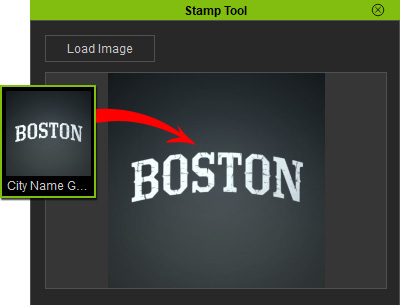
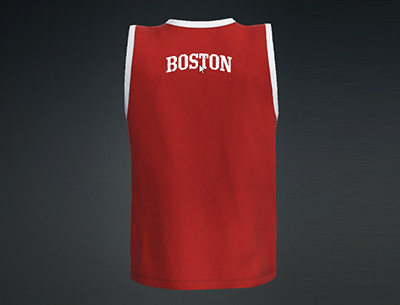
Drag and drop the decal image into the Stamp Tool panel to use it as the stamp image.
Adjust its size and orientation as needed. Click the desired area on the tank to apply the decal there.
- Drag-dropping an image file into the viewport.
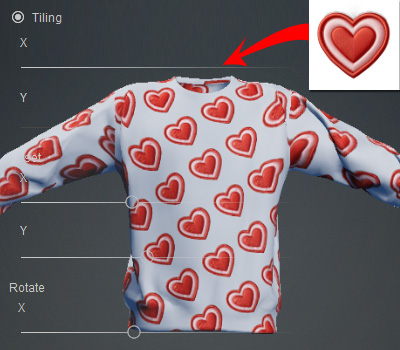
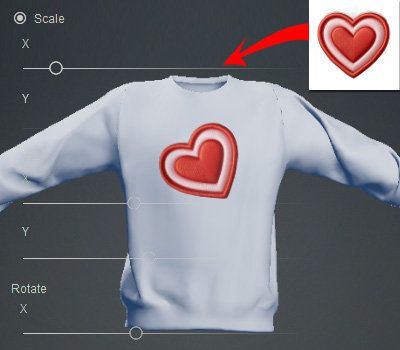
Tile it across the clothing for a seamless pattern.
Adjust its size, position, and orientation to use it as a decal.
