Content Manager
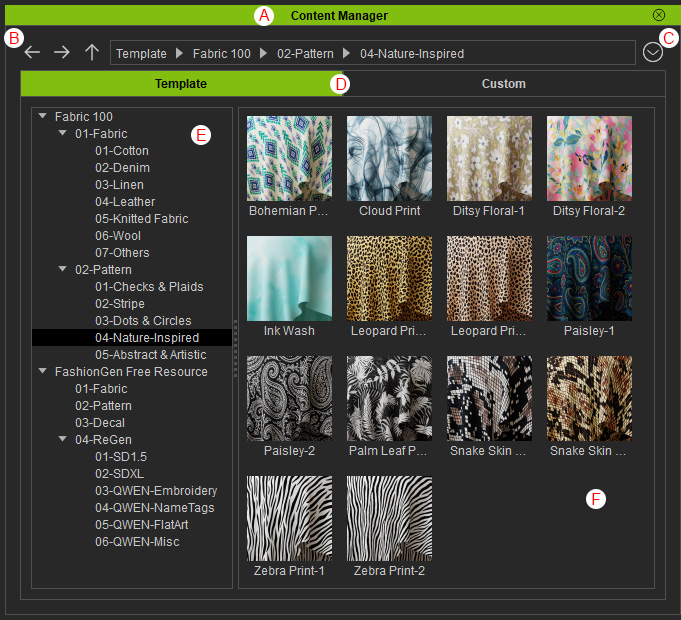
You can browse embedded or purchased texture and material assets, save AI-generated textures, and regenerate AI-based textures in the Content Manager.
|
Function |
Description |
|
|
A |
Dock / Undock |
Double-clicking on the caption anchors the panel to the docking area or undocks the panel and make it float above the main window. |
|
B |
Navigation Bar |
This bar contains the Back, Forward, Upper Level buttons and the content location and folders that are organized by hierarchy. Clicking the folder name on a higher level can quickly switch the content view back to the parent level. |
|
C |
Menu |
Accesses the commands for locating content, re-generating or deleting custom content. |
|
D |
Template and Custom Tabs |
Switches to a different view for Template or Custom content.
|
|
E |
Category Tree View |
Shows all or a specific content pack category. |
|
F |
Content List |
Lists available content folders and contents under a specific content pack. |
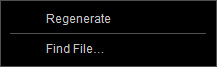
Right-click Context Menu for Template Content
|
Command |
Description |
|
Regenerates the selected content (decals only). |
|
|
Find File ... |
Browses the currently selected folder or item with your file browser. |
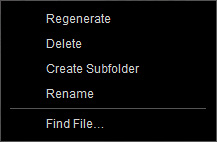
Right-click Context Menu for Custom Content
|
Command |
Description |
|
Regenerate |
Regenerates the selected content (patterns and decals only). |
|
Delete |
Deletes the selected item. |
|
Create Subfolder |
Creates subfolders to organize custom content. |
|
Rename |
Renames the selected item. |
|
Find File ... |
Browses the currently selected folder or item with your file browser. |
